How to Unpublish a Claude Artifact — and When You Only Get One Shot
Newer artifacts: click Share and set access back to Only you, which you can undo. Legacy published artifacts: click Unpublish, which is permanent and deletes their stored data.
Which steps you need depends on when the artifact was made. Claude changed artifact sharing on 16 September 2026: artifacts made since then use a Share button, and artifacts made in a chat before that date are legacy artifacts that keep the older Publish button. The steps below follow Claude's Share artifacts help article as of November 2026.
Unpublish a legacy artifact (it shows Publish)
- Open the artifact — from the chat it was made in, or from Artifacts in the sidebar.
- Open its publish control in the artifact's top-right corner.
- Click Unpublish and confirm. The public link stops working.
On Team and Enterprise plans legacy artifacts have no Publish button: they were shared with Share & copy link. To undo that, click Share in the upper right of the artifact, then Unshare in the Artifact shared dialog.
Stop sharing a newer artifact (it shows Share)
- Open the artifact and click Share.
- Under Who has access, choose Only you (Pro, Max, Ultra) or Only people invited (Team, Enterprise).
- To remove someone you added or invited, open their access level and select Remove. Their access ends right away.
This one is reversible: it's a setting, and you can share the artifact again later. Two things to know. On Pro, Max and Ultra, people you invited by email keep their access when you switch to Only you, so remove them individually. And sharing settings can't be changed in the Claude iOS or Android apps; use Claude on the web or Claude Desktop.
The rest of this page is about the legacy Unpublish, because that's the one with a catch.
Why unpublishing a legacy artifact is a one-way door
Per Claude's Help Center, unpublishing is permanent. That specific artifact cannot be published again — to share it later you'd need a new artifact — and unpublishing also permanently deletes any personal and shared storage data the artifact used. There is no re-publish button waiting for you to change your mind.
That makes unpublishing less like toggling a setting and more like deleting a file. Worth two minutes of thought before you click.
Before you unpublish, do these three things
1. Save the code. Use the controls at the top of the artifact panel to copy or download it first. Unpublishing also deletes the artifact's stored data, and if you ever lose the chat as well you're asking Claude to rebuild something from memory. Thirty seconds now.
2. Find out where the link is. Search your sent mail, Slack, and any ticket system for the URL. Anyone who saved or bookmarked it is about to hit a dead link with no explanation. That's fine if the point was to cut off access; it's an unpleasant surprise if the page was a shared reference and you just wanted to move it.
3. Decide whether you need a replacement link. This is the one people skip, and it's the one that hurts — because after unpublishing, the same artifact can't go back up. If a live page still needs to exist somewhere, set that up first.
If you're unpublishing to move the page somewhere else
Do it in this order, and there's no gap where the page is unreachable:
- Copy the artifact's code from the panel.
- Paste it onto a new link and confirm it works — JavaScript runs, so interactive artifacts stay interactive.
- Send the new link to anyone still using the old one.
- Then unpublish the Claude version.
The reason to move rather than just take it down is usually that you want the lifecycle in your own hands: a link you can update in place, take down and put back up, put a password on, or point at a custom slug. Claude's publish is deliberately simple, and one-way unpublish is the price of that simplicity.
If you're unpublishing because it shouldn't have been public
Then unpublish immediately — the permanence is working in your favour here, and nothing above should slow you down.
But be clear-eyed about what unpublishing does and doesn't achieve. It stops the URL resolving from now on. It does not retract anything already read, copied, screenshotted, or remixed while the link was live. Signed-in Claude users who opened a published legacy artifact could copy it into their own chat, and those copies are theirs.
So treat unpublishing as stopping further exposure, not as undoing it. If the content was genuinely sensitive, the follow-up work — rotating anything that leaked, telling whoever needs telling — isn't optional just because the link is dead.
Why this catches people out
Every other "publish" button most of us use is a toggle. Google Docs sharing, Notion's public pages, a WordPress draft — and Claude's own newer Share menu — all flip back and forth freely. Legacy Publish doesn't, and nothing in the interface at the moment of clicking makes that obvious.
The practical rule: treat legacy Publish as a one-time decision per artifact. If you expect a page's visibility to change over its life — public for a launch, private afterwards, public again for a retrospective — that page wants a host with a reversible switch. A password is one version of that switch; a link you can take down and restore is another.
"Delete" and "unpublish" are not the same button
A lot of people arrive here having searched for how to delete a Claude artifact, which is three different intentions wearing one word. It is worth separating them, because only one of them takes a public link down.
You want the public link to stop working. That is unpublishing (legacy) or changing Who has access (newer artifacts), and it is the subject of this page. It is the only one of the three that is explicitly about the URL.
You want the artifact out of a conversation. That is a Claude-side edit to the chat, and it is about your own workspace rather than about anyone else's access.
You want the whole conversation gone. Deleting a chat is account housekeeping. The important thing here is what not to assume: do not treat deleting the conversation as a way of taking a published link down. If the link is the thing you need gone, unpublish it or stop sharing it explicitly first, then delete whatever else you want. Anthropic's own documentation is the authority on what deletion removes, and it is worth two minutes of reading before you rely on it — an assumption that turns out to be wrong leaves a live public URL behind while you believe you have removed it.
The general rule: removing something from your side of the screen is not the same as removing it from the internet. Unpublishing, or stopping sharing, is the action that speaks to the URL. Everything else speaks to your account.
If you move the page to dochost: taking it down is not one-way
The reason unpublishing a legacy Claude artifact hurts is that it is a single irreversible switch. If you republish the page somewhere you control first, you get several smaller switches instead. Each one can be turned back.
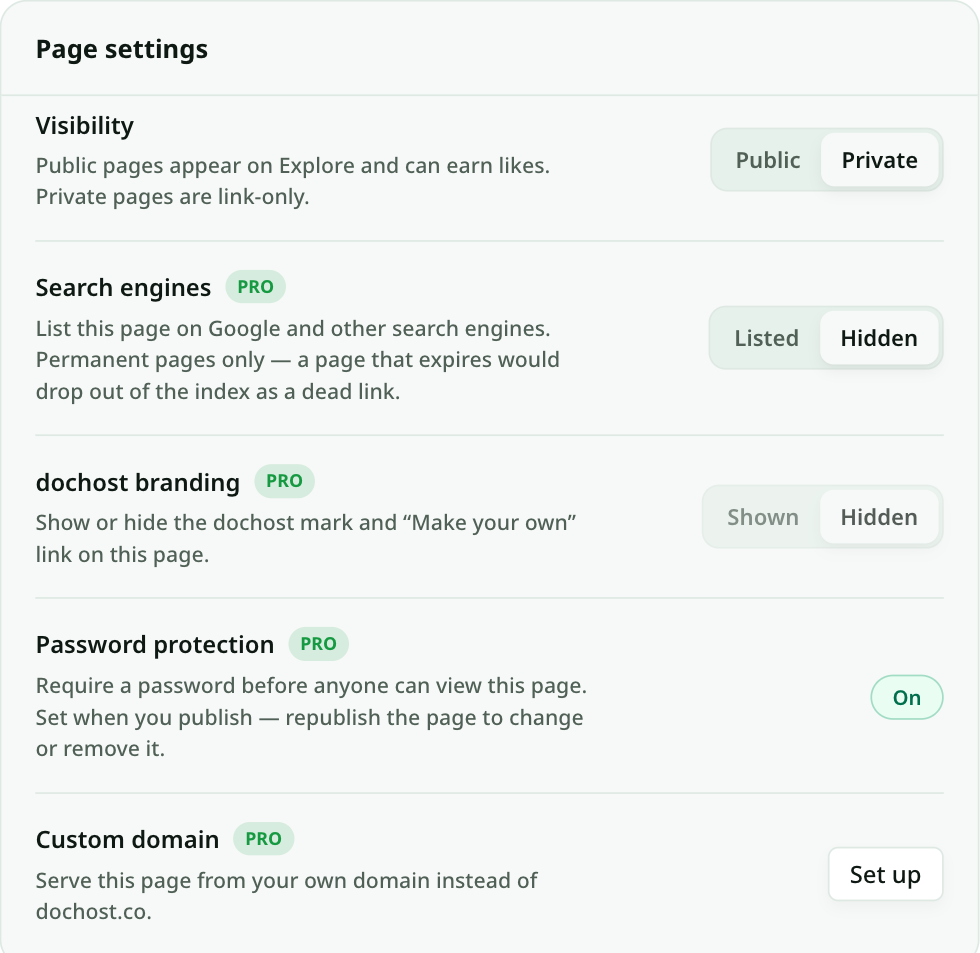
- Visibility: Private. The page drops off dochost's public Explore feed and becomes link-only. Anyone who already has the URL can still open it. Anyone who doesn't will not come across it.
- Search engines: Hidden. This is already the default. A page only appears in Google if it is permanent and you list it on purpose.
- Password protection (paid plans). Readers need the password before anything renders. It is set when you publish; publishing the page again changes or removes it.
- Delete. This is the real take-down, and like Claude's unpublish it is final. You get to it from the page's manage screen. The difference is that you reach for it last, not first.
So if the worry is "too many people can see this", making it private or adding a password answers that and keeps the page. Deleting is for when the page itself has to go.
Related
- Are Claude artifacts public? — what a shared link exposes, and to whom
- How to share or publish a Claude artifact — the Share flow, legacy Publish, and when each fits
- How to download a Claude artifact — getting the code out before you unpublish
- How to turn a Claude artifact into a PDF — the copy that survives after the link is gone
- Turn a Claude artifact into a link you control — a URL with a reversible switch, for when one-way unpublish is the wrong shape
- Share a Claude artifact with people who do not use Claude — when Claude's own link is enough, and when it isn't
Bottom line: for a newer artifact, stopping sharing is a setting you can flip back. For a legacy artifact, unpublishing takes one click and can't be undone — the artifact can't go back up and its stored data is gone. Copy the code first, and if the page still needs to exist, put it on a link you control before you switch the old one off.
Author

Categories
More Posts
Notion Public Pages vs dochost: Sharing a Doc Outside Your Workspace
Notion can publish any page to the web — but for a one-off doc share, compare setup, load speed, Markdown import, raw HTML, and link lifespan with dochost.
PDF to Markdown, Word to Markdown, and Six More Converters That Run in Your Browser
A set of free document converters that do the work locally in the browser — no upload, no signup — and hand the result straight to a shareable link if you want one.
How to Publish a ChatGPT HTML or Markdown Answer in One Click
When ChatGPT writes a page, the dochost Chrome extension puts a Publish button right under the code block. Here is the flow in a real ChatGPT chat — including the Public toggle and where the link ends up — and what to check when the button is missing.
Newsletter
Join the community
Subscribe to our newsletter for the latest news and updates