How to Publish a Claude Artifact as a Standalone Webpage
Two ways to put a Claude artifact on a real URL — Claude's built-in Publish button, or pasting the code into dochost for a plain standalone link.
Ask Claude for a landing page, a quiz, a chart, or a small calculator and it often answers with an artifact — a live preview panel running actual HTML, CSS, and JavaScript. That's not a mockup. It's a working webpage that happens to be trapped inside a chat window. Getting it out onto a URL someone else can open takes one of two routes, and which one you pick depends on where you want the page to live.
What does "Publish artifact" actually mean in Claude?
Publishing takes that one artifact, puts a copy of it on a public URL of its own, and hands you the link. It is worth being precise about what that does and doesn't include, because the word carries more than most people expect:
- Only the artifact travels — not the conversation. The published page contains the artifact and nothing else. Your prompts, Claude's replies, and anything else in that chat stay where they are.
- The link is public and needs no account. There is no sign-in wall and no allowlist on personal plans. Anyone holding the URL opens the page, including anyone the person you sent it to forwards it to.
- Claude users who open it can take a copy. They get a remix into their own conversation, which is a feature when you're sharing a template and a surprise when you're sharing a draft.
- It is a one-way door. Per Anthropic's docs, unpublishing an artifact means that same artifact can't be published again, and its stored data is deleted.
So what happens if you publish is: a public page exists, you can't restrict who reads it, you can't see who did, and the undo button costs you the ability to republish. For most artifacts — a demo, a template, a portfolio piece — that's fine. For a client deliverable with numbers in it, it isn't, and the two ways out are covered in are Claude artifacts public? and the standalone-URL route below.
Option 1: Claude's built-in Publish button
Claude has publishing built in, and for a lot of cases it's the shortest path. On the Free, Pro, and Max plans: open the artifact, click Publish, and copy the public link. Anyone can open that link — viewers don't need a Claude account. Claude users who open it can go further and customize it, which spins up their own copy in a new conversation without touching your original.
A few things worth knowing before you rely on it:
- Team and Enterprise plans work differently. There the button is Share, and the link only works for members of your own organization — viewers have to authenticate with their org account. There's no public publish on those plans.
- Unpublishing is one-way. Per Anthropic's docs, once you unpublish an artifact you can't publish that same artifact again, and its stored data is deleted. If there's any chance you'll want the link back, don't unpublish casually — what to do before you click.
- Embedding needs an allowlist. Claude can generate embed code for a published artifact, but you have to explicitly list which domains are allowed to embed it.
If your goal is "let people see and remix this inside the Claude ecosystem," stop here — the built-in flow is exactly that, and it's one click.
When you want a plain standalone URL instead
Sometimes the Claude-hosted link isn't the right shape for the job:
- You're on a Team or Enterprise plan and need the page visible to people outside your org — a client, a customer, the public.
- You want the page to read as your document, not a Claude artifact — a clean standalone page you'd put in a proposal, a QR code, or a support reply.
- You want control Claude's publish flow doesn't offer: a custom slug, password protection, or a link you can confidently kill and reissue.
For those cases, remember what an artifact actually is: code. You can take the code anywhere.
Option 2: copy the code, paste it, get a link
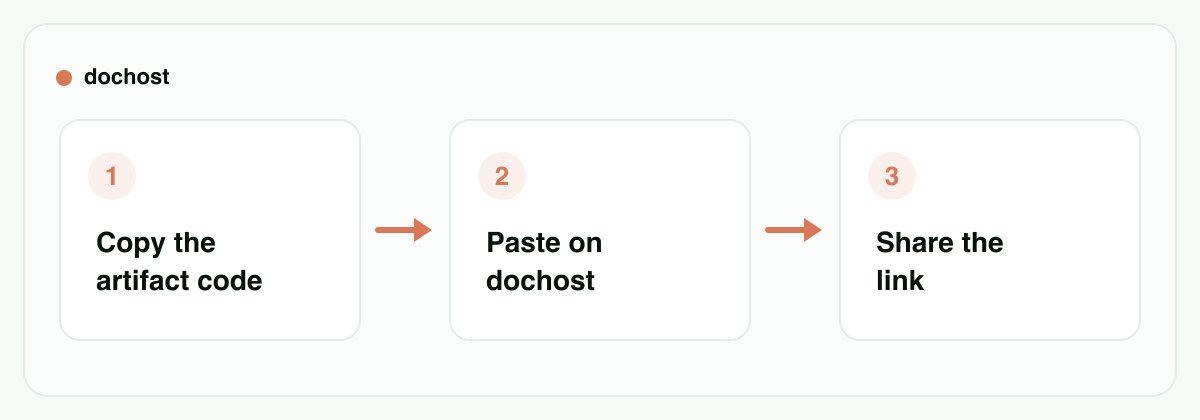
- Grab the artifact's source. In the artifact panel, switch from the preview to the code view (or use the copy button) and copy the full HTML.
- Paste it at dochost. You get a live preview immediately — it should look identical to what you saw in Claude, because it's the same code running in a real browser context.
- Click publish. You get a short link, no account required. Send it, embed it in an email, put it behind a QR code — it's just a URL.
The important property: the interactivity survives. Published pages run inline JavaScript exactly as written, so the quiz still scores answers, the calculator still calculates, the chart still animates. CDN-referenced libraries and fonts load too. The only thing that breaks is a reference to a file that exists solely on someone's local disk — which artifacts almost never contain, since Claude builds them self-contained by design.
Or skip the copy-paste: one-click from inside Claude
If you do this more than occasionally, the dochost Chrome extension collapses the three steps into one. It detects HTML and Markdown in your Claude (and ChatGPT) conversations and adds a publish button right there — click it, get the link, no tab-switching or clipboard step. It works anonymously, same as pasting by hand.
Prompting tips: get an artifact that publishes cleanly
Most artifacts publish fine as-is, but a couple of phrases in your prompt make the output more portable:
- Ask for "a single self-contained HTML file." This tells Claude to put everything — markup, styles, scripts — in one document instead of describing a multi-file project. One file is one paste.
- Inline CSS and JavaScript are good here. Normally you'd split them out; for a page that lives at one URL,
<style>and<script>blocks inside the file are exactly right. - CDN links are fine. If Claude pulls in Tailwind, Chart.js, or a Google Font from a CDN, leave it — those URLs resolve for every visitor. What you don't want is
src="./app.js"pointing at a file that doesn't exist outside the chat. - Test in the preview before sharing. The paste preview is the same rendering your visitor gets. If a button works there, it works at the link.
If Claude's answer is a Markdown document rather than an HTML artifact — a spec, a report, a table-heavy brief — the copy-paste route works the same way but renders through the Markdown pipeline instead. That case has its own walkthrough: share Claude's Markdown as a clean page.
How long the link lasts
A free link lives for 7 days, with or without an account — plenty for a review round or a demo. If the artifact is something people will keep opening — a tool your team uses, a page linked from elsewhere — a paid plan makes it permanent and adds the custom slug and password options mentioned above.
Claude's own published links don't advertise an expiry, but they're tied to your Claude account and its plan — and to that one-way unpublish behavior. Different trade-off, not strictly better or worse.
Can you embed a published artifact in an email?
Not as a working artifact, and the reason is the email client rather than Claude. Mail apps strip <script> and almost all of them refuse <iframe> outright — Gmail, Outlook and Apple Mail included — so an interactive page cannot run inside an inbox no matter where it's hosted. Claude's embed code has the same ceiling, plus its own domain allowlist, and an allowlist has nothing to point at in an email.
What actually works is the two-part version everyone ends up at: a static image in the email — a screenshot of the artifact, or a chart exported as PNG — wrapped in a link to the live page. The recipient sees something in the message and lands on the working version in one tap. If the destination is a page on your own site rather than an inbox, that's where embedding does work, and the iframe generator builds the snippet for you.
Do Claude artifacts use tokens?
Building and editing one does. Viewing a published one does not, and that difference is the whole reason people ask.
- Creating costs output tokens. An artifact is Claude's reply — the HTML, CSS and JavaScript are generated text, so a 600-line page is priced like 600 lines of any other answer.
- Editing re-reads it. The artifact's current contents sit in the conversation, so every later turn in that chat carries it. A long artifact you keep tweaking gets more expensive per turn, not less, and it is the usual reason a productive artifact conversation starts feeling slow.
- Opening the published link costs nothing. The reader gets a webpage. No Claude account, no context, no tokens — theirs or yours. Same for a page you paste into dochost.
- Remixing does cost the remixer. When a Claude user clicks through from a published artifact and customizes it, the copy lands in their conversation and spends their tokens.
So if what you actually want is "lots of people should look at this without burning anything," a published link — Claude's or a standalone one — is already the cheap path. The token cost lives in the making, not the reading.
Which route should you take?
Use Claude's Publish button when the audience is fine landing on a Claude-hosted page — especially if remixing is a feature, like sharing a template other Claude users should copy and adapt.
Use copy-paste (or the extension) when you want a neutral, standalone URL: client deliverables, public pages from a Team/Enterprise account, anything that needs a password or a custom slug, or a page whose lifecycle you want in your own hands.
Related questions
- Are Claude artifacts public? — what a published link exposes, and to whom
- How to download a Claude artifact — which file you get, and why React artifacts won't open
- How to turn a Claude artifact into a PDF — why printing from the chat gives you the transcript instead
- Skills vs Projects vs Artifacts — three features, three different jobs
Bottom line: a Claude artifact is already a working webpage — the only question is where it lives. One click on Publish puts it on a Claude link; copying the code and pasting it into dochost (or using the extension's one-click button) puts it on a plain standalone URL, JavaScript and all.
Author

Categories
More Posts
HTML to URL: How to Turn an HTML File Into a Link (Free)
Three ways to convert an HTML file into a working URL, plus the fastest no-setup method when you just need a link to share.
CodePen vs dochost: Where Should AI-Generated HTML Live?
CodePen is an editor with a shareable result, while dochost turns finished HTML from ChatGPT or Claude into a clean link that opens as the page itself.
How to Read Your dochost Page Analytics
Views and likes for every page, per-page daily charts, and an account-wide curve on Max. Here is where each number lives, how views are counted without any tracking script, and why the totals sometimes differ from Google Analytics.
Newsletter
Join the community
Subscribe to our newsletter for the latest news and updates