Notion Public Pages vs dochost: Sharing a Doc Outside Your Workspace
Notion can publish any page to the web — but for a one-off doc share, compare setup, load speed, Markdown import, raw HTML, and link lifespan with dochost.
If you live in Notion, "share this doc with someone outside the team" has an obvious answer: hit Share, flip to the Publish tab, and the page is on the web. It works, and for a lot of teams it's the default reflex. But publishing a workspace page and sharing a one-off document are actually different jobs, and the default reflex isn't always the right tool. Here's an honest comparison.
How Notion publishing actually works
The mechanics, per Notion's own help docs: open the page, click Share, switch to the Publish tab, and confirm. The page gets a public URL on a notion.site domain (each free workspace can claim one notion.site address; custom domains are a paid add-on). Anyone can view it without a Notion account, and there are useful toggles — whether search engines can index it, whether visitors can duplicate it as a template.
Two properties of this flow matter for our comparison:
- The published page is your workspace page. It's not an export or a snapshot — edits you make in Notion go live on the public URL automatically. Great when that's what you want; surprising when you start reworking a doc on Monday and your client is still reading the public link.
- You need a Notion account and the doc has to live in your workspace. If the thing you want to share is a Markdown file from a repo, an AI-generated report, or an HTML page, you first have to get it into Notion before you can get it out.
None of this is a criticism — it's a workspace tool publishing workspace content. The friction only shows up when the doc isn't workspace content to begin with.
The dochost version of the same job
dochost skips the workspace step. Paste Markdown or HTML (or upload the file), check the live preview, click publish, get a short link. No account needed. Markdown renders to a clean themed page — headings, tables, code blocks, task lists, even Mermaid diagrams and LaTeX math. The link lasts 7 days on the free tier (account or not) and permanently on paid plans, which also add a custom slug and password protection.
The whole flow is about fifteen seconds, and nothing gets added to any workspace. The document exists to be read, not to be managed.
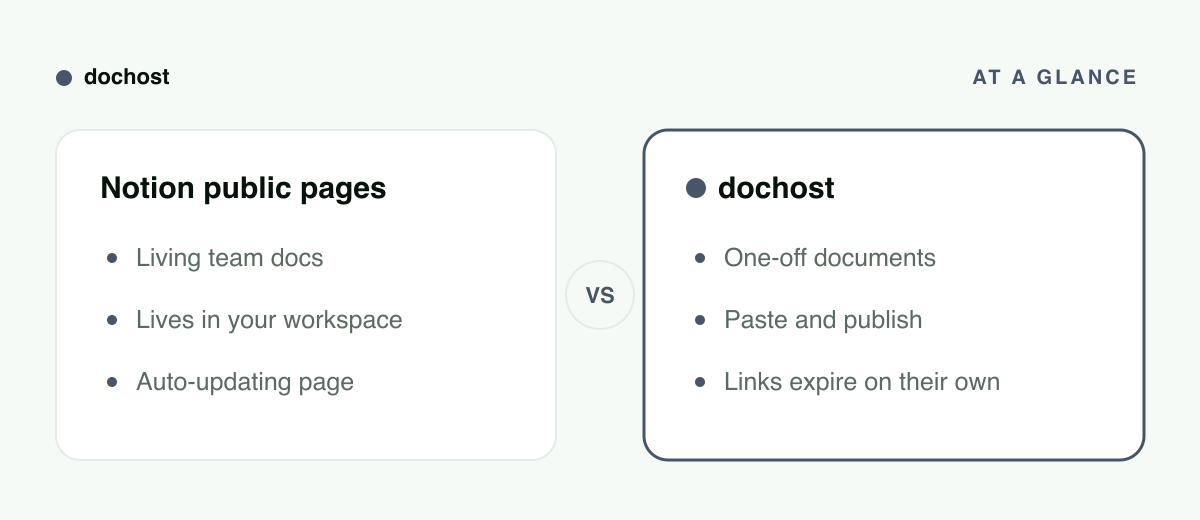
At a glance
| Notion public pages | dochost | |
|---|---|---|
| Setup | Notion account + page in your workspace | Paste and publish, no account |
| Source format | Notion blocks (import converts MD/HTML) | Markdown or HTML as-is |
| Raw HTML with your CSS/JS | No — converted to blocks | Yes, runs as written |
| Load feel | Notion app shell, then content | Static page, immediate |
| Link lifespan | Live until you unpublish | 7d / 30d free, permanent paid |
| Edits after sharing | Go live automatically | Link is a stable snapshot |
| Best for | Living docs, wikis, databases | One-off document shares |
Page weight and load feel
A published Notion page isn't a static document — it's the Notion application rendering your content in the visitor's browser. That means a visible loading moment before the text appears, especially on a phone or a slow connection. It's fine for a wiki someone will spend ten minutes in; it's noticeable overhead for a two-minute read.
A dochost page is just the rendered document. There's no app shell to boot, so the content is simply there when the link opens. For a doc you're sending to a busy client or an interviewer, that first impression is worth something.
"I already have this as Markdown"
This is where the two tools diverge most. Say the doc already exists — a README, meeting notes exported from another tool, a spec ChatGPT or Claude just wrote.
In Notion, you import it: Settings → Import → Text & Markdown, and the file is converted into Notion blocks. The conversion is decent for standard Markdown — headings, lists, code blocks, links come through — but nonstandard extensions and some formatting don't survive cleanly, the free plan caps file uploads at 5 MB, and you should skim the result for flattened formatting before publishing. Then you publish the imported page. Two steps, and the doc now permanently lives in your workspace whether or not it belongs there.
In dochost, you paste the Markdown into the Markdown previewer, confirm it looks right, and publish. What renders is exactly your Markdown — no block conversion in between. If the doc came out of an AI chat, the Chrome extension collapses even that into one click from inside ChatGPT or Claude.
Raw HTML: possible in Notion at all?
Not really. Notion can import an HTML file, but import means conversion — your markup becomes Notion blocks, and your stylesheet and scripts don't carry over. There's no way to publish a page that renders your own HTML with your own CSS and JavaScript. Notion's embed blocks can iframe external content, but the page itself is always Notion's renderer.
If the thing you're sharing is genuinely an HTML artifact — a styled report, an interactive chart, a small demo — Notion isn't a slightly-worse option, it's a non-option. On dochost, inline CSS and JavaScript run exactly as authored and CDN-referenced assets load, so you can turn the HTML into a URL and the recipient sees the real page, interactivity included.
Lifespan: who cleans up?
Notion pages stay public until you remember to unpublish them. There's no expiry, and the URL is a live window into a workspace page — which is why most of us have a graveyard of forgotten public Notion links pointing at half-edited docs.
dochost inverts the default: free links expire after 7 days, with or without an account. For a one-off share that's a feature — the link cleans itself up, and nothing you shared in March is still quietly public in November. When you do want permanence, a paid plan makes the link permanent and adds password protection for the cases where "public until I unpublish" was never acceptable in the first place.
When Notion is the better choice
Plenty of cases, and it's worth being plain about them:
- Living documents. If the doc will keep evolving and readers should always see the latest version, Notion's publish-once-edits-flow-through model is exactly right.
- Team wikis and multi-page sites. Notion publishes a page tree with navigation. dochost publishes single documents; it has no concept of a linked site.
- Databases and structured views. Tables with filters, boards, timelines — that's Notion's core competence and nothing paste-based touches it.
- Docs that already live in Notion. If it's in the workspace anyway, publishing in place beats copying it anywhere else.
The dividing line is whether the document is alive. Alive and collaborative: Notion. Finished and just needs to be read by someone outside the walls: that's the one-off share case.
Bottom line: Notion public pages are the right way to put Notion content on the web. But when the doc is a finished piece of Markdown or HTML that just needs a link — no workspace, no import, no app shell — paste it into dochost and send the URL in seconds.
More Posts
How to Publish a Page From Gemini CLI, Codex, Cursor, VS Code or Windsurf
Five coding assistants, one MCP server. The exact install command or config file for each — including the Gemini CLI extension — what the first tool call looks like, and how to ask for a page and get a link back without leaving the terminal.

Free HTML to URL: 7 Tools That Turn an HTML File Into a Shareable Link
Seven free ways to turn an HTML file or Markdown document into a shareable URL, compared on accounts, JavaScript support and how long the link lasts.
Turn Any AI Output Into a Shareable Link
Every AI tool leaves you with output trapped in a chat window. Here's the neutral step that turns it into one clean link for your team or client.
Newsletter
Join the community
Subscribe to our newsletter for the latest news and updates