Codex Site and ChatGPT Sites: How to Build, Publish, and Share a Link
A Site built in Codex uses ChatGPT Sites. Learn how to deploy it, share it with external viewers, and publish a single HTML report as a link.
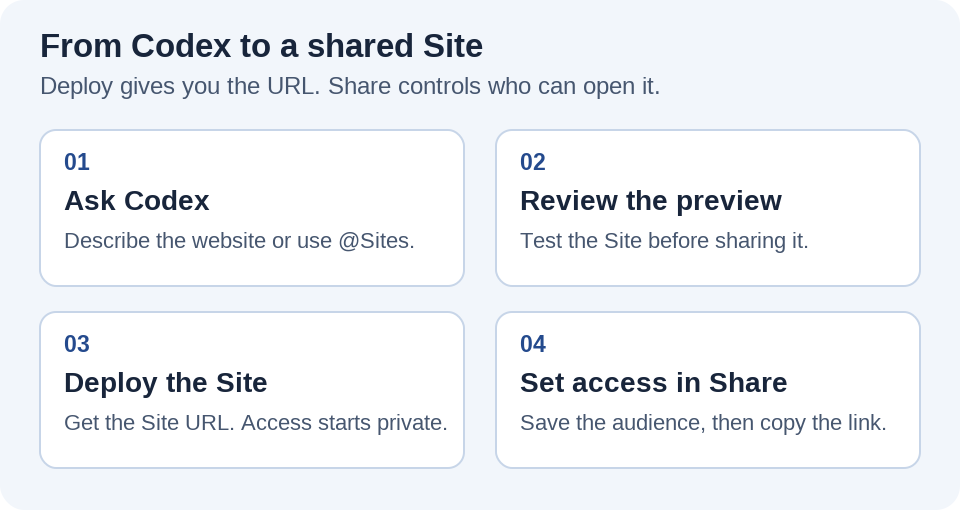
A Codex Site is a website or lightweight app you build through ChatGPT Sites in the Codex desktop app. Ask Codex to build a website or use @Sites, review the private preview, then deploy to get a URL. Use Share to choose who can open that URL. A new Site starts with access limited to you and, in a workspace, its admins.
Is Sites in Codex the same as ChatGPT Sites?
Yes. Sites in Codex refers to the Codex entry point for ChatGPT Sites. You can also start a Site from Work on ChatGPT web or the desktop app. OpenAI lists Sites for Plus, Pro, Business, and Enterprise, with workspace settings and role permissions controlling access. Building and editing count toward Codex usage. Hosting, traffic, and storage are tracked separately. OpenAI's ChatGPT Sites help guide
How to create and publish a Site from Codex
- In the desktop app, open Codex and ask it to build a website. For example, “Use @Sites to build a project status page from these notes. Show milestones, open questions, and next steps.”
- Review the private preview. Test any links and interactions, and remove details the intended audience should not see.
- Deploy the Site and open the URL Codex returns. Deployment gives the Site an address, with access still limited by the current Share settings.
- Open Share, choose the audience under Who has access, save, and copy the link. Test with a viewer account or a signed-out browser, depending on the audience.
Who can open your Site link
The link is only as open as the Site's Share setting. You pick one audience under Who has access:
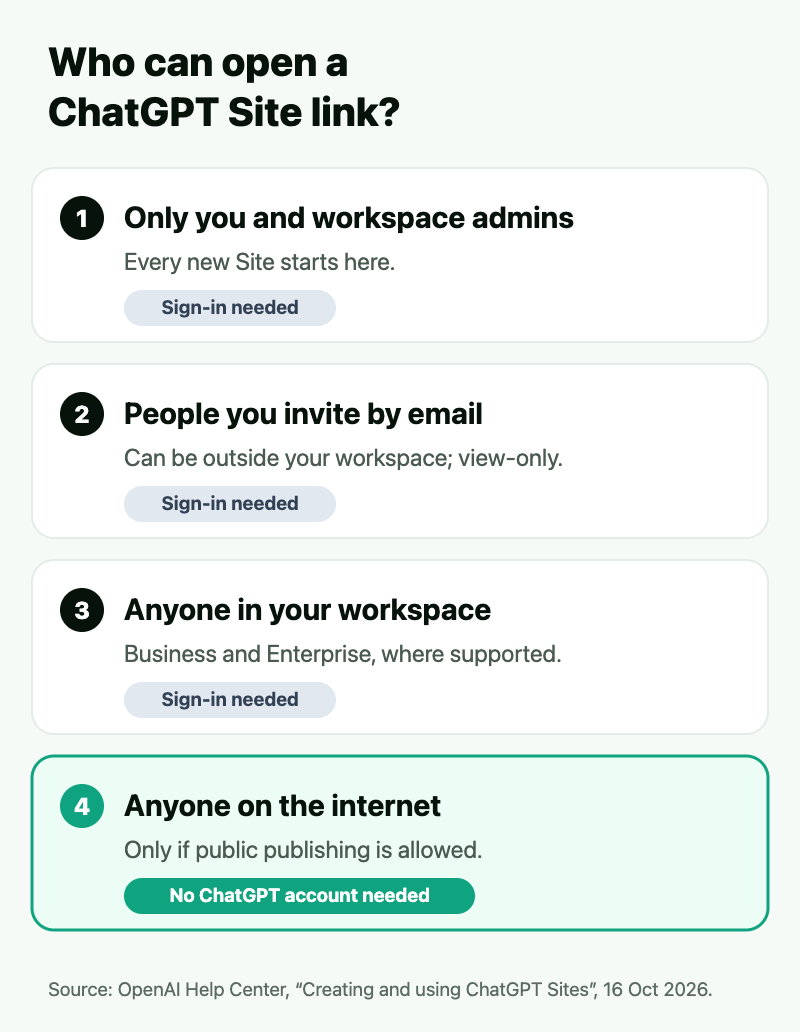
- Owner and workspace admins. Every new Site starts here, so a link you copy straight after building it will not open for anyone else.
- Selected people and named external viewers. You can invite someone outside your workspace by email, but they have to sign in with the ChatGPT account that received the invitation, and they can only view.
- Anyone in the workspace, where your workspace supports it.
- Anyone on the internet, only when public publishing is enabled. OpenAI's article says anyone can open a public Site without signing in to ChatGPT. In Enterprise workspaces public publishing is off until an admin enables it.
So the question "can I share my ChatGPT Site link?" really has two parts: whether your plan and workspace let you publish publicly, and whether you have actually changed the Site's audience before sending the link.
Publishing, updating and taking it down
- Every deploy is live. OpenAI's article calls each deployment URL a production URL. To check a change without updating what visitors see, save a version first and deploy after you have reviewed it.
- Edits go through ChatGPT. You reopen the Site's chat (or select it under Sites), describe the change and publish again. The owner can give another member of the same workspace Can edit access.
- Custom domains are possible where available. You need to own the domain already and add the DNS records Sites gives you; Sites will not register one for you,.
- Taking it down means narrowing the Share setting back to selected people or just yourself, or deleting the Site. Deletion is permanent.
When a plain HTML link fits better
ChatGPT Sites is the better tool when the thing you are building is an app: it has a database (up to 10 GB per Site), it can use your workspace's connected apps, and it lives inside the ChatGPT account where you keep editing it.
It is more than you need when what you have is one page and someone simply has to open it. That is the job dochost does:
| ChatGPT Sites | dochost | |
|---|---|---|
| Plan needed to publish publicly | Plus, Pro, or a workspace that allows public publishing | None: no account at all |
| Where the HTML can come from | Built inside ChatGPT | Anything: ChatGPT, Claude, Gemini, a file on your disk |
| Who can open the link | Depends on the Share setting; only "Anyone on the internet" skips sign-in | Anyone with the link, no sign-in |
| How long it stays up | Until you restrict or delete it | 7 days free (3 days if private); permanent on a paid plan |
| Password on a page | Not covered in OpenAI's article | Paid plans |
| Databases, connected apps | Yes | No: static pages, though the page's own JavaScript runs |
If you already have a standalone HTML report from Codex, include its styles and data in the same file. You can then preview it in DocHost and publish a browser link. If the report needs a password, set one on a paid plan and check the link while signed out before sending it. Try the client report example.
FAQ
Does deploying a Codex Site make it public?
Deploying creates or updates the live version at the Site URL. The audience comes from Share. A new Site is private until you change who can access it.
Can someone outside my workspace open a Codex Site?
If named external viewers are available, invite their email address. They must sign in to the invited ChatGPT account. When public publishing is enabled, a Site shared with anyone on the internet can open without a ChatGPT account.
Can I share my ChatGPT Site link? Yes, but first set who can open it under the Site's Share button. A new Site is visible only to you and your workspace admins, so a link copied straight after building will not open for anyone else.
Do people need a ChatGPT account to open a ChatGPT Site? Not if the Site is published to Anyone on the internet: OpenAI says anyone can open a public Site without signing in. Invited people, including external viewers, must sign in with the ChatGPT account that received access.
Can I use ChatGPT Sites on the free plan? No. Sites is available to ChatGPT Plus and Pro accounts and supported Business and Enterprise workspaces. To share one HTML page that ChatGPT wrote on the free plan, paste it into dochost instead; no account is needed.
How do I take a ChatGPT Site down? Open it from Sites in the sidebar and narrow its Share setting to selected people or just yourself, or choose Delete site. Deleting is permanent and cannot be undone.
Mais posts
GitHub Gist vs dochost for Sharing Rendered Markdown
Gist is great for code snippets, but it wraps your Markdown in GitHub chrome and won't render HTML at all — when a clean standalone page is the better send.

CodePen vs dochost: Where Should AI-Generated HTML Live?
CodePen is an editor with a shareable result, while dochost turns finished HTML from ChatGPT or Claude into a clean link that opens as the page itself.
How to Publish a README as a Webpage
Turn a README or any repo Markdown into a clean, shareable webpage in one paste — no repo access, no GitHub Pages setup, and no build step needed.
Newsletter
Faça parte da comunidade
Inscreva-se na nossa newsletter e fique por dentro das novidades