Google Docs 'Publish to the Web' vs dochost: Sharing a Document as a Link
Google Docs has a built-in publish button, so when do you need anything else? An honest comparison for turning a formatted document into a shareable URL.
If your document already lives in Google Docs, there's a publish button built right in: File → Share → Publish to web. Click it, confirm, and Google hands you a public URL anyone can open — no hosting, no export, no extra tool. So why would you ever reach for anything else?
Because "publish to web" was designed for one specific job — putting a living Google Doc on the open web — and it shows the moment your job is slightly different. Here's where each option actually fits.
What Google's publish button gives you
When you publish a Google Doc, Google generates a stripped-down, read-only web version of it. A few things about that page are worth knowing before you send the link to anyone:
- The URL is long and anonymous. You get a
docs.google.comaddress with a long random token in the middle. It works, but it's not something you'd read aloud, print on a slide, or expect anyone to remember. There's no way to customize it. - The page is bare. Your text, headings, and images come through, but you get zero control over how the page itself looks — no custom styling, no code, no interactivity. It reads unmistakably as "a Google Doc, published."
- It auto-updates. By default, edits to the doc republish automatically (Google notes the refresh "might take a few minutes"). This is the killer feature — and also a footgun if you wanted to share a frozen snapshot, because your half-finished edits go live too. You can untick "Automatically republish when changes are made" to freeze it.
- It's public until you say otherwise. A published doc is visible to anyone who has the URL, and it stays up until you manually go back to File → Share → Publish to web and click "Stop publishing." There's no expiry, no password. And if the link lands anywhere public — a forum post, a shared page — search engines can crawl and index it. People have been surprised to find "unlisted" published docs in search results.
- You need a Google account, and the doc lives in Drive. Only the file's owner and editors can publish, so the content has to be a Google Doc in someone's Drive first. If what you actually have is a Markdown file or an HTML page, you'd be pasting it into Docs and losing the formatting on the way in. (Work and school accounts add another wrinkle: an admin may have disabled publishing entirely.)
None of this is a flaw, exactly. It's just a tool with strong opinions: your content is a Google Doc, the published page mirrors it forever, and "anyone with the link" is an acceptable privacy model.
What dochost gives you instead
dochost starts from the opposite end: you have content — Markdown or HTML — and you want it to be a page someone can open, with as little ceremony as possible.
- Paste your Markdown or HTML (or upload the file) at dochost.
- Check the live preview — Markdown renders to a clean themed page with proper headings, tables, code blocks, even Mermaid diagrams and LaTeX math; HTML renders exactly as written, inline CSS and JavaScript included.
- Click publish and copy a short link.
No account needed. No Drive, no doc conversion, no admin settings. And the privacy model is inverted: instead of "public until you remember to unpublish," free links expire after 7 days on their own (account or not), and paid plans make links permanent and add a password, a custom slug, and branding removal — see pricing. For a review draft or a one-off report, a link that quietly dies is a feature, not a bug.
The other big difference is what you can publish. Google Docs publishes documents. dochost publishes pages — so a code-heavy technical doc keeps its syntax highlighting, an HTML report keeps its charts and interactivity, and AI-generated output from ChatGPT or Claude goes from chat window to URL without a detour through a word processor. There's even a Chrome extension that adds a one-click publish button inside those chats.
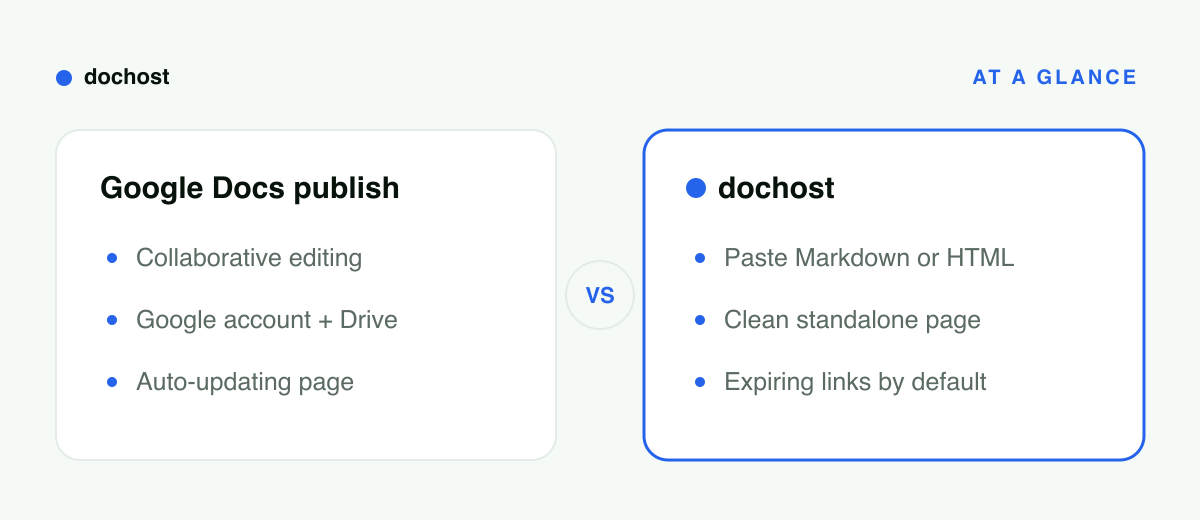
At a glance
| Google Docs Publish to web | dochost | |
|---|---|---|
| Source content | A Google Doc in Drive | Pasted/uploaded Markdown or HTML |
| Account required | Google account (owner/editor) | None to publish |
| The URL | Long docs.google.com address | Short link (custom slug on paid) |
| Page appearance | Bare read-only doc, no styling control | Clean themed page; your CSS/JS runs |
| Link lifespan | Public until you stop publishing | 7 days free (account or not), permanent paid |
| Updates | Auto-republishes as the doc changes | Page is a snapshot of what you published |
| Code & interactivity | No | Yes — scripts, diagrams, math all render |
When Google Docs genuinely wins
Be honest about this, because it wins often:
- The document keeps changing. Auto-republish means one URL always shows the current version. A team handbook, a schedule, a policy page that five people edit — publish the doc once and never think about it again. dochost pages are snapshots; a changed doc means publishing again.
- You're collaborating on the content itself. Comments, suggestions, revision history, simultaneous editing — that's Google Docs' home turf, and the publish button is just the last step of a workflow that already lives there.
- Your audience is inside a Google Workspace org. Work accounts can restrict a published doc to people in the organization, which is a real access control dochost's anonymous tier doesn't offer.
If your writing process starts and ends in Google Docs and the page just needs to exist somewhere, use the built-in button. It's free, it's one click, and the auto-update behavior is something dochost simply doesn't do.
When to paste it into dochost instead
- Your source is Markdown or HTML already. README-style docs, exported notes, AI output, an HTML report — Markdown to HTML conversion happens at publish time, formatting intact. Round-tripping through Google Docs would mangle it.
- You want the link to look and feel standalone. A short URL opening a clean page, not a long token URL opening something that visibly says "I am a Google Doc."
- You want the link to expire. Interview take-homes, client drafts, anything you'd rather not leave findable forever. Default expiry beats remembering to unpublish.
- The page needs code or interactivity. Syntax-highlighted code blocks, Mermaid diagrams, a working demo with JavaScript — none of that survives Google Docs.
- You don't have (or don't want to use) a Google account for this particular share.
Bottom line: Google's publish button is the right call for a living, collaboratively edited document that should stay current at one URL. For sharing a finished piece of Markdown or HTML as a clean, standalone, expiring link — especially anything with code in it — paste it into dochost and skip the word processor entirely.
Weitere Beiträge
Claude Skills vs Projects vs Artifacts: What Each One Actually Is
Three Claude features with overlapping names and completely different jobs. Skills are procedures, Projects are context, Artifacts are output — here's how to tell which one you need.

Can You Share a ChatGPT Site Link? Who Can Open It, and When dochost Fits Better
Yes, if you publish it to the right audience. Who can open a ChatGPT Sites link, when visitors need a ChatGPT account, which plans include Sites, and when a plain HTML link is the simpler choice.
GitHub Gist vs dochost for Sharing Rendered Markdown
Gist is great for code snippets, but it wraps your Markdown in GitHub chrome and won't render HTML at all — when a clean standalone page is the better send.
Newsletter
Join the community
Subscribe to our newsletter for the latest news and updates