How to Embed HTML in SharePoint: HTML Pages, the Embed Web Part, and People Outside Your Company
Two ways to put HTML on a SharePoint page in 2026, what each one can and cannot run, and what to do when the people who need the page cannot sign in to your SharePoint.
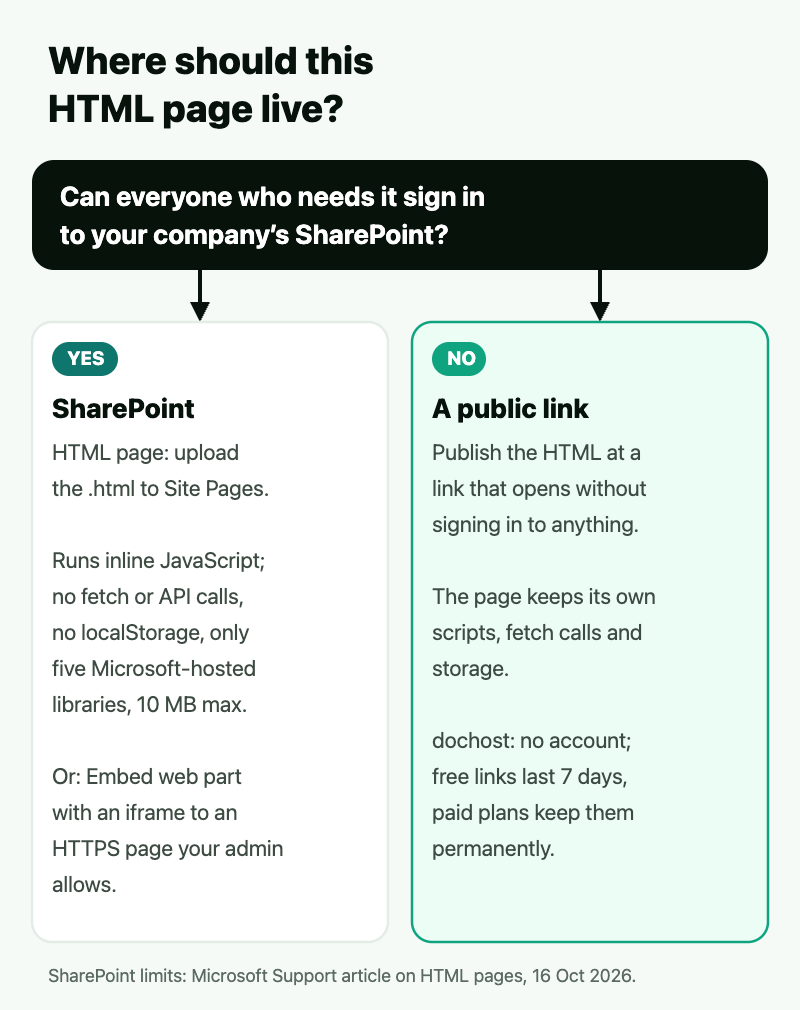
Short answer: SharePoint now has two ways to show your own HTML. The new HTML pages let you upload an .html file to the Site Pages library and publish it like any other page. The older Embed web part shows another web page inside a modern page through an <iframe>. Both stay inside SharePoint's permissions. If the people who need the page cannot sign in to your company's SharePoint, publish it at a public link instead.
Everything about SharePoint below comes from two Microsoft Support articles, Create, upload, edit, and publish HTML pages in SharePoint and Add content to your page using the Embed web part, checked on 16 October 2026. HTML pages are new and rolling out gradually, so your tenant may not show them yet.
Option 1: upload it as an HTML page
This is the route for a page that is HTML from top to bottom, such as a report, a project status page, or something an AI assistant generated for you.
- On the SharePoint site, select + New, then HTML page, then Upload HTML page. Or go to the Site Pages library, select Create or upload, and choose Upload HTML page or Upload HTML folder.
- Pick the
.htmlfile (or the folder with its images). SharePoint copies images and other files embedded in the HTML into the Site assets folder. - Review the page, then select Publish, and share it with Share.
What you should know before you rely on it:
- No Copilot license is needed to upload, edit text, publish or view. You need a Microsoft 365 Copilot license only to create or change the page through the Copilot chat pane.
- It runs in a sandbox. SharePoint renders the page in a sandboxed iframe with its own Content Security Policy. JavaScript written inside the file runs, but the page cannot make arbitrary
fetchrequests or outbound API calls, and it cannot uselocalStorage. - Libraries are limited to five. Chart.js, Mermaid, React, Fluent UI and Babylon are available from a Microsoft-managed CDN; any other CDN script is not loaded. A page that pulls Tailwind, D3 or a charting library from a public CDN needs rewriting first.
- Links outside SharePoint need the admin's allow list. A link to another domain only opens once a site admin adds that domain under HTML Field Security.
- 10 MB per file, not counting the images and videos SharePoint moves to Site assets.
- Site owners can switch it off per site, with Allow HTML files under the Site Pages library's File types. There is no tenant-wide switch.
Option 2: the Embed web part
The Embed web part is for showing a page that already lives somewhere else, such as a dashboard, a map or a video, inside a modern SharePoint page.
- Edit the page, open the toolbox, select See all web parts, and add Embed
</>. - In Website address or embed code, paste either the page's address (for services that support it) or
<iframe>embed code.
Microsoft lists the common reasons it fails:
- Embed code must be
<iframe>. Code that uses<script>tags is not supported, so you cannot paste a raw HTML snippet here. - HTTPS only.
- The other site has to allow framing. Many sites refuse to be shown in someone else's iframe, and nothing on the SharePoint side changes that.
- Your admin decides which domains are allowed. Under Site settings > HTML Field Security, a site collection admin can block external iframes, allow a specific list of domains, or allow any domain. If yours is blocked you will see "Embedding content from this website isn't allowed."
When the people who need it are outside your company
Both options sit inside SharePoint's permissions. Microsoft's article says publishing an HTML page does not grant new permissions: people open it according to the sharing option you choose. Whether you may share with guests or with anyone who has the link is set by your organization's admins, not by the page.
That is often the deciding factor for an HTML report a client, a supplier or a class needs to see. For that case, put the page at a public link:
| HTML page in SharePoint | A public link (dochost) | |
|---|---|---|
| Who can open it | People the sharing settings allow, usually after signing in | Anyone with the link, no sign-in |
| Scripts from public CDNs | Only five Microsoft-hosted libraries | Any |
fetch and API calls | Blocked | Allowed |
localStorage | Blocked | Works |
| Size | 10 MB per file | 1 MB free, up to 50 MB on paid plans |
| How long it stays up | As long as the site keeps it | 7 days free; permanent on paid plans |
| Sits in your intranet's navigation and permissions | Yes | No |
With dochost you paste the HTML or upload the file and get a link that opens without an account. If the page needs a password, permanent links or your own address, the paid plans cover those. If everyone who needs the page is already in your Microsoft 365 tenant, SharePoint's own HTML page is the better home for it.
FAQ
Can I embed HTML in SharePoint?
Yes, in two ways. Upload the .html file as an HTML page in the Site Pages library, or add an Embed web part and paste <iframe> embed code that points at an HTTPS page. The Embed web part does not accept <script> tags or raw HTML.
Why does my HTML page in SharePoint not load scripts?
SharePoint runs HTML pages in a sandbox that only loads Chart.js, Mermaid, React, Fluent UI and Babylon from a Microsoft-managed CDN. Other CDN scripts, fetch calls, outbound API calls and localStorage are blocked. JavaScript written inside the HTML file itself still runs.
Can people outside my organization see a SharePoint HTML page? Only if your SharePoint sharing settings allow it. Publishing an HTML page does not grant new permissions; viewers get the access of the sharing option you pick, and your admins decide which options exist. To show the page to people with no access to your SharePoint, publish it at a public link instead.
Why does the Embed web part say embedding isn't allowed? Your site collection admin controls which domains can be embedded, under HTML Field Security. Ask them to add the domain. If the domain is allowed and the frame is still blank, the other site is refusing to be framed.
Bottom line: keep internal pages inside SharePoint, where HTML pages and the Embed web part respect your permissions; send the page as a public link when the people who need it are outside your company or the page needs scripts SharePoint's sandbox blocks.
More Posts
Notion Public Pages vs dochost: Sharing a Doc Outside Your Workspace
Notion can publish any page to the web — but for a one-off doc share, compare setup, load speed, Markdown import, raw HTML, and link lifespan with dochost.


Turn Any AI Output Into a Shareable Link
Every AI tool leaves you with output trapped in a chat window. Here's the neutral step that turns it into one clean link for your team or client.
How to Share Math Notes Online (With LaTeX Rendering)
Turn Markdown notes full of LaTeX equations into a clean, shareable web page — no Overleaf project, no PDF export, no screenshots of handwriting.
Newsletter
Join the community
Subscribe to our newsletter for the latest news and updates