CodePen vs dochost: Where Should AI-Generated HTML Live?
CodePen is an editor with a shareable result, while dochost turns finished HTML from ChatGPT or Claude into a clean link that opens as the page itself.
ChatGPT hands you a complete landing page. Claude writes you a self-contained dashboard with inline CSS and a bit of JavaScript. Now you want someone else to see it — not the code, the page. A lot of people reach for CodePen at this point, because it's the tool they already associate with "paste HTML, watch it run."
That instinct isn't wrong, but it's optimized for a different job. CodePen is built for working on code. If the code is already done and you just need a link that opens as the finished page, the fit gets awkward fast. Here's an honest look at both.
What CodePen is actually for
CodePen is an online code editor: three panels for HTML, CSS, and JS, with a live preview that re-renders as you type. It's superb at what it was designed for — iterating on frontend snippets, trying out a CSS trick, building a demo in public, teaching, and browsing an enormous community of other people's pens for inspiration. Preprocessor support, forking, collections — it's a workshop with an audience.
The key word is editor. Everything about a pen's default presentation assumes the code is the point.
What the person on the other end of a CodePen link sees
Send someone the standard URL of a pen and they land in Editor View: your result squeezed alongside the code panels, inside CodePen's UI. For a developer audience that's often exactly right. For a client, a stakeholder, or anyone who just wants to see "the page," it reads as here's my source code rather than here's the thing I made.
CodePen does have a Full Page View, and it's better — the editor panels disappear. But per CodePen's own documentation, the pen is still displayed with a CodePen header, and the result renders inside an iframe for security. Your page lives inside their frame, visually and literally.
The only view with no iframe at all is Debug View, and that's where the free tier bites: as a free member you can only open Debug View on your own pens while logged in. Making a pen's Debug View shareable with anyone — logged out, on a client's phone — is a PRO feature. So the one truly chrome-free rendering of your page is exactly the one you can't hand to a stranger on the free plan.
Two more free-tier facts worth knowing before you paste anything in:
- You need an account to save. CodePen removed anonymous pen saving back in 2019; nothing persists without signing up.
- Pens are public by default. They appear on your profile and in search. Private pens are a PRO feature.
None of this is a criticism of CodePen — these are sensible choices for a social coding platform. They're just friction if your actual goal is "give this one finished page a URL."
What dochost does instead
dochost skips the editor entirely. You paste the HTML (or Markdown, or upload the file), check the live preview, click publish, and get a short link. No account required. The link opens your page as the page — no header, no panels, no iframe, no platform wrapper. Inline CSS and JavaScript run as written, CDN-loaded fonts and frameworks work, so the interactive stuff AI tools like to generate — quizzes, small apps, single-page dashboards — behaves exactly as authored.
The trade-off is symmetrical: dochost has no editor. There's a preview before you publish, but if you want to keep tweaking the code, you do that in your own editor (or back in the chat) and republish. It's a publish button, not a workshop.
Free links last 7 days, with or without an account, and paid plans make links permanent and add a custom slug, password protection, and branding removal — see pricing if a page needs to outlive the week.
At a glance
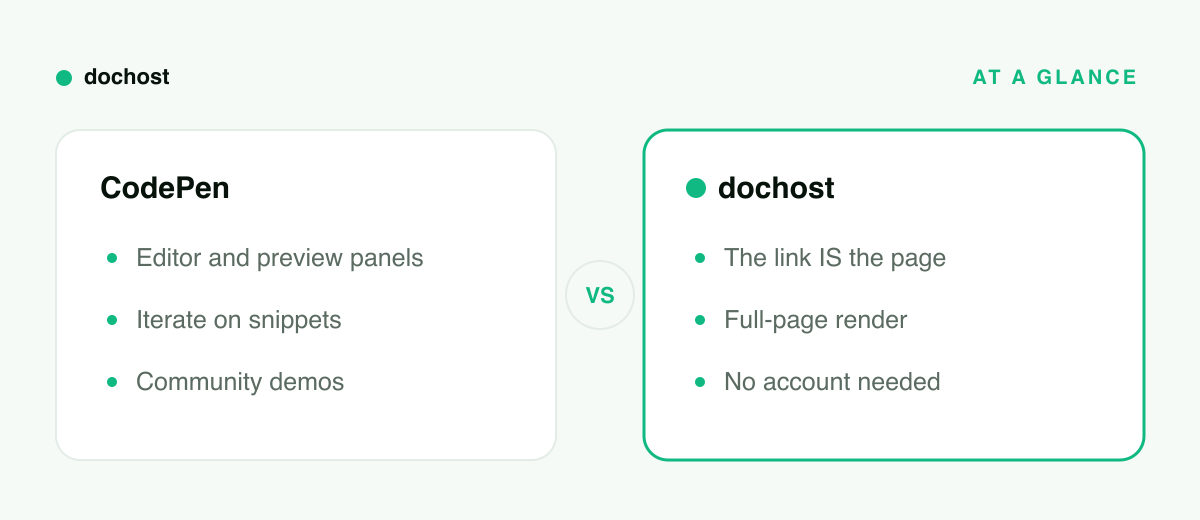
| CodePen (free) | dochost | |
|---|---|---|
| What it is | Online code editor + community | Publish-and-share for finished pages |
| Account to save/publish | Required | Not required |
| Default link shows | Editor view (code + result) | The page itself |
| Chrome-free full page | Debug View — own pens, logged in only | Every link |
| Visibility | Public by default; private is PRO | Only people with the link |
| Link lifespan | Tied to your account | 7 days free (account or not) / permanent paid |
| Best for | Iterating, demos, teaching | Handing someone the finished page |
Use CodePen when…
- You're still working on the code. Live re-rendering while you edit is the whole point, and nothing here replaces it.
- Your audience is developers. Showing the code next to the result is a feature, not a bug — for a technique demo or a bug reproduction, Editor View is the right frame.
- You want community. Hearts, comments, forks, and discoverability matter if you're building a portfolio of frontend work or teaching in public.
- You'll return to iterate. A pen saved to your account is an ongoing workspace; a published page is a snapshot.
Use dochost when…
- The code is done and the page is the deliverable. A ChatGPT landing page for a client, a Claude-generated report for your team — the recipient should see a web page, not a code environment. Paste it and turn the HTML into a URL in one step.
- You don't want an account, or don't want it public. No signup to publish, and pages are reachable only by their link rather than listed on a public profile.
- You're publishing from the AI chat itself. The Chrome extension adds a one-click publish button inside ChatGPT and Claude, so the HTML never has to pass through your clipboard at all. (There's an MCP integration too, if your workflow runs through agents.)
- The audience is non-technical. No login walls, no "what am I looking at" moment — the link opens, the page appears. More on that workflow in sharing ChatGPT HTML.
Bottom line: CodePen is where code goes to be worked on; dochost is where finished pages go to be seen. If you're iterating on a snippet or showing developers a technique, save it as a pen. If ChatGPT or Claude already gave you the finished page and you just need a link that opens as that page — no editor chrome, no account, no iframe — paste it into dochost and send the link.
More Posts
How to Share a Mermaid Diagram as a Link
The fastest way to turn Mermaid code into a rendered diagram anyone can open in a browser — no screenshots, no repo, and no account required.

Google Docs 'Publish to the Web' vs dochost: Sharing a Document as a Link
Google Docs has a built-in publish button, so when do you need anything else? An honest comparison for turning a formatted document into a shareable URL.
How to Publish a Claude or ChatGPT Page in One Click With the Chrome Extension
The dochost extension adds a Publish button next to the HTML and Markdown your AI writes — including Claude's file cards. Here is the full flow, recorded in a real Claude chat, and what each option in the panel does.
Newsletter
Join the community
Subscribe to our newsletter for the latest news and updates