How to Share an AI-Generated Quiz With Your Class
ChatGPT or Claude can build an interactive HTML quiz in one prompt — here's how to get it in front of 30 students as a link that works on any phone.
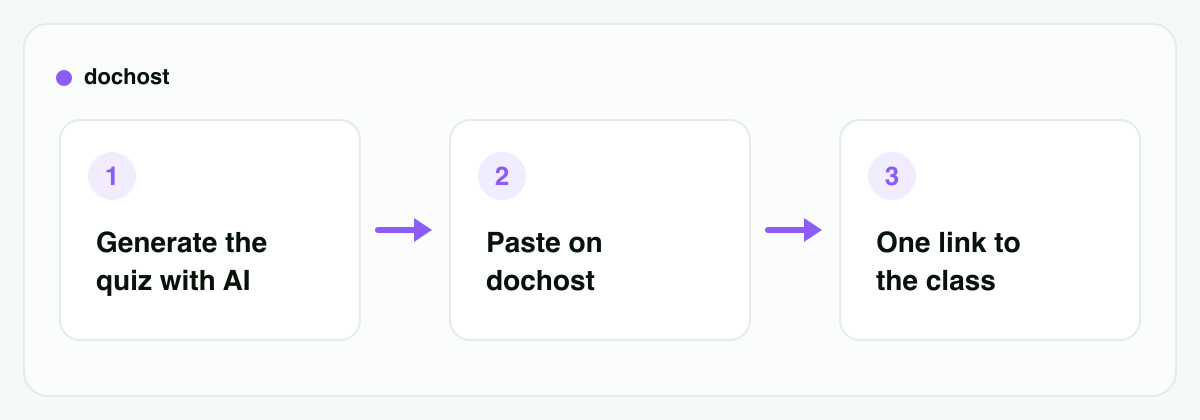
Ask ChatGPT or Claude for "an interactive multiple-choice quiz on the water cycle" and it will happily write one — a complete HTML file with clickable answers, instant right/wrong feedback, and a score at the end. That part takes two minutes. The part that stalls teachers is what comes next: the quiz is a code block in a chat window, and you need it running on 30 student phones by tomorrow's homework deadline.
Emailing an .html attachment doesn't work — phones don't know what to do with it, school-managed devices often block downloads, and half the class will open it in a text editor and see raw code. What actually works is turning the file into a link. Here's the whole workflow.
Quick answer: practice link or graded assignment?
To share a ChatGPT-generated HTML quiz for self-paced practice, export one self-contained .html file, paste or upload it to dochost, test the published link on a student device, and post that URL in your LMS. Inline JavaScript can check answers in the student's browser; publishing alone does not send scores to a teacher.
If you need named submissions, a gradebook, or completion records, use Google Forms or your LMS's quiz feature. For a reusable site with several files, consider GitHub Pages or Netlify instead. Choose the delivery method before asking the AI to generate the quiz.
Step 1: Prompt the AI for a self-contained quiz
The one requirement that matters: the quiz must be a single, self-contained HTML file — all the styling and all the logic inside one document, no separate files it expects to find on your computer. Say that explicitly in the prompt and the model gets it right almost every time.
Here's a prompt you can copy, paste, and adapt:
Create a self-contained interactive HTML quiz as a single file:
- 10 multiple-choice questions on [photosynthesis, for a 9th-grade biology class]
- 4 answer options per question, one correct
- When a student taps an answer, immediately show whether it was right
  or wrong, highlight the correct option, and give a one-line explanation
- Show a running score and a final score screen at the end with a
  "Try again" button
- Large tap targets and readable text on a phone screen
- All CSS and JavaScript inline in the one HTML file — no external
  files, no frameworks, no images
Swap the bracketed part for your topic and grade level. If the first draft has a question you don't like, tell the AI to replace it — regenerating a question is faster than editing HTML by hand. When you're happy, copy the entire code block, from <!doctype html> to </html>.
Two tweaks worth asking for, depending on the class: "shuffle the question order on each load" (discourages answer-sharing) and "let students change their answer before moving on" (kinder for younger kids).
Step 2: Paste it and publish
Go to dochost's HTML-to-URL tool, paste the code, and you'll see a live preview of the quiz — actually click through a question or two right there to confirm the feedback and scoring behave. This preview is your quality check: if a button doesn't respond or the layout looks cramped, go back to the chat, describe the problem, and paste the revised version.
When it looks right, hit publish. You get a short link. No account needed, nothing to install, and the whole step takes under a minute.
If you generate quizzes regularly, the Chrome extension collapses this step further — it adds a publish button directly inside ChatGPT and Claude, so the code block becomes a link without any copy-pasting.
Step 3: Share one link with the class
Put the link wherever your class already looks: Google Classroom, the parent WhatsApp group, an email, or written on the board as a QR code. Students tap it and the quiz opens in their browser. That's the entire student-side experience.
The questions teachers actually ask
Will it work on student phones? Yes — the link opens in any browser on any device, iPhone or Android, school Chromebook or a parent's tablet. There's no app to install and no account for students to create, which matters when your class includes kids under every sign-up age limit. If you used a prompt like the one above, the quiz was built mobile-first anyway.
Does the interactivity actually run? Yes. Published pages render exactly as authored — the inline JavaScript that checks answers and tallies the score runs as written. Tapping an answer, seeing the feedback, watching the score update: all of it works because it's real code executing in the student's browser, not a static snapshot.
How long does the link last? On Free, a private (unlisted) link expires after 3 days; a page made public on Explore expires after 7 days. Check the selected visibility and expiry before setting the homework deadline. Unlisted means anyone with the link can open it; it is not password protection. See pricing for longer-lived links and paid access controls.
Can students see my prompts or edit the quiz? No. The link shows only the published page. Nobody sees your chat history, and the page is read-only — a student can retake the quiz as many times as they want, but they can't change it.
What about wrong answers in the quiz itself? AI models occasionally write a factually wrong question or mark the wrong option as correct. Click through every question in the preview before you share — you're the subject-matter check the model doesn't have.
When Google Forms or Kahoot is the better tool
Be honest about what this workflow doesn't do: the quiz scores on the student's device, but nothing reports back to you. A student sees "8/10" on their screen; you don't. There's no response spreadsheet, no gradebook column, no per-question analytics.
So pick based on what you need:
- You need grades or completion data → Google Forms (or your LMS's quiz feature). Responses land in a sheet you own, auto-graded.
- You want a live, competitive in-class game → Kahoot. Real-time leaderboards are its whole point; a static link can't do that.
- You want self-paced practice with instant feedback, zero student accounts, and full control over exactly how the quiz looks and behaves → the AI-plus-link workflow above. It's the only option of the three where the AI designs the entire interaction, unconstrained by a form builder's templates.
Plenty of teachers use both: a published HTML quiz for low-stakes practice during the week, then a Forms quiz for the graded check on Friday. Nothing about the workflow locks you in — and the same publish-a-link move works for any AI output, not just quizzes: study guides, flashcard pages, interactive diagrams.
Bottom line: the AI already builds the quiz; your only real job is delivery. Prompt for a single self-contained HTML file, paste it and get a URL, and share one short link the whole class can open on any phone — no apps, no logins, no attachments. Use Forms or Kahoot when you need the grades or the game; use this when you just need practice in students' hands tonight.
更多文章
How to Claim a yourname.dochost.co Subdomain
Pro and Max accounts can serve every page from a short branded address like acme.dochost.co instead of dochost.co/d. Here is how to claim one, what happens to old links, and why renaming needs a second click.

Edit a Page You Already Published — Without an Account
Published a page, then spotted a typo? dochost now gives you an edit link alongside the share link, so you can update the page in place and keep the URL.
GitHub Gist vs dochost for Sharing Rendered Markdown
Gist is great for code snippets, but it wraps your Markdown in GitHub chrome and won't render HTML at all — when a clean standalone page is the better send.
電子報
加入我們的社群
訂閱電子報,第一時間掌握最新消息與更新