HTML to image converter (PNG, JPG)
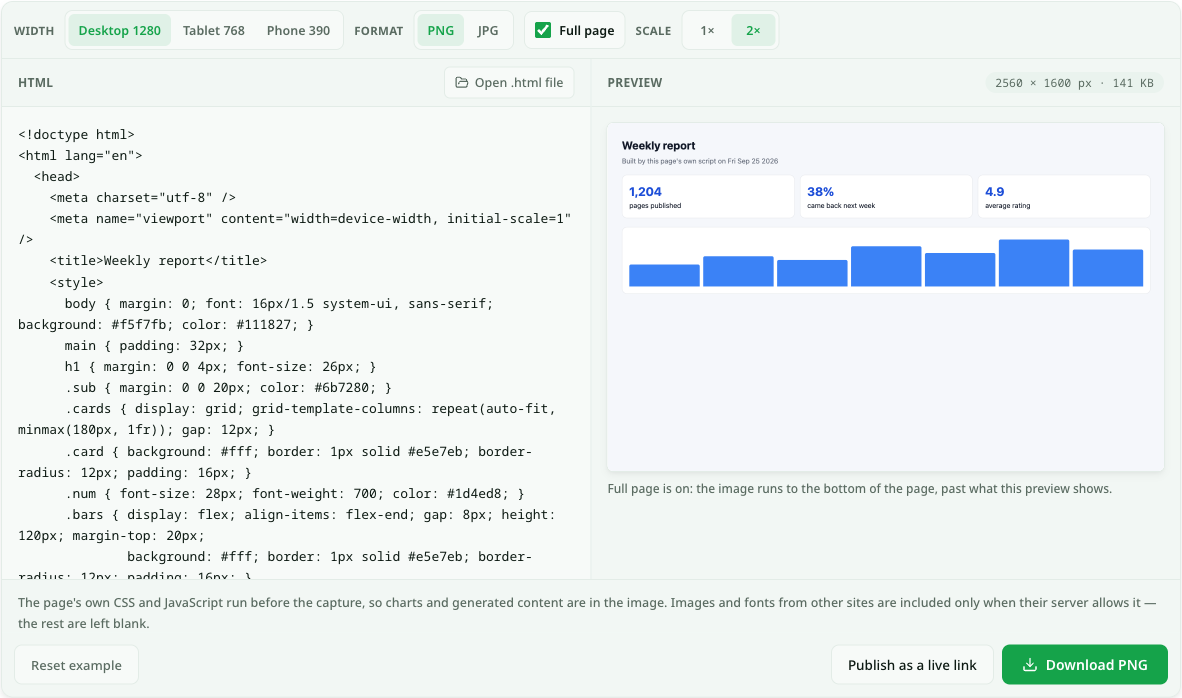
Paste HTML or open a .html file. It renders with its own CSS and JavaScript, then downloads as a PNG or JPG at desktop, tablet or phone width. Nothing is uploaded.
Renders in your browser at the width you pick. Nothing is uploaded unless you choose to publish.
Full page is on: the image runs to the bottom of the page, past what this preview shows.
The page's own CSS and JavaScript run before the capture, so charts and generated content are in the image. Images and fonts from other sites are included only when their server allows it — the rest are left blank.
Sometimes a page has to travel as a picture. A slide deck will not embed a live web page, a support ticket wants a screenshot, a social post takes an image and nothing else, and a report that was generated as HTML still has to be pasted into a chat that only previews images.
Taking a screenshot of your own screen gets you whatever your window happens to show: your browser chrome, your zoom level, and only the part above the fold. This converter renders the HTML at an exact width — 1280, 768 or 390 pixels — lets the page run its own scripts so charts and generated tables are drawn, and exports the whole page as one image, at twice the pixel density if you want it sharp on a retina screen. PNG keeps transparency and crisp text; JPG is smaller for photo-heavy pages.
How the conversion works
- 1.
Paste or open the HTML. A full document or a fragment. Opening a file reads it in your browser; nothing is sent anywhere.
- 2.
Pick the width the page was made for. Desktop 1280, tablet 768 or phone 390. Media queries respond to that width, so you get the layout a reader on that device would see.
- 3.
Let the page run. The preview is a sandboxed frame, so the page’s own JavaScript draws its charts and fills in generated content before anything is captured. It cannot reach this site or your session.
- 4.
Download PNG or JPG. With Full page on, the image runs to the bottom of the page, not just the first screen. 2× scale doubles the pixels for high-density screens.
A real example
An analyst has a weekly KPI report that a script writes out as report.html: four headline numbers and a bar chart drawn by a small piece of JavaScript. The leadership channel it goes to previews images inline and shows HTML attachments as a download nobody clicks.
She opens this page, clicks Open .html file and picks the report. The preview lays it out at 1280 pixels, the width the charts were designed for, and the bars appear because the file’s own script ran. She leaves Full page on — the table under the chart runs past the first screen — and presses Download PNG. The result is a 2560-pixel wide image at 2× density, sharp enough to zoom into on a phone.
For the two people who want to click into the table rather than squint at it, she also publishes the same file as a link. The image goes in the channel; the link goes in the thread under it.
This converter vs. a screenshot of your screen
Both give you a picture of a page. They disagree on what ends up in it.
The whole page, not just the first screen
Full page follows the document to its last pixel.
- This converter
- Yes
- Screen capture
- No
An exact width (1280 px on any device)
A screen capture is whatever size your window is.
- This converter
- Yes
- Screen capture
- Partly
Charts and content drawn by JavaScript
Scripts run in the preview before the capture.
- This converter
- Yes
- Screen capture
- Yes
No browser toolbar, cursor or zoom in the image
Only the page is rendered.
- This converter
- Yes
- Screen capture
- Partly
Images and fonts hosted on other sites
Included when that site allows cross-origin requests; otherwise left blank.
- This converter
- Partly
- Screen capture
- Yes
Questions about html to image
How do I convert HTML to PNG?
Paste the HTML above (or open the .html file), choose a width, leave the format on PNG and press Download PNG. PNG is the right default for pages that are mostly text, tables and flat colour: it keeps edges sharp and supports transparency.
How do I convert HTML to JPG?
Switch the format to JPG before downloading. JPG files are much smaller for pages full of photographs, at the cost of slightly soft text. A JPG has no transparency, so a transparent page background is exported as white.
Does my HTML get uploaded to a server?
No. The page is rendered and rasterised inside your browser tab — there is no server-side renderer involved. The only way your HTML leaves the device is if you press Publish as a live link, which is a separate, deliberate step.
Why is an image from another site missing in the PNG?
To paint an image into a picture, the browser has to be allowed to read its pixels, and a site that does not send cross-origin headers forbids that. The page still displays the image, but it cannot be copied into the export, so that spot is left blank. Hosting the image yourself, or inlining it as a data: URL, fixes it.
Should I send an image or a link?
An image is right when the destination only takes pictures — a slide, a ticket, a social post. When people need to click, scroll or copy text, a link to the live page is better, and it can be updated after you send it. See HTML file to link.
Keep your links forever
Free links last 7 days with a free account. On a paid plan every page you create stays online permanently.
See pricingRelated use cases
- HTML viewer — paste it, see the pagePaste HTML or open a .html file and the rendered page appears next to the source, styles and scripts included. Nothing uploads until you decide to publish it.
- HTML file to link converterUpload a .html file from your computer and get a clean, shareable URL in seconds — no server setup, no attachment headaches.
- HTML to DOCX converterPaste HTML and download a real Word document — headings, lists, tables and links intact, as things Word can actually edit.
- Markdown to PDF — render it, then Save as PDFPaste your Markdown, preview the formatted result, and use Print → Save as PDF to get a clean PDF. Or publish it as a shareable link.
- HTML formatter & beautifierPaste messy or minified HTML and get it back cleanly indented, with the CSS and JavaScript inside it formatted too — or minify it. Everything runs in your browser.