How to Publish a ChatGPT HTML or Markdown Answer in One Click
When ChatGPT writes a page, the dochost Chrome extension puts a Publish button right under the code block. Here is the flow in a real ChatGPT chat — including the Public toggle and where the link ends up — and what to check when the button is missing.
Most pages on dochost start in ChatGPT: someone asks for a landing page, a quiz, a report, and gets back a block of HTML they now have to move somewhere people can open it. The Chrome extension removes the copy-paste. When a ChatGPT answer contains HTML or Markdown that can stand on its own, a Publish button appears next to it; two clicks later you have a link. This guide shows the flow in a real ChatGPT conversation.
For the same flow in Claude, see How to Publish a Claude Page in One Click.
Install
Add the extension from the Chrome Web Store via dochost.io/extension. It runs in Chrome, Edge, Brave and Arc, and only on the AI sites it supports — ChatGPT, Claude, Gemini, DeepSeek and Grok. There is nothing to configure: it publishes anonymously out of the box, and picks up your dochost sign-in if you have one.
Publish from a ChatGPT answer
Ask ChatGPT for a page as you normally would. When the answer finishes, look under the code block: the extension adds Publish there, and a second copy in the message's action row next to Copy and Share. Both do the same thing.
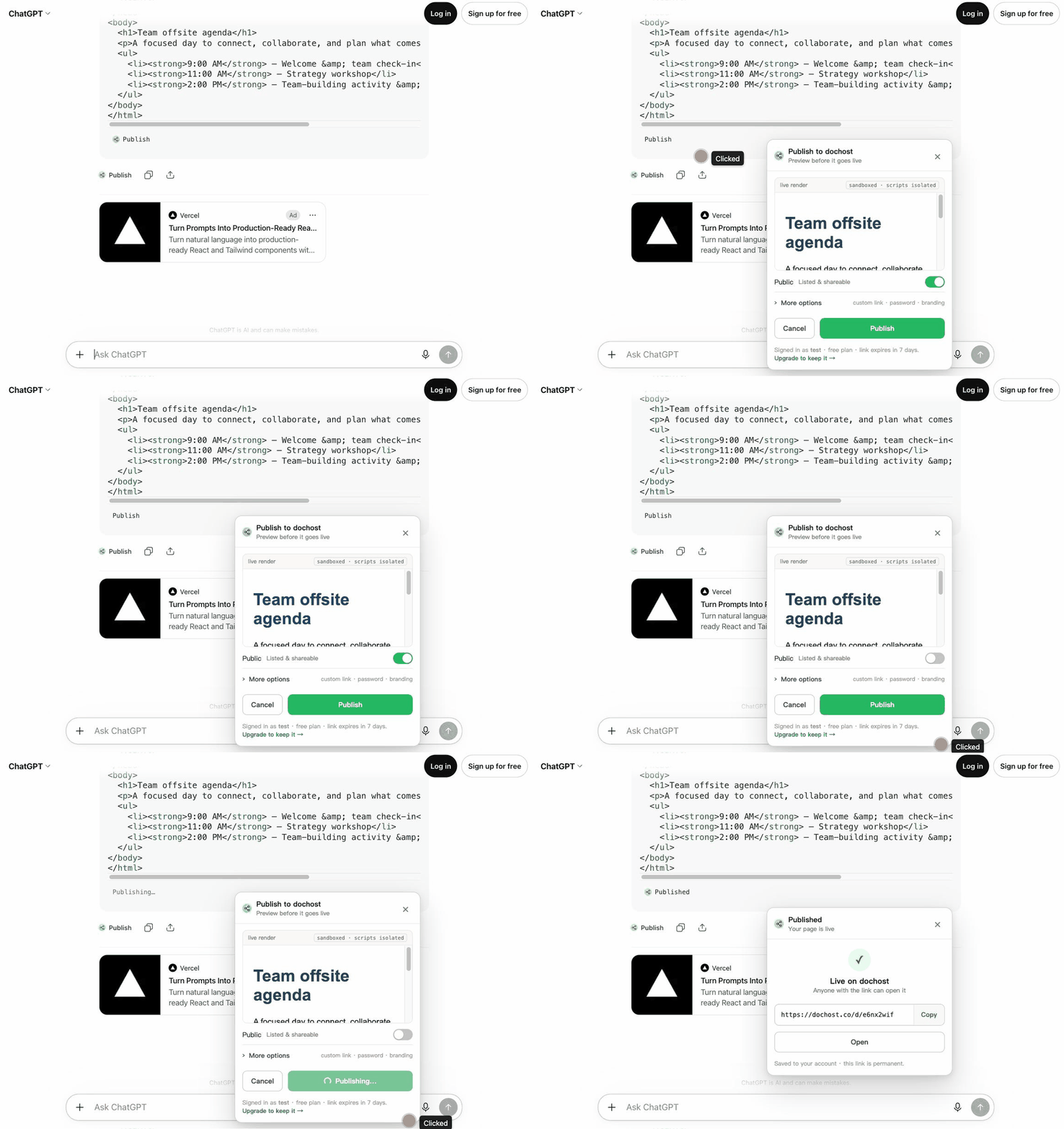
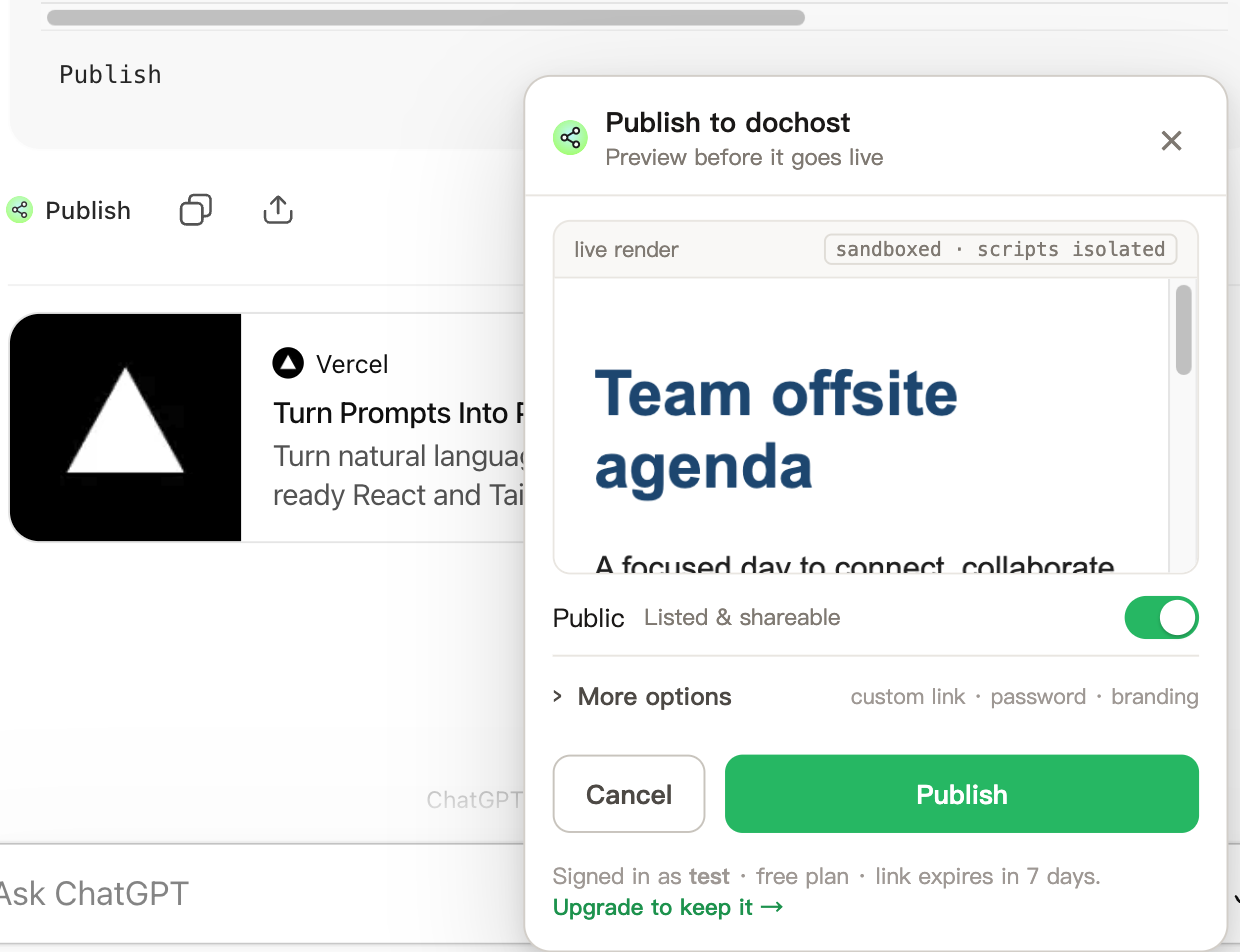
- Click Publish. A panel opens with a live render of the page — sandboxed, scripts isolated, nothing sent anywhere yet. If the preview looks wrong, the page will too; ask ChatGPT to fix it and the button follows the new answer.
- Decide on the Public toggle. On means the page is listed on Explore for anyone to find. Off means link-only. For most work shared with a specific person or team, turn it off.
- Open More options for a custom link, a password or no dochost branding. These are Pro features and are labelled as such on a free account.
- Click Publish in the panel.
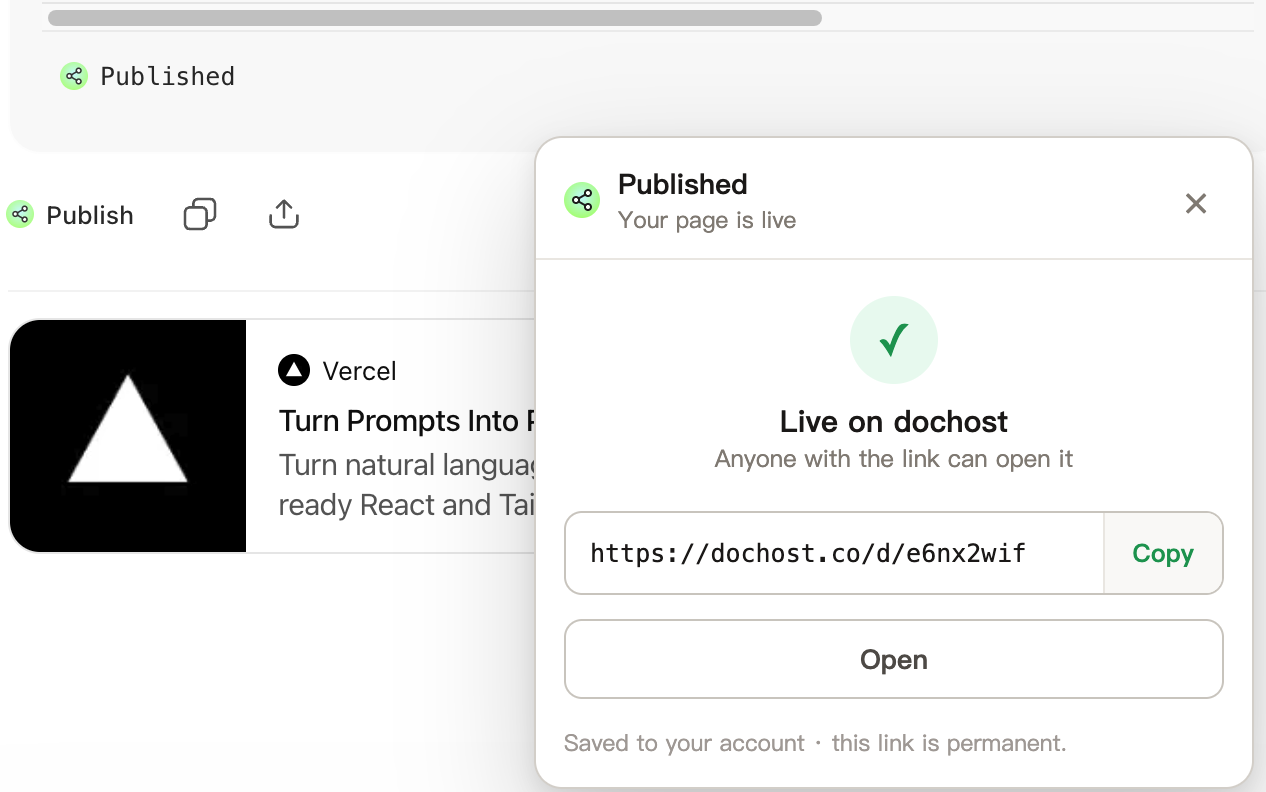
The panel then shows the result: the link, Copy and Open. The button under the code block changes to Published, so in a long chat you can tell which answers already have a page.
Where the button appears
- Inline code blocks — the classic case, shown above. Any fenced block ChatGPT labels as HTML or Markdown gets the button, including a full
<!DOCTYPE html>page. - File cards — when ChatGPT delivers the page as a downloadable file instead of inline code, the button sits on the card next to Download.
- Canvas — the extension does not yet reach inside Canvas. Ask ChatGPT to "show it as a code block" and the button appears on the result.
If you see no button at all, the usual causes are: the answer is prose without a code block; the block is still streaming (the button appears when the answer completes); or the tab was open when the extension updated and needs a refresh.
Signed in or not
- Not signed in, the page is a free link: it works for 7 days, and the panel footer says so.
- Signed in on dochost.io in the same browser, the extension publishes to your account. Pages land in your dashboard, follow your plan (permanent on Pro and Max), and the Pro options in the panel become usable.
After publishing
Publishing the same answer twice makes two pages with two links. To change a page you already shared, open it from your dashboard and edit it there — the link stays the same. If you want the page to outlive the 7 days without a plan, the reader-side Extend option and the free like-based extension are described in How Long a Free dochost Link Lasts.
Author

Categories
More Posts
How to Read Your dochost Page Analytics
Views and likes for every page, per-page daily charts, and an account-wide curve on Max. Here is where each number lives, how views are counted without any tracking script, and why the totals sometimes differ from Google Analytics.
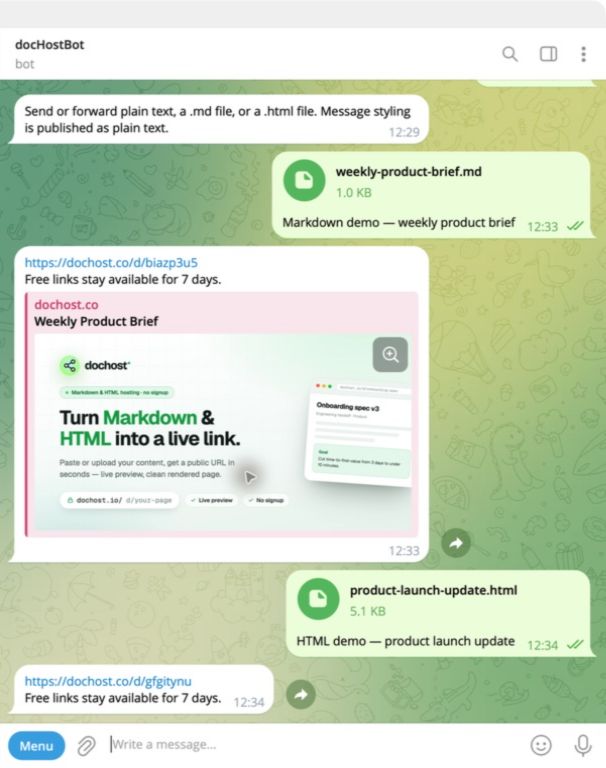
Publish From Telegram: Forward a File, Get a Link Back
The dochost Telegram bot turns a forwarded Markdown or HTML file into a public link without leaving the chat. No account needed, and you can connect one later.
How to Host an HTML File Online for Free
Get a public URL for a single HTML page in seconds — no account, no server, no deploy. Plus what "free" actually means for hosting an HTML file.
Newsletter
Join the community
Subscribe to our newsletter for the latest news and updates