How to Serve Your dochost Pages From Your Own Domain
Connect a subdomain you own, like docs.yourcompany.com, to your dochost account in three steps — one form, one CNAME record, one email. With screenshots, including the single Cloudflare setting that trips most people up.
Every page you publish on dochost lives at dochost.co/d/{slug}. On the Max plan you can put those same pages behind a domain you control instead — docs.yourcompany.com/{slug} — so a link you send a client or a class carries your name, not ours. This guide walks through the setup once, with screenshots. The whole thing takes about ten minutes, and most of that is waiting for DNS.
What you need
- A Max subscription. Custom domains are a Max feature; see pricing.
- A domain you own, and access to wherever its DNS is managed (Cloudflare, Namecheap, GoDaddy, Route 53, and so on).
- A subdomain to use.
docs.yourcompany.com,share.yourcompany.com,pages.yourcompany.com— any prefix you like. Bare top-level domains (yourcompany.comwith no prefix) cannot be connected; if you type one, dochost proposesdocs.yourcompany.comand lets you change the prefix.
You can connect up to two domains per account.
Step 1 — Add your domain in dochost
Open Settings → Domains and click Add a domain. Type the subdomain and click Add domain.
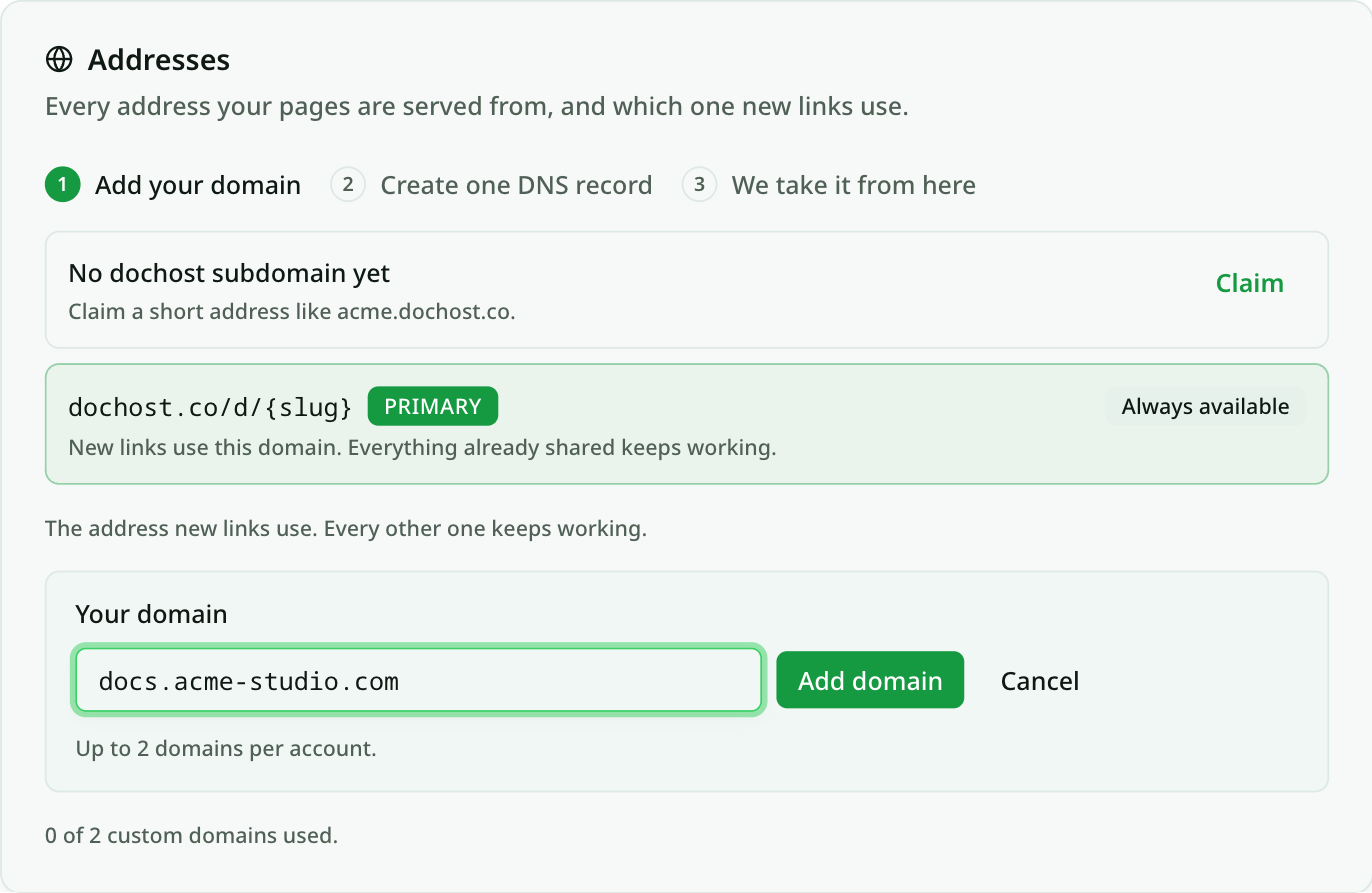
The step bar at the top of the card tracks where you are: Add your domain → Create one DNS record → We take it from here. You only do the first two.
Step 2 — Create one CNAME record at your DNS provider
As soon as the domain is added, dochost shows the exact record to create. Pick your DNS provider from the chips and the field labels switch to that provider's wording; the Open … DNS settings button deep-links to the right screen where the provider supports it.
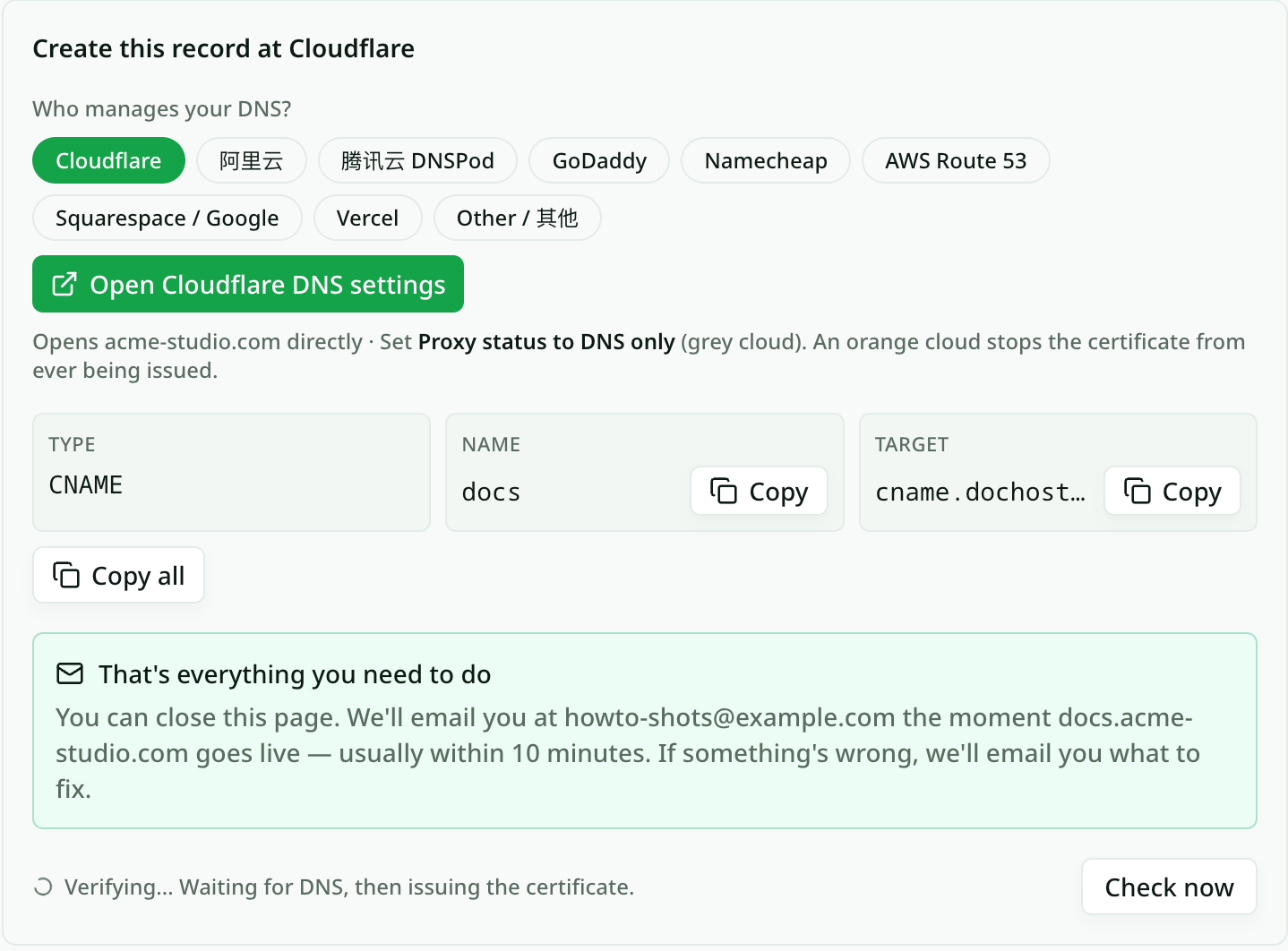
The record is always the same shape:
| Field | Value |
|---|---|
| Type | CNAME |
| Name | your prefix, e.g. docs |
| Target | cname.dochost.co |
Use the Copy buttons rather than retyping — a stray space in the target is the most common typo.
On Cloudflare
Cloudflare is the provider most readers use, so here is that path in full. Open your domain, go to DNS → Records, and click Add record.
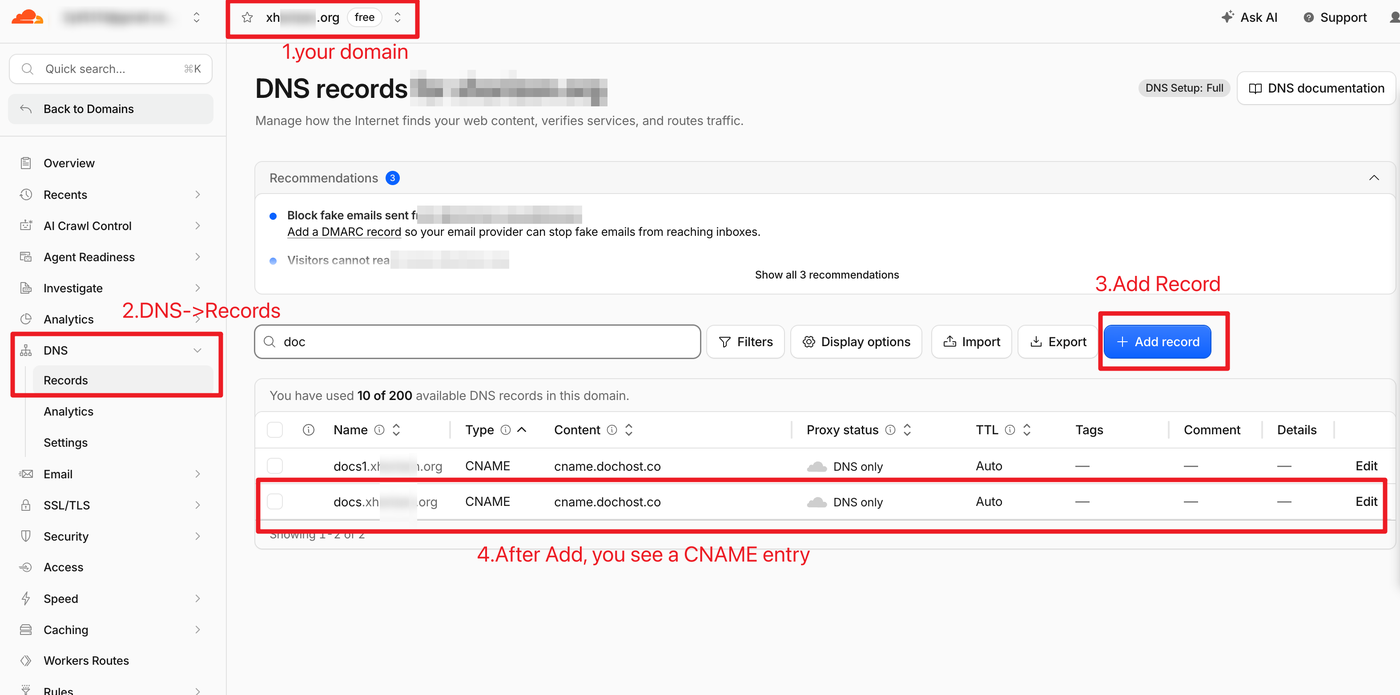
In the dialog set Type to CNAME, Name to your prefix, and Target to cname.dochost.co. Then turn Proxy status off so it reads DNS only with a grey cloud, and click Save.
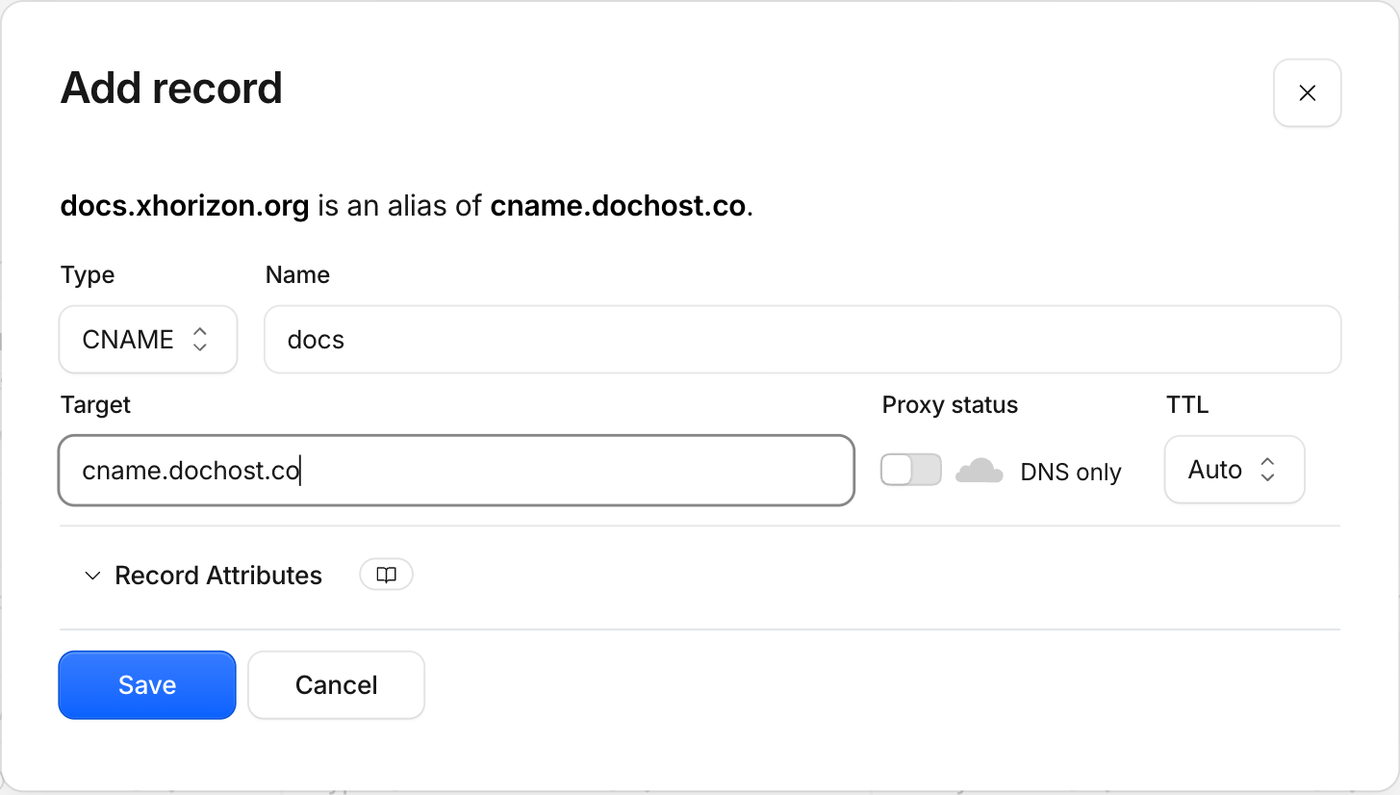
The grey cloud matters. Cloudflare turns the orange proxy cloud on by default. While the record is proxied, the certificate for your domain can never be issued, and the domain stays stuck at Verifying with no other symptom. If you only remember one thing from this page, make it DNS only.
Other providers have no proxy toggle, so there is nothing to switch off; just create the CNAME.
Step 3 — We take it from here
Back in dochost the row now shows Verifying. You can close the tab: dochost polls DNS, issues an HTTPS certificate once the record resolves, and emails you the moment the domain goes live — usually within ten minutes. If you would rather watch, Check now runs a check on the spot.
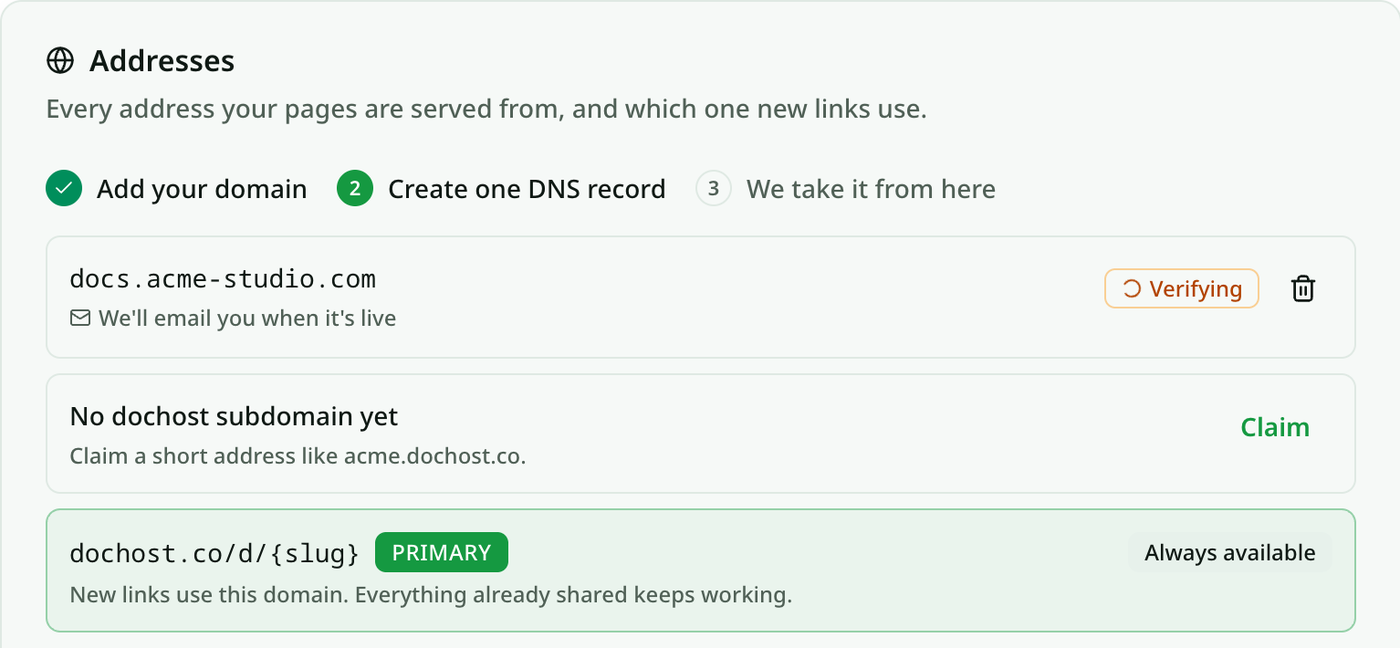
If anything is wrong, the row turns to Needs attention with a one-line reason, and the email says what to fix:
| What you see | What it means | What to do |
|---|---|---|
| No CNAME record found | The record has not propagated yet, or was created on a different name | Wait a few minutes, check the Name field, then Check now |
| CNAME points somewhere else | The target is not cname.dochost.co | Edit the record's target |
| Record is proxied | Cloudflare's orange cloud is on | Switch the record to DNS only |
| Already connected elsewhere | Another dochost account holds this hostname | Remove it there, or reply to the email |
| Verification timed out | Seven days passed with no record | Create the record, then Retry |
When it is live
Your first custom domain becomes the primary address automatically: every page you publish from now on gets a docs.yourcompany.com/… link, in the dashboard, the success panel, the browser extension and the MCP tools alike.
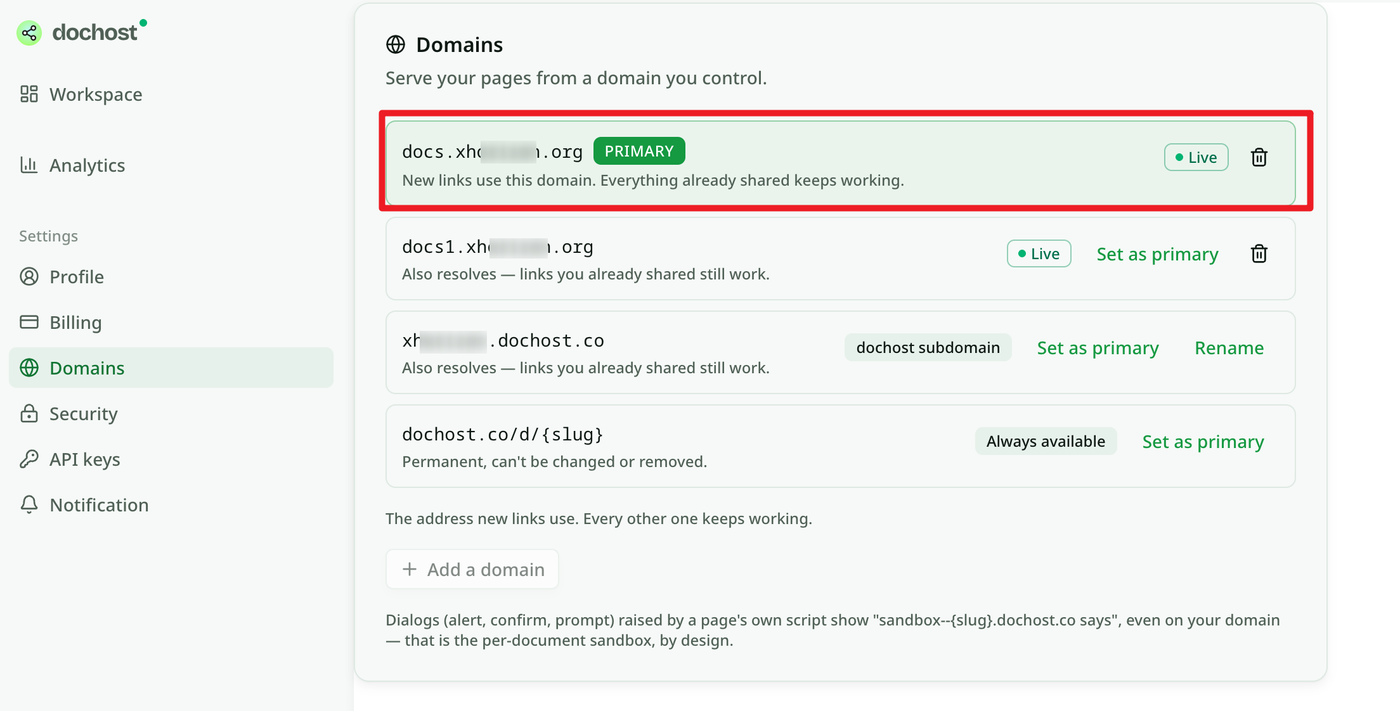
A few things worth knowing about that screen:
- Every address keeps working. Links you already shared on
dochost.co/d/…still resolve, and so does a second domain or ayourname.dochost.cosubdomain. Primary only decides which one new links use. Change it with Set as primary at any time. - Pages themselves do not change. Your documents are still stored once; the domain is just another door to the same page. Passwords, expiry and analytics carry over.
- Removing a domain stops links on that hostname, but the pages stay published and reachable at every other address.
- If you leave Max, your custom domains stop serving and links fall back to
dochost.co/d. The setup is kept for 90 days, so re-subscribing brings the domain back without redoing DNS. - Dialogs say
sandbox--{slug}.dochost.co. When a page's own script callsalert()orconfirm(), the browser names the per-document sandbox origin, even on your domain. That is by design: each published page runs in its own isolated origin, which is what keeps one page from reading another's data.
Putting a page ChatGPT or Claude built on your own domain
This is the question we get asked in the most different ways: how do I get the site ChatGPT made onto my Namecheap domain, how do I link a Claude-made website to a domain so it is live, how do I publish the HTML from a Claude artifact under my own name. The confusing part is that the AI tool feels like it should be involved in the answer, and it is not.
What those tools give you is a file. An artifact, a canvas, an AI Studio app — the thing you can actually take away is HTML, and the moment you have it, the question stops being about the AI tool and becomes an ordinary hosting question with two halves:
- Somewhere to serve the page. Paste the HTML into dochost and you have a working link straight away, before any domain is involved. Your page keeps its own JavaScript, so a calculator, a dashboard or a quiz still behaves the way it did in the chat.
- Your name on the front of it. That is this guide: one CNAME record at whoever manages your DNS, and the same page answers on
docs.yourcompany.com.
The registrar makes no difference to step 2. Namecheap, GoDaddy, Cloudflare, Route 53 — every one of them has a DNS page where you add a CNAME pointing your chosen subdomain at cname.dochost.co, which is exactly what Step 2 above walks through. The Cloudflare-specific gotcha in that section is the only per-provider quirk worth knowing.
Two things worth being honest about:
- A bare domain will not work, so
yourcompany.comon its own cannot serve your pages — use a subdomain likedocs.orshare.. That is a limitation of how the certificate is issued, not a plan restriction. - Anything that calls an AI model at runtime does not come with the file. If the page you built talks to the Gemini or Claude API on every click, that part needs a key and has to stay where the key lives. A page that renders, calculates or animates in the browser transfers completely.
If you have not published the page yet, start at AI output to a link or, for a Claude artifact specifically, Claude artifact to link. Come back here once you want your own name on it.
Try it
Upgrade to Max, open Settings → Domains, and add the subdomain you want. If the record is right, you will have the email before you finish your coffee.
More Posts
How to Password-Protect a Page and Pick Its Link
Two Pro options on the publish panel — a custom link and a password — turn a random dochost URL into dochost.co/d/team-handbook that only people with the password can read. Here is the flow end to end, including what readers see.

Claude Skills vs Projects vs Artifacts: What Each One Actually Is
Three Claude features with overlapping names and completely different jobs. Skills are procedures, Projects are context, Artifacts are output — here's how to tell which one you need.
How to Make a One-Page Website With ChatGPT (No Hosting Setup)
Prompt ChatGPT for a single self-contained HTML page, iterate in chat, then paste it on dochost and get a live link — no hosting account, no deploy.
Newsletter
Join the community
Subscribe to our newsletter for the latest news and updates