Why Your JavaScript Works Locally but Not on the Published Page (and What Does Work)
Published dochost pages run their own scripts — storage, dialogs, downloads, clipboard, fetch all work. When a page looks fine but a button does nothing, it is almost always one of six things. A checklist, with a live test page you can compare against.
Two thirds of the HTML pages published on dochost contain real JavaScript — calculators, quizzes, dashboards, little games. A common support message is "the page renders but nothing happens when I click". Nine times out of ten the cause is in the page, not the host, but the host does have a few rules. This guide lists what a published page is allowed to do, then the six mistakes that account for almost every dead button.
What a published page can do
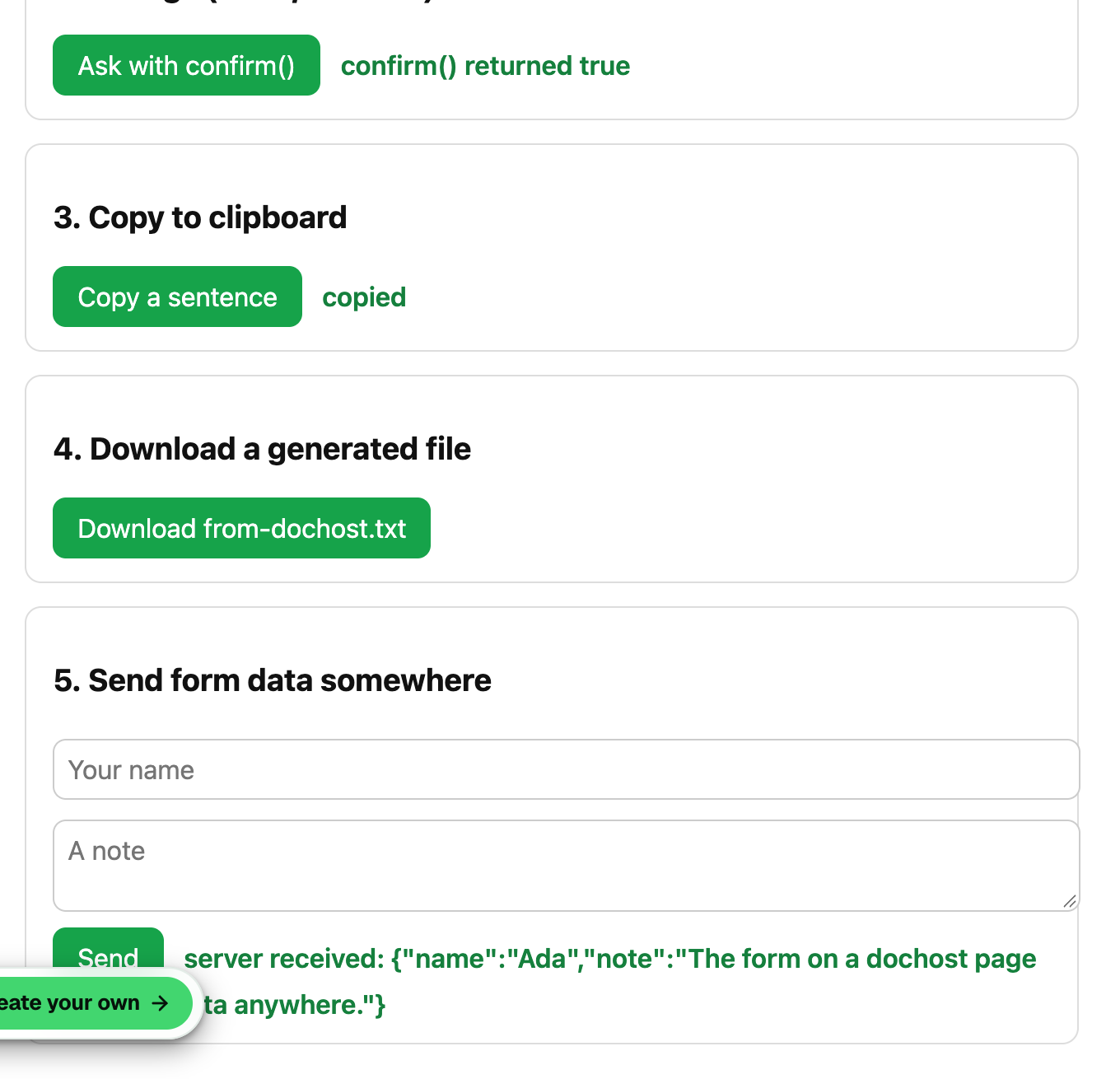
Your HTML is served on its own origin, sandbox--{slug}.dochost.co, inside a frame on the share page. That frame is granted the following, and all of it is exercised on a live test page:
| Feature | Works? | Notes |
|---|---|---|
Scripts, inline and <script src> from CDNs | ✓ | no CSP restriction on script sources |
localStorage / sessionStorage / IndexedDB | ✓ | scoped to this one page, not shared with other pages |
alert(), confirm(), prompt() | ✓ | the dialog is titled sandbox--{slug}.dochost.co says — by design |
fetch() / XMLHttpRequest to any URL | ✓ | the receiving server must allow cross-origin requests |
<form> handled by your script | ✓ | see the first mistake below |
| Downloads from a generated Blob | ✓ | a.download + URL.createObjectURL |
navigator.clipboard.writeText | ✓ | inside a click handler |
window.open | ✓ | opens outside the sandbox |
| Autoplaying media after a click, Web Audio | ✓ | |
| Camera, microphone, geolocation, payment | ✗ | never granted to a published page |
| Fullscreen | ✗ | the address bar stays visible so readers always know where they are |
| Reading the clipboard | ✗ |
The six mistakes
1. A form with an action and no script
<form action="https://example.com/submit"> never submits: the page is served with form-action 'none', so the browser drops the native submit before your validation even runs. Handle the submit in script with e.preventDefault() and send the data with fetch. The full pattern, with endpoints, is in How to Collect Form Responses.
2. Files that only exist on your computer
A single page is a single file. <script src="app.js">, <link href="style.css">, <img src="images/logo.png"> all resolve to nothing once the page is published on its own. Inline the script and the CSS, and either inline images as data: URLs or put them on a host with a public URL. If the page looked right when you opened the .html from your desktop, this is the first thing to check.
3. http:// resources on an https:// page
The share page is HTTPS, so the browser blocks scripts, styles and fetches that use plain http://. Images merely warn; everything else silently fails. Change the URL to https:// or host the asset elsewhere.
4. Timing bugs the AI wrote
The page runs exactly as written, including the bugs. Patterns seen repeatedly in AI-generated pages:
document.getElementById(...)at the top of<head>before the element exists — move the script to the end of<body>or wrap it inDOMContentLoaded.- A Web Audio "song" where every note after the first is silent because
osc.stop()is scheduled at a time already in the past. Nothing about the host is muting it; the schedule is wrong. - A
setIntervalgame loop that reads state from variables that are re-declared inside the loop.
Open the page and read the console (below); a syntax error anywhere in a <script> block disables that whole block.
5. Expecting the parent page or another page
Your page cannot reach window.parent or window.top — the share page is a different origin — and localStorage is per page, so two pages you published cannot share data through it. Store shared state on a server, or put both tools on one page.
6. Using a blocked capability
Anything in the ✗ rows above fails with a NotAllowedError or simply does nothing. A page that wants the camera, GPS or fullscreen needs to be opened outside dochost; window.open to a page hosted elsewhere is the escape hatch.
Seeing the error
The fastest way to find the failing line is the browser console on the published page:
- Open the share link, press F12 (or Cmd-Option-I on a Mac) and choose the Console tab.
- At the top of the console is a frame selector that says
top. Switch it to thesandbox--…dochost.coframe — your script's errors are logged there, not in the outer page. - Reproduce the click. Red lines are yours to fix; the page's own warnings from the share frame can be ignored.
If the console is empty and the button still does nothing, the handler is not attached: mistake 4, almost always.
What you do not need to work around
- Storage does work. An early version of dochost ran pages in an opaque origin where
localStoragethrew; that has not been the case for months. If a tutorial told you to avoid storage on dochost, it is out of date. - Dialogs, downloads and forms are allowed on purpose. Each was switched on after measuring how many real pages silently broke without it.
- Scripts run identically for every reader. Nothing is injected into your HTML, and no reader-side setting turns scripts off.
The live test page used for the screenshots is a free page and will expire; the source for every block on it is in the form-responses guide, so you can publish your own copy in a minute.
Author

Categories
action and no script2. Files that only exist on your computer3. http:// resources on an https:// page4. Timing bugs the AI wrote5. Expecting the parent page or another page6. Using a blocked capabilitySeeing the errorWhat you do not need to work aroundMore Posts
How Explore and Likes Work on dochost
Public pages appear on Explore, readers can like them from the corner pill, and 30 likes buy a free page another 30 days. Here is what gets listed, how the three sort orders are ranked, what a like counts, and how to keep a page off Explore without hiding the link.
PDF to Markdown, Word to Markdown, and Six More Converters That Run in Your Browser
A set of free document converters that do the work locally in the browser — no upload, no signup — and hand the result straight to a shareable link if you want one.
How to Publish a ChatGPT HTML or Markdown Answer in One Click
When ChatGPT writes a page, the dochost Chrome extension puts a Publish button right under the code block. Here is the flow in a real ChatGPT chat — including the Public toggle and where the link ends up — and what to check when the button is missing.
Newsletter
Join the community
Subscribe to our newsletter for the latest news and updates