How to Publish a Page From Gemini CLI, Codex, Cursor, VS Code or Windsurf
Five coding assistants, one MCP server. The exact install command or config file for each — including the Gemini CLI extension — what the first tool call looks like, and how to ask for a page and get a link back without leaving the terminal.
Coding assistants produce a lot of pages: a README you want a teammate to read on their phone, a generated HTML prototype, release notes, a report. Every assistant on this list speaks MCP, and dochost's server gives all of them the same publish tool. This guide is the per-client setup — the general MCP guide covers Claude, ChatGPT and API keys — followed by what actually happens on the first call.
The server URL is the same everywhere:
https://dochost.io/api/mcpGemini CLI
Gemini CLI installs dochost as an extension, which bundles the MCP server and a short context file that tells Gemini when to reach for it. One command:
gemini extensions install https://github.com/zyli5313/dochost-gemini-extensionGemini asks you to confirm the install (add --consent to skip the prompt in scripts). Then check it is registered:
$ gemini extensions list
✓ dochost (1.0.0)
 Path: ~/.gemini/extensions/dochost
 Source: https://github.com/zyli5313/dochost-gemini-extension (Type: git)
 Context files:
  ~/.gemini/extensions/dochost/GEMINI.md
 MCP servers:
  dochost

$ gemini mcp list
dochost (from dochost): https://dochost.io/api/mcp (http)
No key, no config edit. The first time Gemini calls a dochost tool it opens your browser to a dochost sign-in page; approve once and the CLI keeps the session. Update later with gemini extensions update dochost.
Codex
Two commands — one to add the server, one to sign in:
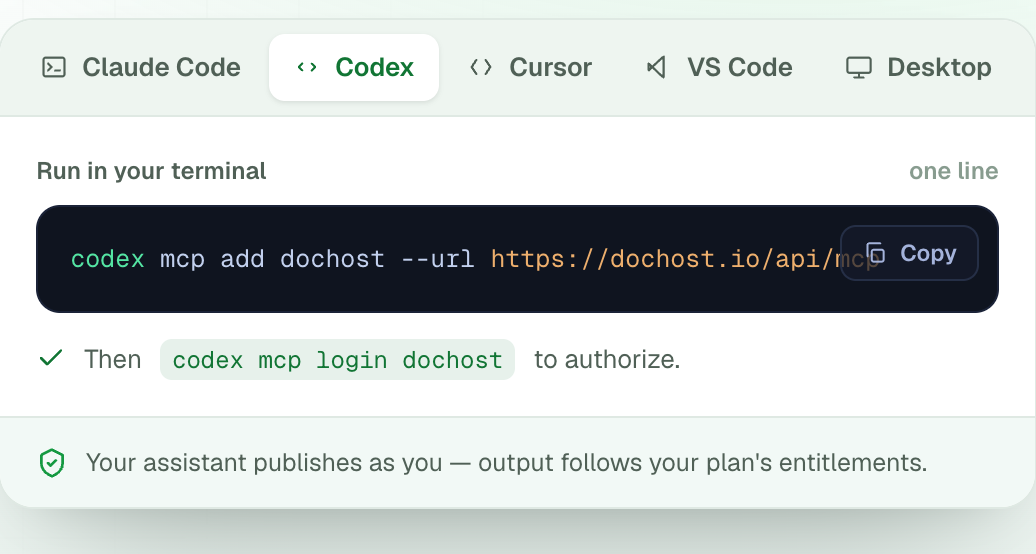
codex mcp add dochost --url https://dochost.io/api/mcp
codex mcp login dochost
The second command opens the browser for the OAuth approval. Codex lists the server under codex mcp list afterwards.
Cursor
Cursor reads MCP servers from a JSON file. Add dochost to ~/.cursor/mcp.json (create the file if it does not exist), or to .cursor/mcp.json inside one project to scope it there:
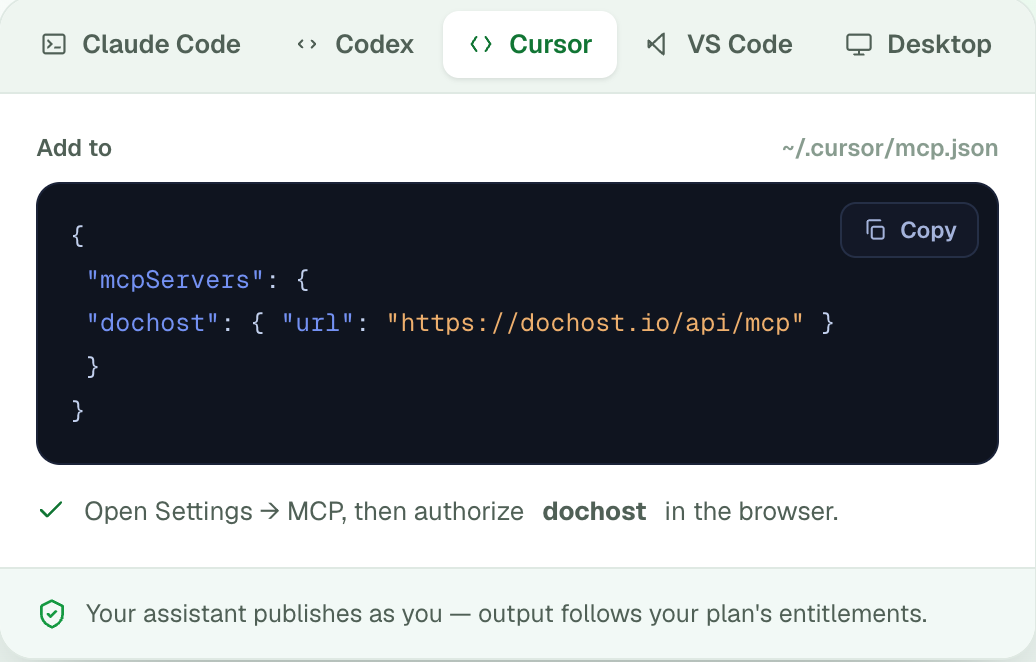
{
  "mcpServers": {
    "dochost": { "url": "https://dochost.io/api/mcp" }
  }
}
Then Settings → MCP: dochost appears in the list. Click it, approve in the browser, and the server's status turns green with the tool list under it.
VS Code (GitHub Copilot agent mode)
One terminal command registers the server with VS Code:
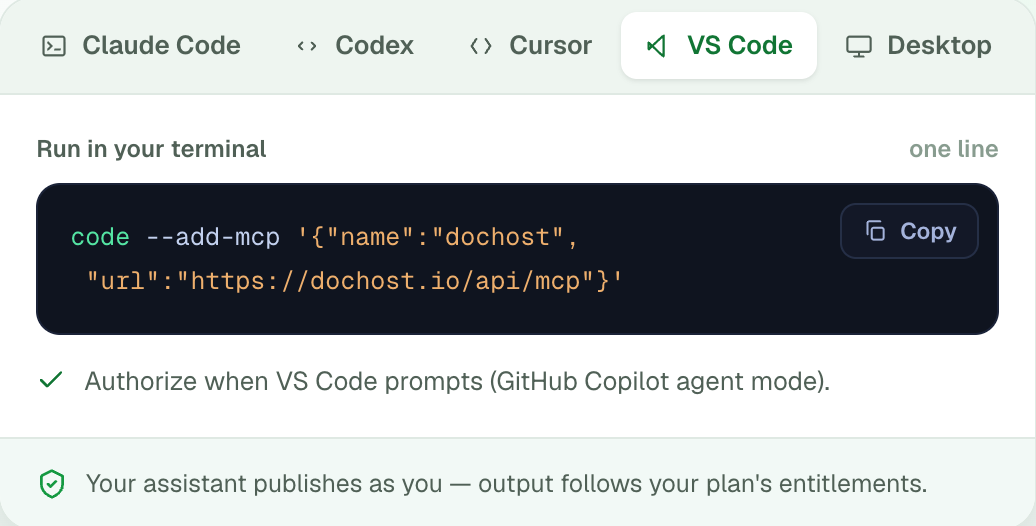
code --add-mcp '{"name":"dochost","url":"https://dochost.io/api/mcp"}'Open Copilot Chat in Agent mode; the first time it wants to use a dochost tool, VS Code shows an authorization prompt and opens the browser. If you would rather edit a file, the same entry goes in .vscode/mcp.json under "servers".
Windsurf
Windsurf uses serverUrl rather than url in its config, at ~/.codeium/windsurf/mcp_config.json:
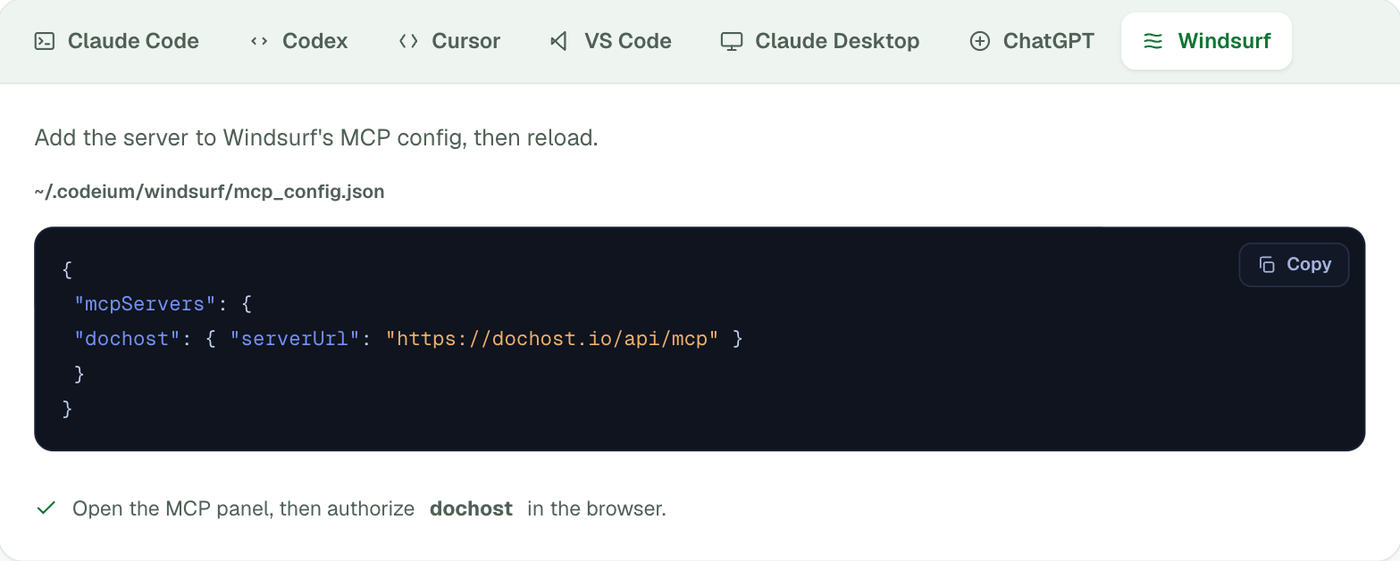
{
  "mcpServers": {
    "dochost": { "serverUrl": "https://dochost.io/api/mcp" }
  }
}
Reload Windsurf, open the MCP panel, and authorize dochost from there.
The first call
Whichever client you use, the flow from here is identical. Ask in plain language:
Publish README.md as a dochost page and give me the link.
The assistant calls publish with the file's contents. Three things to know about what comes back:
- The link is on
dochost.co, e.g.https://dochost.co/d/k3m9x2ab. It is live the moment the tool returns — Markdown renders immediately, HTML may spend a few seconds in review first. - The page is unlisted by default. It is not on Explore unless you say "make it public". Add "with the password …" or "at the slug release-notes" on a Pro or Max account and those options are honoured too.
- It publishes as you. Whatever plan the signed-in account is on decides the page's lifetime and limits: 7 days and 1 MB on free, permanent on Pro or Max. The page appears in your dashboard next to everything published from the website.
The other five tools work the same way: "list my pages", "update the page at that link with this new version" (update_page keeps the URL and the view count), "delete it". Calls are limited to 20 publishes a minute and 300 an hour, which is far more than a person hits and enough to notice a script stuck in a loop.
If the tool never appears
- The client shows the server but no tools. Authorization has not completed. Look for a pending browser tab, or run the login step again (
codex mcp login dochost, or click the server in Cursor's settings). - Gemini says the extension is untrusted.
gemini extensions installpauses on a workspace-trust prompt in some directories; answer Y, or run it from your home directory. - You want no browser at all — a cron job, a CI step, an agent on a server. Use an API key as a bearer token instead of OAuth. Same URL, same tools.
Author

Categories
More Posts
Claude Skills vs Projects vs Artifacts: What Each One Actually Is
Three Claude features with overlapping names and completely different jobs. Skills are procedures, Projects are context, Artifacts are output — here's how to tell which one you need.
Where Did My Page Go? Finding Pages You Published Before Signing In
Most dochost pages are published without an account. Sign in from the same browser and they join your dashboard automatically; from anywhere else, the edit link or the expiry reminder email brings them back. Here is how each path works and what to keep so a page is never lost.
How to Collect Form Responses From a Published dochost Page
A third of the HTML pages on dochost have an input box, and most of them send the answer nowhere. Here is the pattern that works — a fetch() to any endpoint that accepts JSON — with a live demo and drop-in code for Formspree, Supabase and Google Sheets.
Newsletter
Join the community
Subscribe to our newsletter for the latest news and updates