Where Did My Page Go? Finding Pages You Published Before Signing In
Most dochost pages are published without an account. Sign in from the same browser and they join your dashboard automatically; from anywhere else, the edit link or the expiry reminder email brings them back. Here is how each path works and what to keep so a page is never lost.
Nearly nine in ten dochost pages are published without an account. That is the point of the product, and it has one awkward consequence: a page published on Tuesday and an account created on Wednesday do not know about each other unless something connects them. This guide covers the three connections that exist, in the order you should try them.
1. Sign in from the same browser
When you publish anonymously, dochost sets one cookie in that browser that identifies the publishing session. When you later create an account or sign in from the same browser, every page published under that cookie joins the account on the spot. There is nothing to click; the dashboard simply shows them, marked Just claimed.
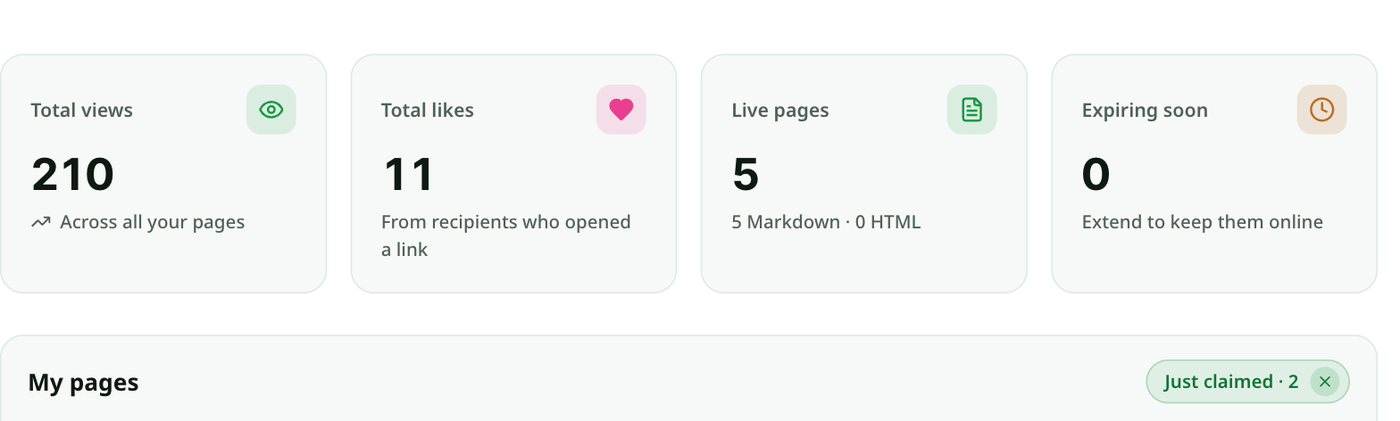
A notice at the top of the dashboard says how many pages joined. It has two buttons:
- Review them opens the same list filtered to the claimed pages.
- Not all mine opens a checklist. Untick anything you did not publish — a shared computer, a page a colleague made on your laptop — and click Release. Released pages stay online at the same link with the same views and likes; they just stop being yours. There is an Undo if you release the wrong one.
The marker and the notice fade after seven days. The pages stay.
Two details worth knowing:
- Claimed pages keep the expiry they were published with. A page that had five days left still has five days left after it joins a Pro account; Extend on the row, or the page's manage screen, makes it permanent.
- This works with Google and GitHub sign-in as well as email. The cookie is sent on the return trip from the provider, so signing in through a pop-up is fine.
2. Use the edit link
The success panel after an anonymous publish shows two links: the share link and an edit link. The edit link contains a secret token, and opening it does two things: it loads the page into the editor, and it identifies you as the author for that browser session. If you sign in while that session is active, the page joins your account.
So if you saved the edit link anywhere — a note, a chat with yourself, browser history — you can recover the page from any device. Treat it like a password; anyone who has it can rewrite the page.
3. The expiry reminder email
Below the share link on the success panel is Get warned before this link dies. Enter an email and dochost sends one confirmation. Clicking it does more than turn on the reminder: the confirmation page is titled Claim your page & turn reminders on, and confirming attaches that page to the account behind the email — creating one if it does not exist yet.
The confirmation link works for 72 hours. If it has expired, the same page offers to send a fresh one, up to three per address per day. This is the path that works when the browser is gone: a phone that was reset, a library computer, a private window you closed.
When none of these apply
If you published from a browser you no longer have, kept neither the edit link nor the reminder email, and only have the share link — the page is still online, and readers can still open it, but nothing ties it to you. The share link identifies the page, not the author, on purpose; otherwise anyone with a link could take over any page.
What you can still do:
- Extend it from the corner pill on the page itself, which needs no account.
- Republish the content from your account, which gives you a new permanent link you control. Readers with the old link keep the old page until it expires.
The one-minute habit
Before you share an anonymous link, do one of these: sign in first (then the page is yours from the start), copy the edit link somewhere, or type your email into the reminder box. Any one of them is enough. The extension and the Telegram bot have equivalents — sign in once in the extension, or send /link to the bot — described in their own guides.
More Posts
How to Unpublish a Claude Artifact — and Why You Only Get One Shot
Unpublishing a Claude artifact takes seconds, but it's a one-way door — that artifact can't be republished and its data is deleted. Here's the process and what to do before you click.

How to Publish a ChatGPT HTML or Markdown Answer in One Click
When ChatGPT writes a page, the dochost Chrome extension puts a Publish button right under the code block. Here is the flow in a real ChatGPT chat — including the Public toggle and where the link ends up — and what to check when the button is missing.
How to Share the HTML ChatGPT Writes (Without Saving a File)
ChatGPT writes you a full HTML page, but it's stuck in the chat as code. Here's how to turn it into a link your team or client can open.
Newsletter
Join the community
Subscribe to our newsletter for the latest news and updates