How Edit Links Work: Update a dochost Page Without an Account
Every page published without signing in comes with a private edit link. Open it, change the content, click Update page — the share link, views and expiry stay exactly as they were. What the link can and cannot do, why it is secret, and what to do when it stops working.
Publishing again is the wrong way to fix a typo. The old link keeps circulating with the old content, the new link has zero views, and now there are two pages to keep track of. Every page published without an account has a second, private URL for exactly this: the edit link. This guide shows where it is, what happens when you use it, and the rules around it.
Where the edit link is
Publish anything while signed out. The success panel shows two links: the share link on top, and below it the edit link, greyed out with the token partly hidden.
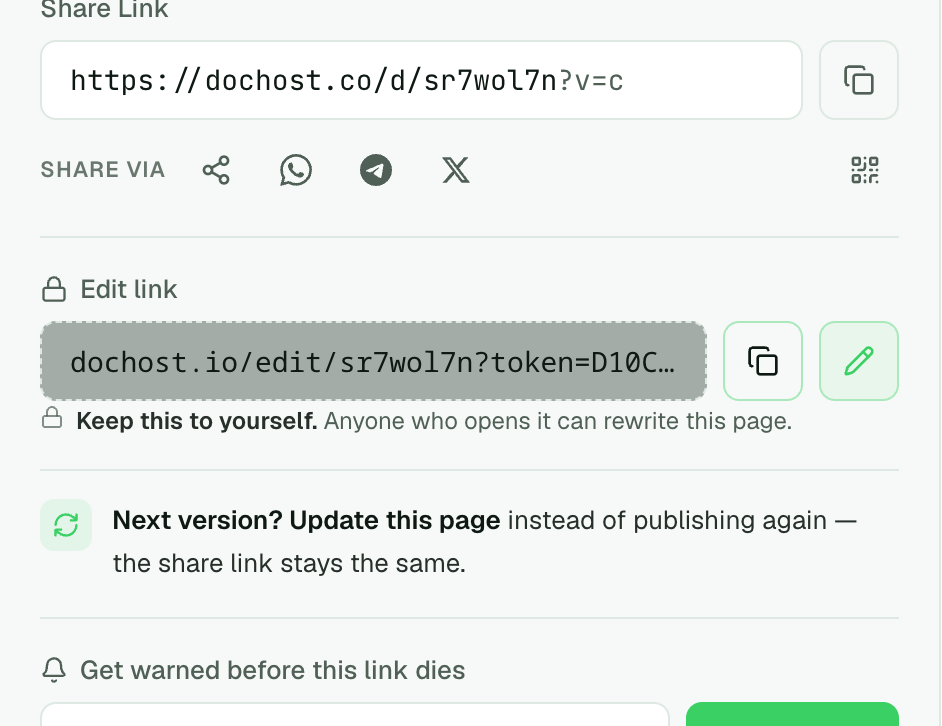
Copy it now, with the copy button, and put it somewhere you will find it — the notes app, the same chat where you posted the share link to yourself. It is shown only here. dochost stores a hash of the token, not the token, so it cannot be re-sent later; if you lose it, the page can still be edited by signing in from the same browser, but the link itself is gone.
Signed-in users do not get an edit link. Their pages are edited from the dashboard, which knows who they are.
Using it
Open the link. dochost swaps the token for a session cookie and cleans it out of the address bar, so the editor's URL is just /edit/{slug} — nothing to leak into browser history or someone's screenshot.
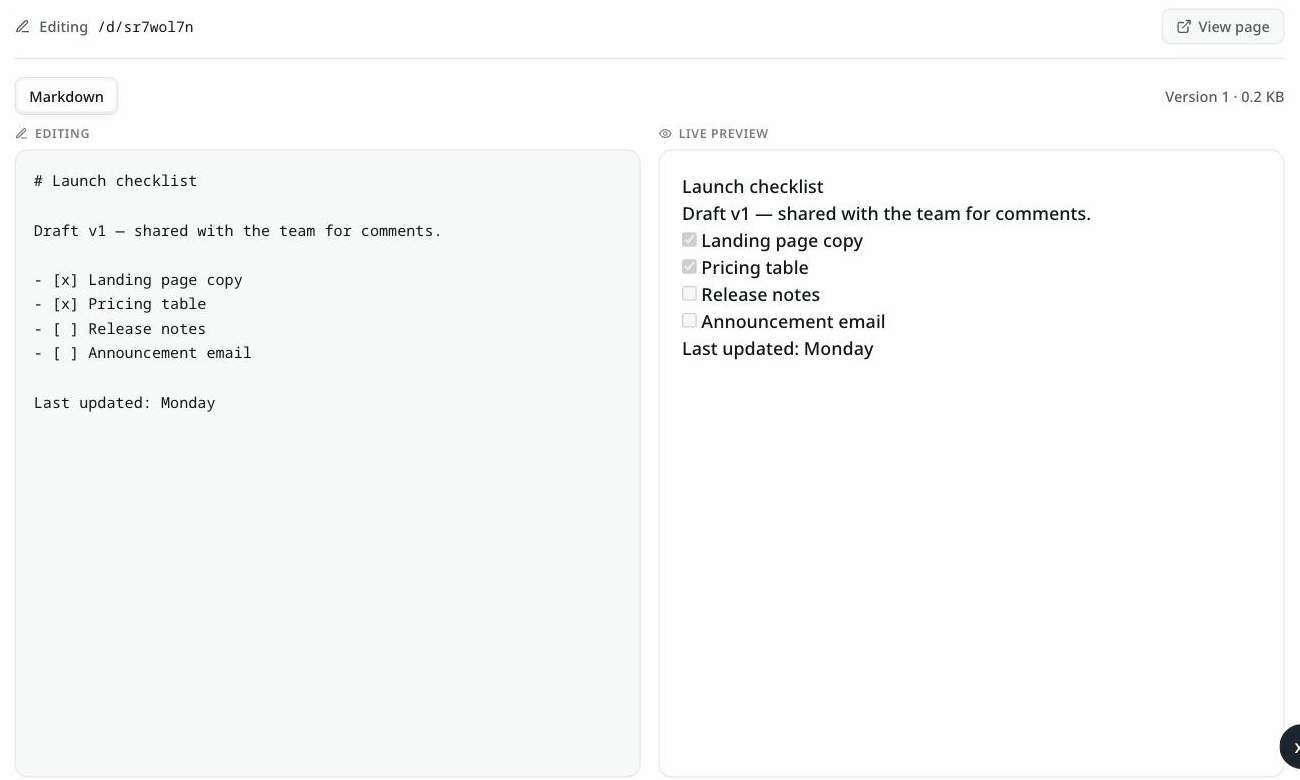
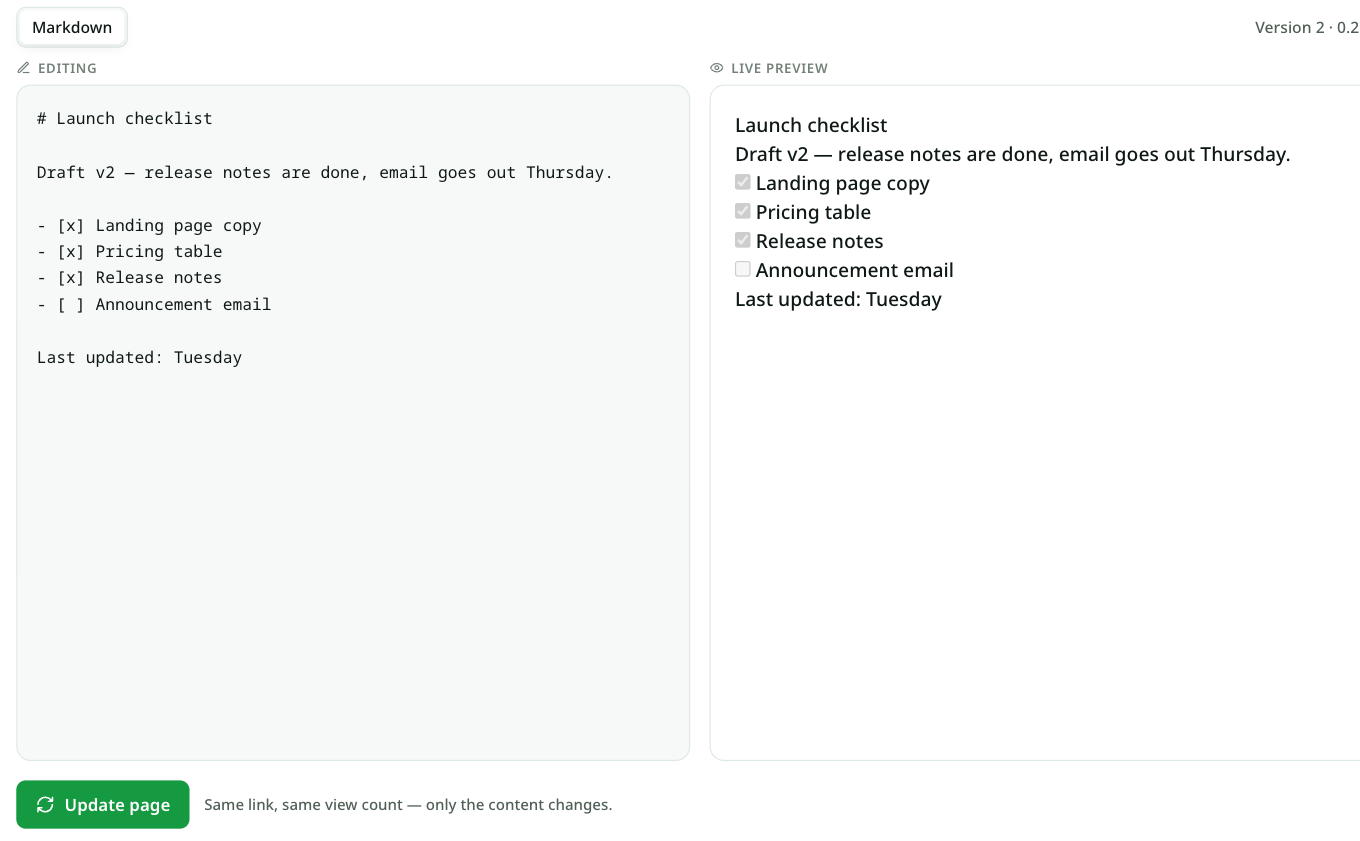
The editor is a plain split view: source on the left, live preview on the right for Markdown (HTML pages are previewed on the live page itself after saving — open it in a new tab). Change what you need and click Update page.
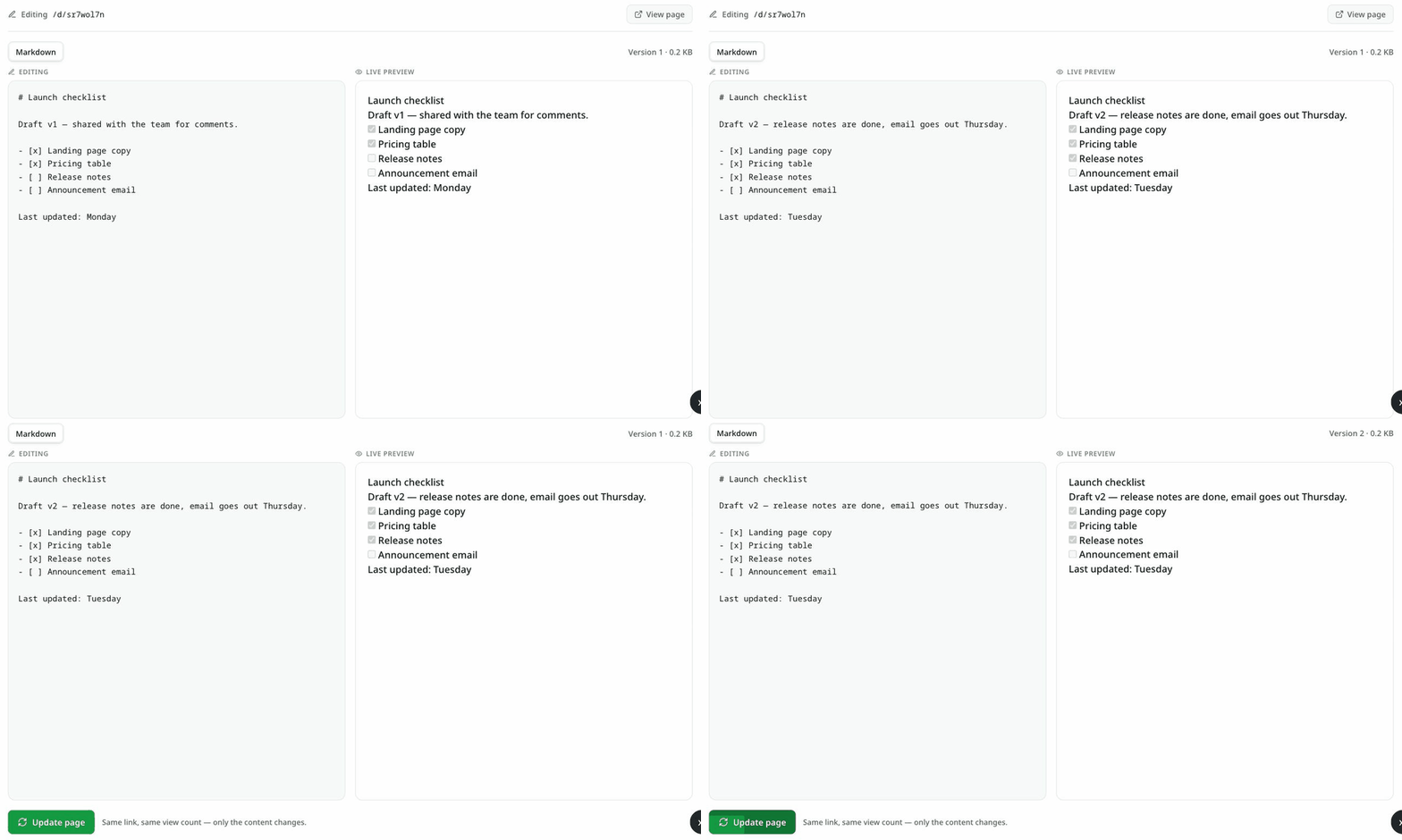
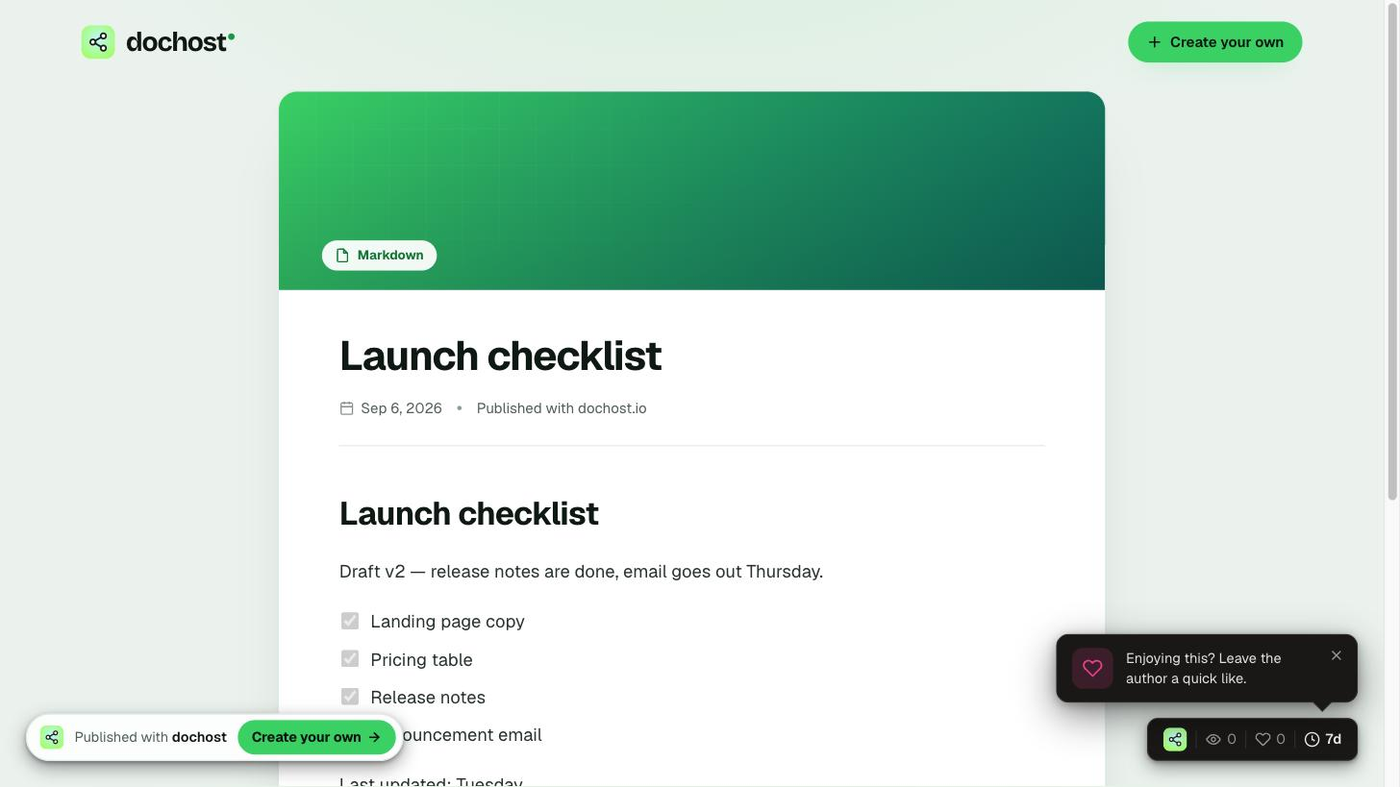
The header ticks from Version 1 to Version 2 and the share link serves the new content immediately:
What stays the same, what changes
The line under the button says it: same link, same view count — only the content changes.
| Kept | Changed |
|---|---|
| The share URL | The content, and the title if the first heading changed |
| View and like counts | The version number |
| The expiry date | The page's size |
| Visibility (Private / Public) | Format, if you switched Markdown ↔ HTML |
| The edit link itself |
Two things the update does not do:
- It does not extend the page. A free page updated on day 6 still expires on day 7. Use extend for that.
- It does not skip the safety check. Each save runs the same link-reputation check as a first publish, and an HTML update goes through the same brief review. A save that would be blocked as a new page is blocked as an update too, with the same message.
Saves are also rate-limited per page, so a script hammering one edit link gets Too many saves in a row rather than a version number in the hundreds. And if two people hold the same link and both save, the second one sees Someone saved a newer version of this page. Reload to get it before editing again instead of silently overwriting the first.
Why the link is secret
There is no login on the editor. Whoever has the link can rewrite the page, which is what makes it useful — you can hand it to a co-author — and what makes it dangerous to post publicly. Treat it like a password to that one page. It grants nothing else: no access to other pages, no account.
If you have shared it more widely than you meant to, the cleanest fix is to sign in from the browser you published from. The page joins your account, and from then on it is edited from the dashboard.
When the link stops working
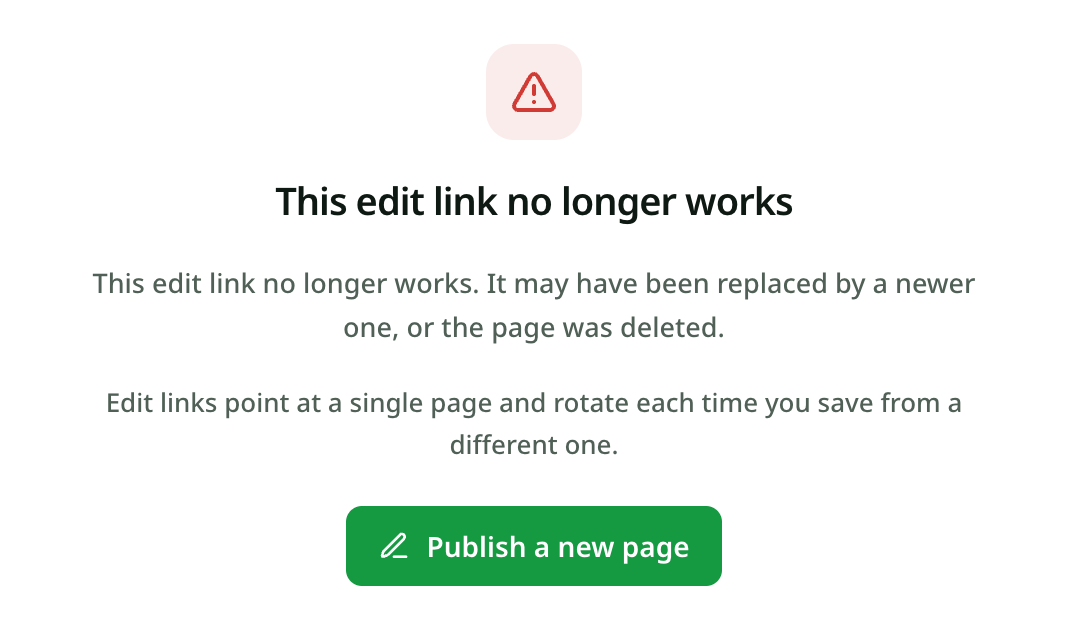
This screen means the token no longer matches the page. The usual causes:
- The page was deleted, or is under moderation review and cannot be edited right now.
- The page was saved from somewhere else. An edit link is bound to the page's current version. Saving from the dashboard after you signed in, or from an AI assistant's update tool, moves the version on and retires the anonymous link — which is what the notice means by rotate each time you save from a different one. Saves made through the link itself keep it valid.
- The link was mistyped or cut short. The token is long; a copy that lost its last characters fails the same way.
An expired page is not one of these — its edit link still opens and still saves. It just does not bring the page back; for that, see what happens when a page expires.
Updating from other channels
The same "same link, new content" rule applies to pages published from an AI assistant: the MCP server's update_page tool is the edit link's equivalent, so "update the page at that link with this version" works from Claude, Cursor or Codex. The Chrome extension and the Telegram bot publish new pages only; to update one of theirs, use the edit link from the success message, or the dashboard once you have signed in.
更多文章
Google Docs 'Publish to the Web' vs dochost: Sharing a Document as a Link
Google Docs has a built-in publish button, so when do you need anything else? An honest comparison for turning a formatted document into a shareable URL.

dochost Free Plan Limits Explained: 10 Live Pages, 1 MB Each, and What to Do When You Hit Them
The free plan allows 10 live pages of up to 1 MB. Here is exactly what each limit counts, what the two notices look like, how to free a slot or shrink a page without paying, and what Pro and Max raise the numbers to.
How to Host an HTML File Online for Free
Get a public URL for a single HTML page in seconds — no account, no server, no deploy. Plus what "free" actually means for hosting an HTML file.
邮件列表
加入我们的社区
订阅邮件列表,及时获取最新消息和更新