How to Password-Protect a Page and Pick Its Link
Two Pro options on the publish panel — a custom link and a password — turn a random dochost URL into dochost.co/d/team-handbook that only people with the password can read. Here is the flow end to end, including what readers see.
By default a published page gets a random slug (dochost.co/d/2d5uzqiq) and anyone with the link can open it. The publish panel has two optional fields that change both: Custom link lets you choose the slug, and Password protect puts a password prompt in front of the page. Both are Pro features. This guide walks through publishing a page with both set, then shows exactly what a reader sees.
Fill the two optional fields
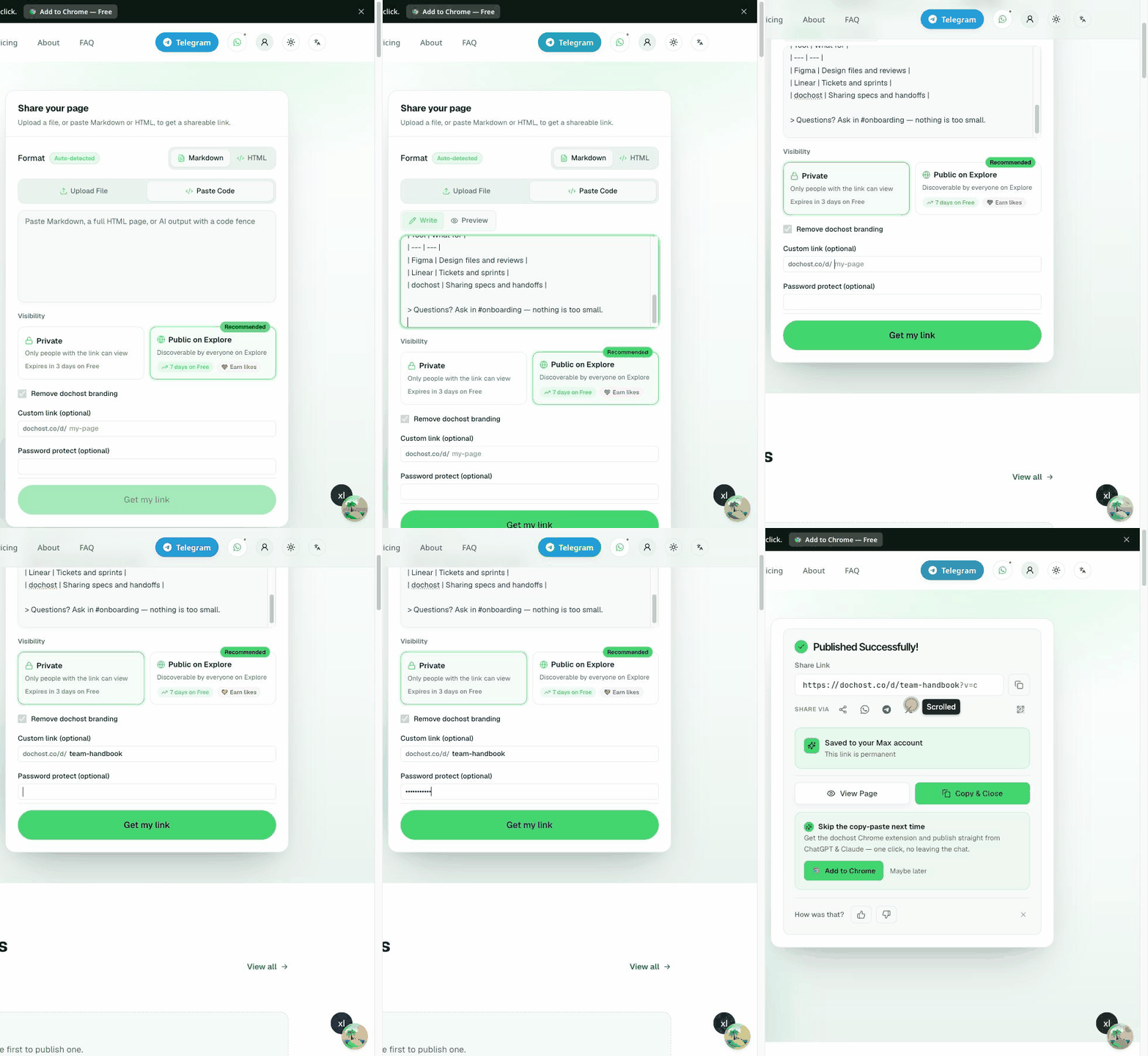
On the homepage, switch to Paste Code (or drop a file), paste your Markdown or HTML, and scroll to the bottom of the panel:
- Custom link (optional) — type the slug you want after
dochost.co/d/. Three to thirty-two characters: lowercase letters, numbers and hyphens, no leading, trailing or doubled hyphens. If it is taken, reserved, or contains a word we block (brand, banking and sign-in terms), the field tells you before you publish. - Password protect (optional) — type the password readers will need. Anything goes; it is hashed before it is stored and never shown again.
- Pick Private under Visibility. A password-protected page can technically be listed on Explore, but there is rarely a reason to advertise a page people cannot open.
- Click Get my link.
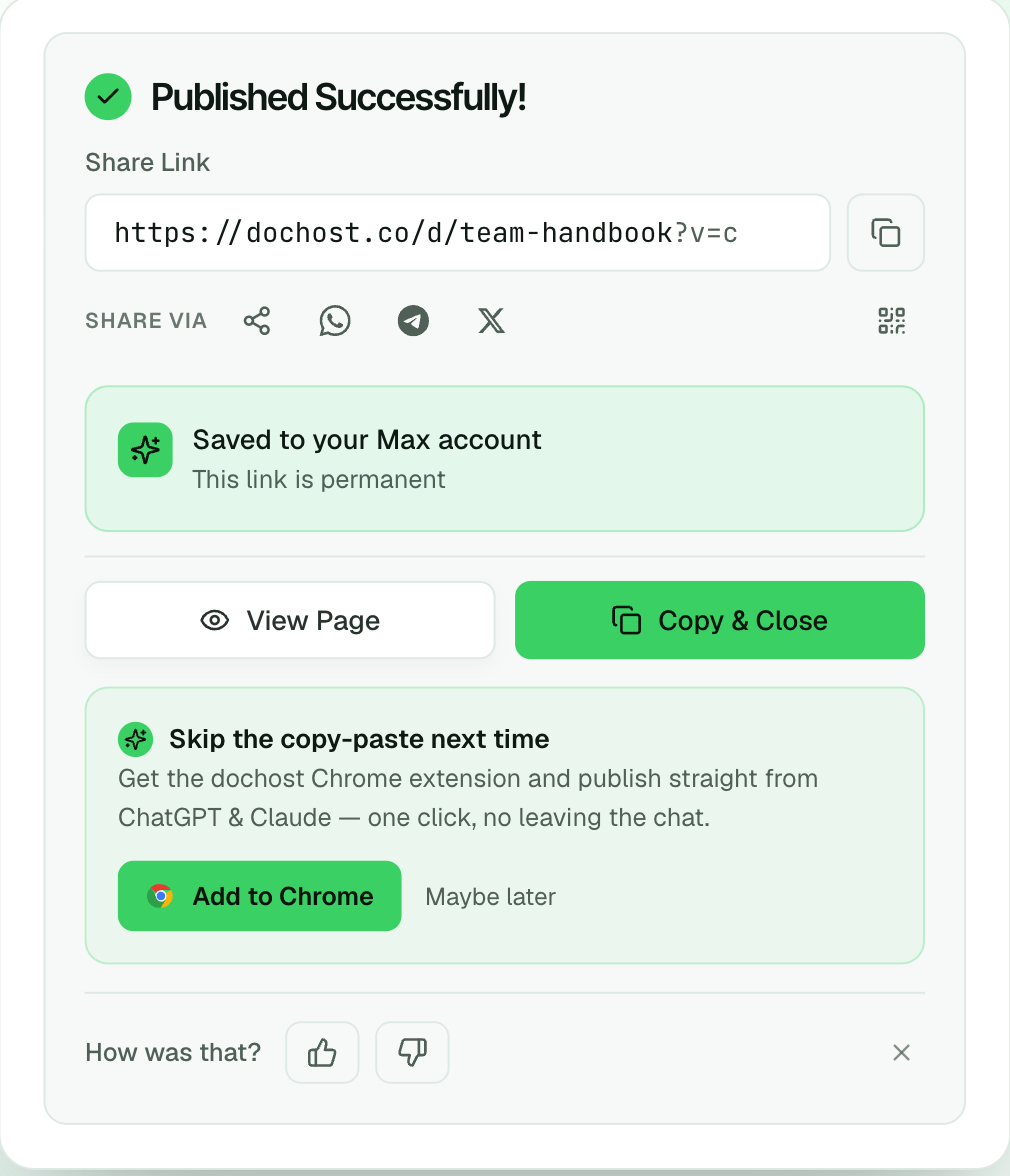
The success panel shows the link you chose, not a random one:
What readers see
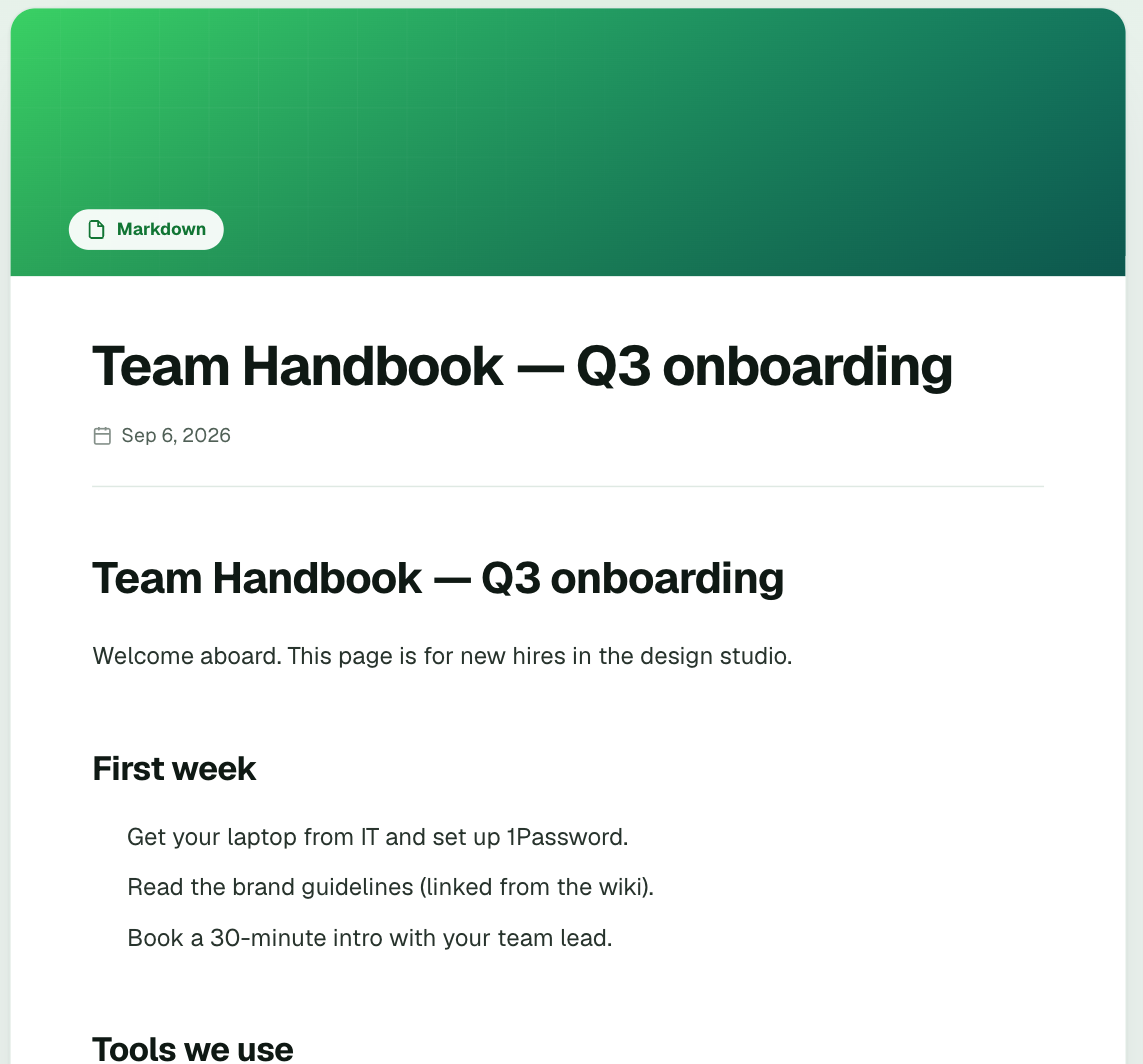
Anyone who opens the link gets a plain gate before any content loads — no title, no preview, no dochost branding to work around:
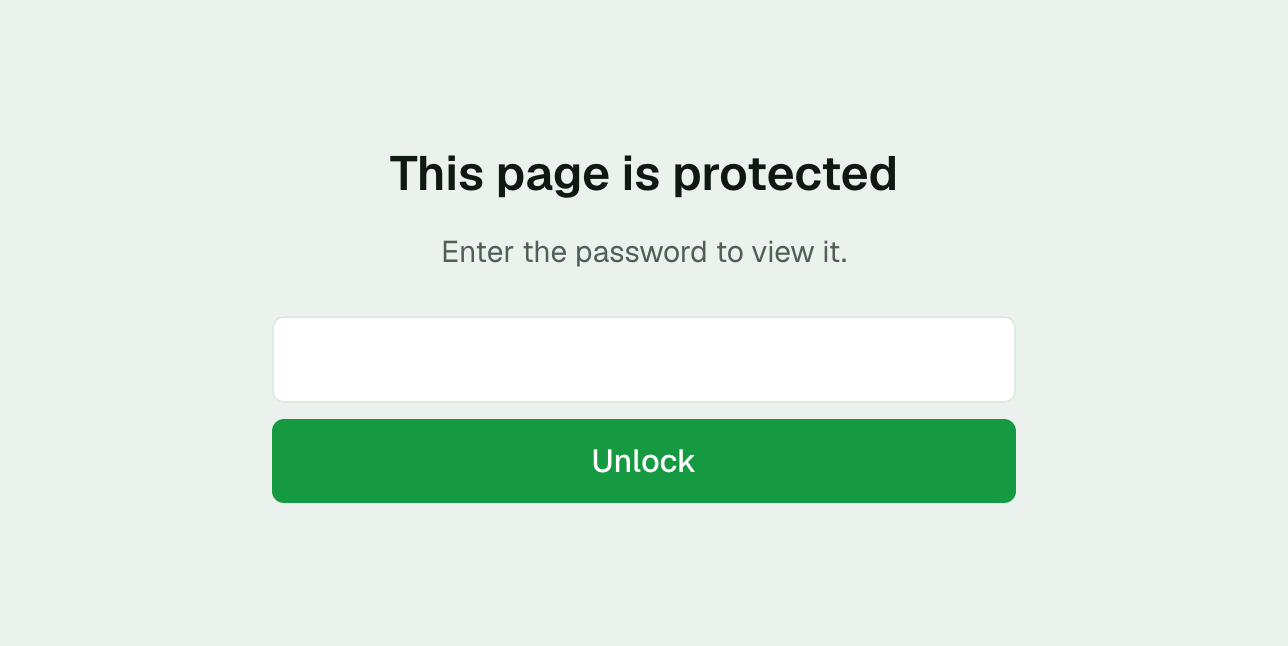
After Unlock, the page renders normally. The unlock is remembered in that browser with a short-lived cookie, so a reader is not asked again on every visit, but the cookie never leaves the page's own host.
A wrong password just says Wrong password — try again. There is no lockout, but attempts are rate-limited, and the page body is never sent to the browser until the password is right — the gate is enforced by the server, not hidden by a script.
Things worth knowing
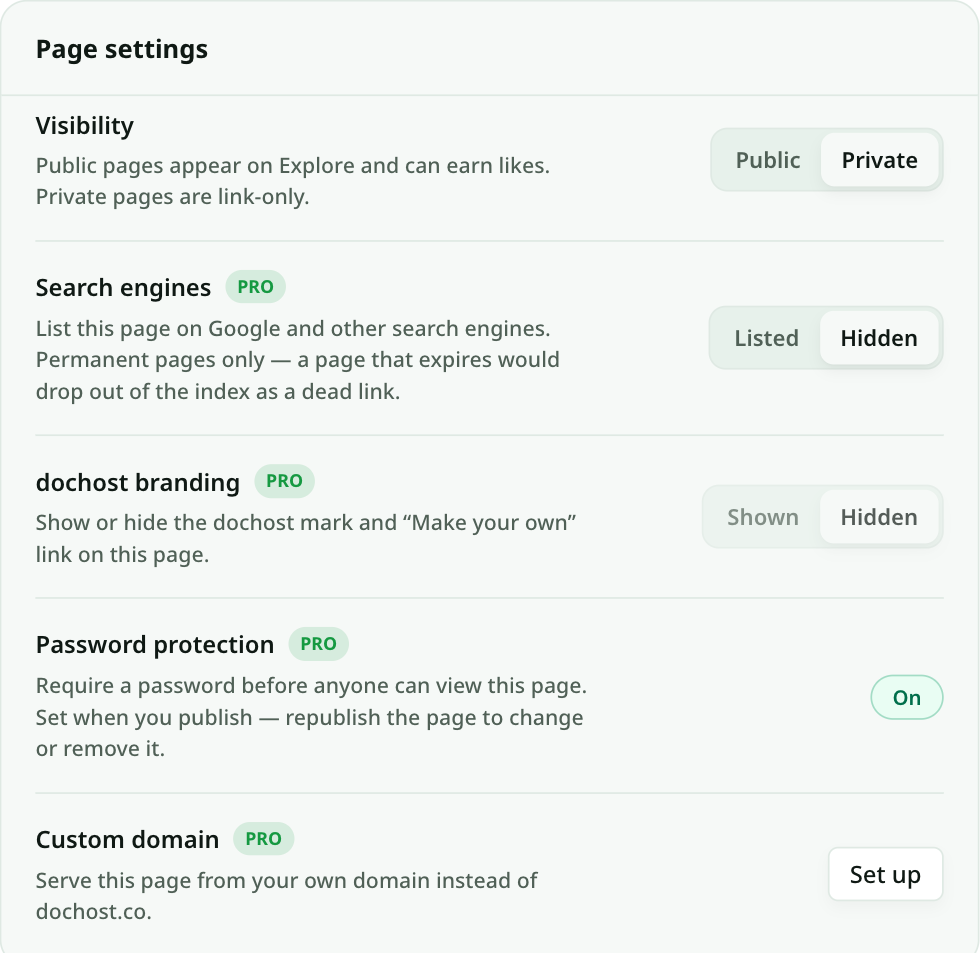
- The password is set when you publish. The page's manage screen shows whether protection is On or Off under Page settings, but there is no field to change it there. To change or remove a password, republish the page — the edit flow keeps the same slug.
- Custom links are permanent for that page. If you delete the page, the slug is freed and someone else can take it.
- Search engines and Explore. A protected page is never indexed — the gate is all a crawler sees. Keep Visibility on Private too, or the title will still appear on Explore.
- The MCP tools support both. From Claude, ChatGPT or Cursor,
publishacceptscustomSlugandpasswordon Pro, so "publish my Q3 report as a private page with a password" does the same thing without opening the site.
On the free plan
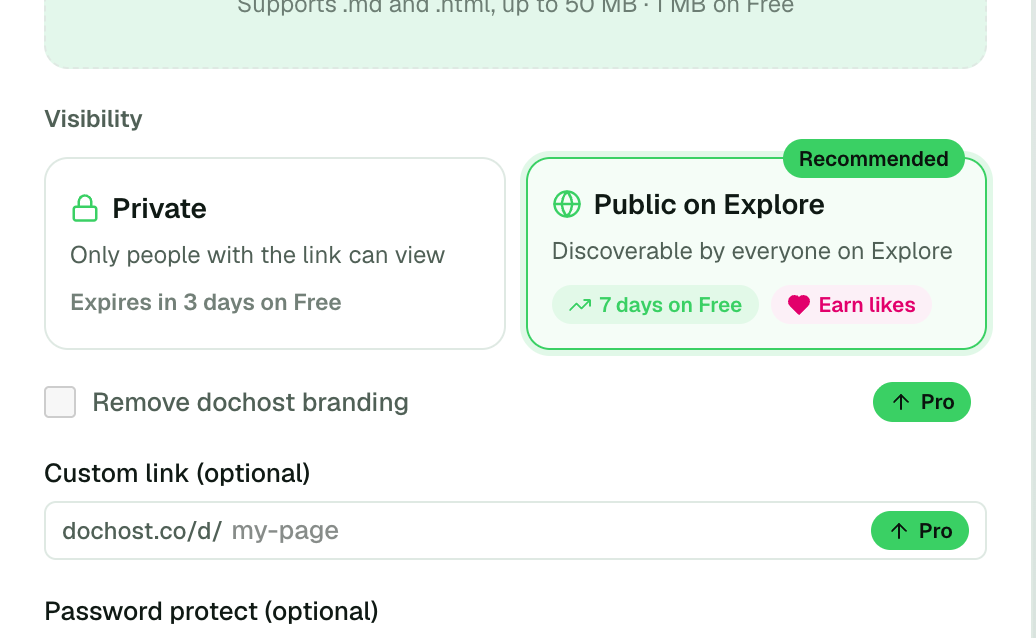
The same two fields are on the panel, marked Pro. Typing in one opens a short upgrade card that keeps your draft — nothing you pasted is lost — and Publish free instead publishes the page without the option.
Pro is from $4.92 a month billed yearly and also makes every link permanent; see pricing.
更多文章
Free HTML to URL: 7 Tools That Turn an HTML File Into a Shareable Link
Seven free ways to turn an HTML file or Markdown document into a shareable URL, compared on accounts, JavaScript support and how long the link lasts.

How to Connect dochost to Claude, ChatGPT or Cursor With MCP
One URL — https://dochost.io/api/mcp — gives your AI assistant a publish tool. Here is the setup for each client, when you need an API key instead of OAuth, and how to create and rotate one.
How to Share an AI-Generated Quiz With Your Class
ChatGPT or Claude can build an interactive HTML quiz in one prompt — here's how to get it in front of 30 students as a link that works on any phone.
邮件列表
加入我们的社区
订阅邮件列表,及时获取最新消息和更新