How Long a Free dochost Link Lasts, and How to Extend It
Free pages expire after 7 days. Here is where that countdown shows up — success panel, reader footer, dashboard — and the three ways to keep a page online: a one-time extension, a like milestone, or a plan that makes every link permanent.
A page published without an account, or on the free plan, lives for 7 days (3 days if you chose Private). After that the link shows an expired notice instead of the page. Nothing is deleted the moment it expires — the content stays recoverable for a while — but readers stop seeing it. This guide shows where the countdown appears and how to extend a single page without changing plans.
Where the expiry shows
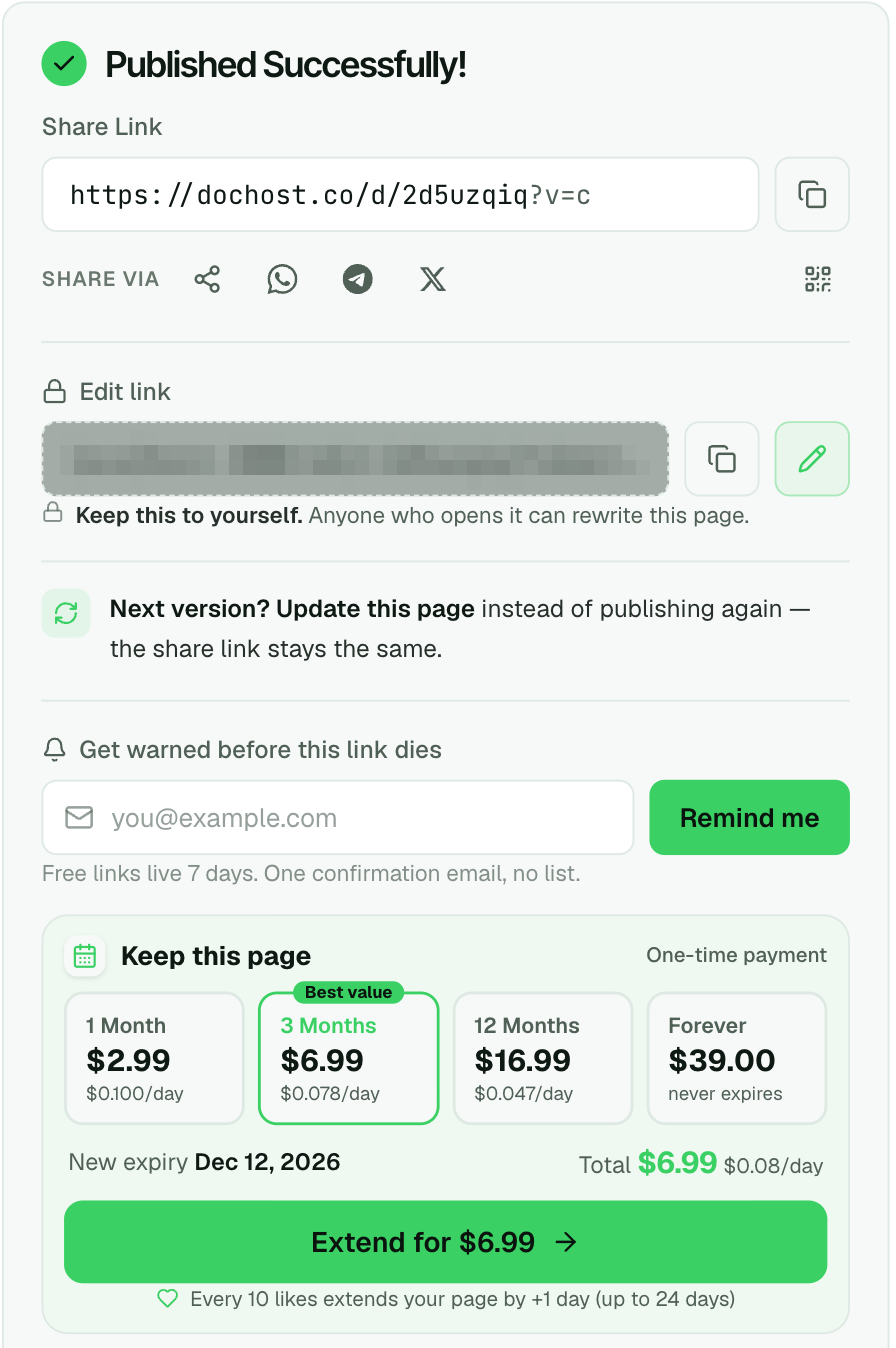
Right after publishing. The success panel says Free links live 7 days and, below the share link, offers two ways to keep the page. If you leave an email in Get warned before this link dies, dochost sends one reminder before the expiry — one confirmation email, no list.
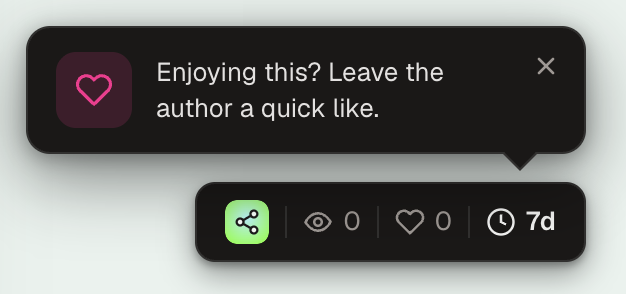
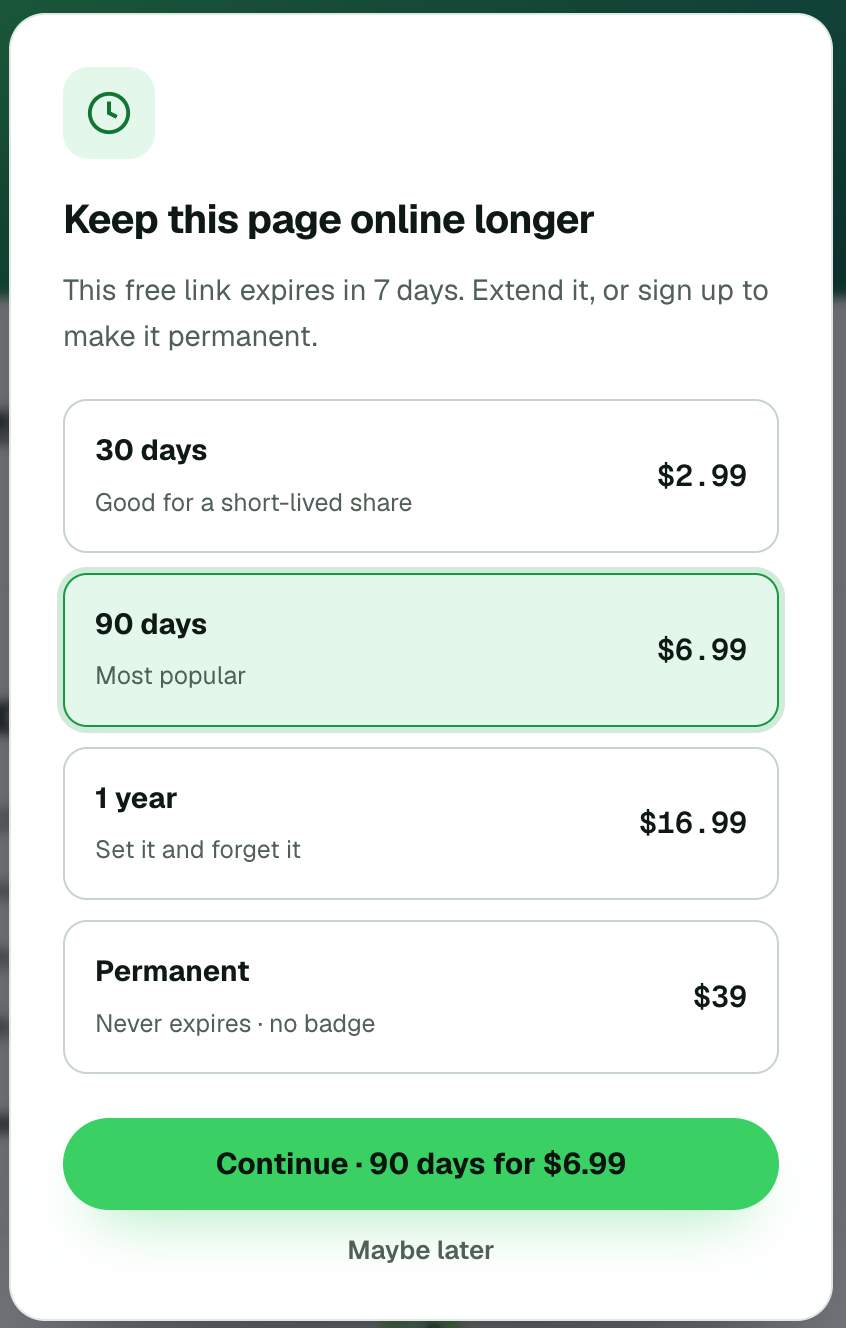
On the page itself. Readers see a small pill in the bottom-right corner with the view count, likes and the days left — 7d here. Clicking it opens the extend dialog, so someone who received the link can extend it too, not only the author.
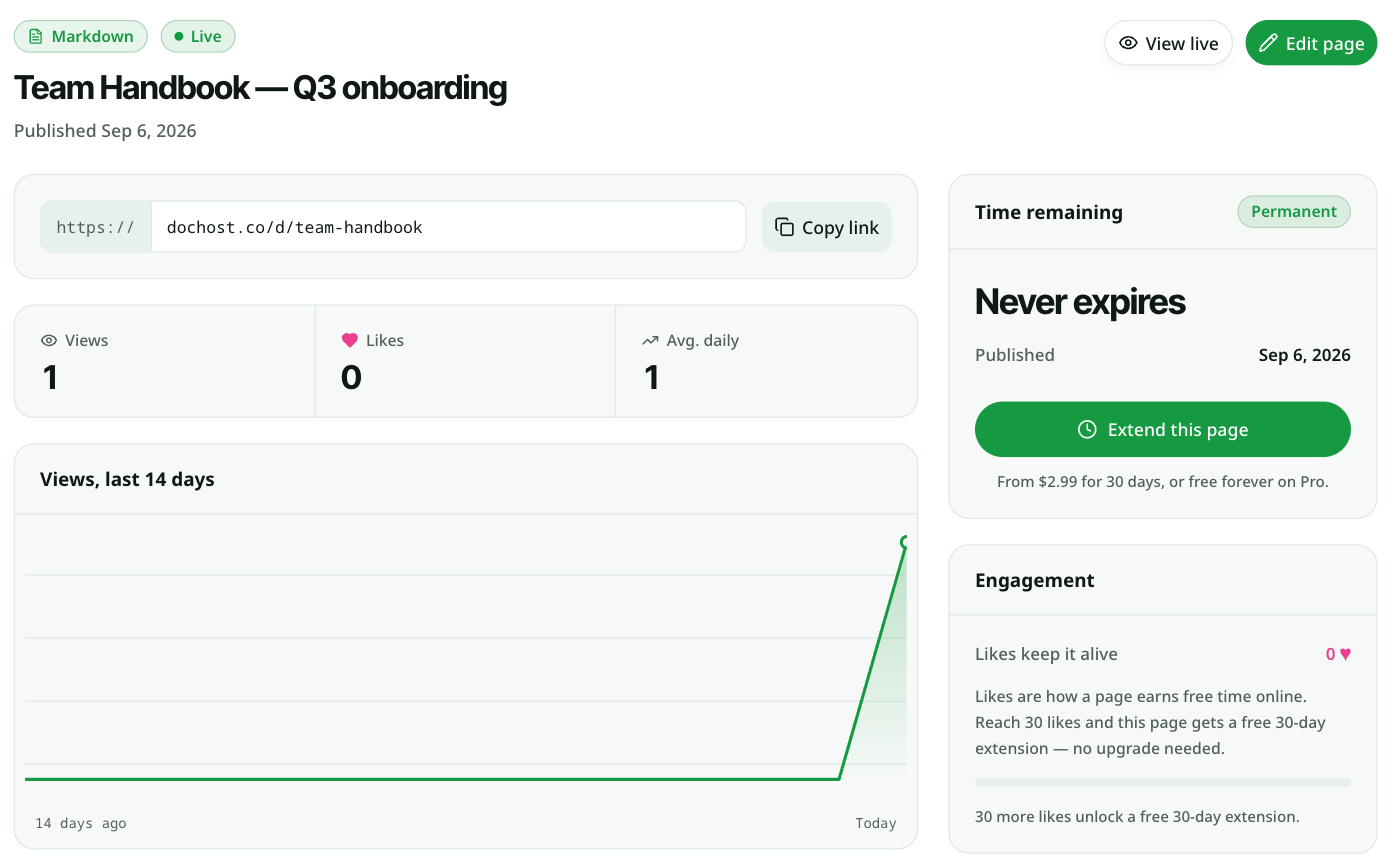
In the dashboard. Signed-in owners see Time remaining on each page's manage screen, with an Extend this page button. Pages inside a few days of expiry are also grouped under Expiring soon on the overview.
Option 1 — Extend just this page
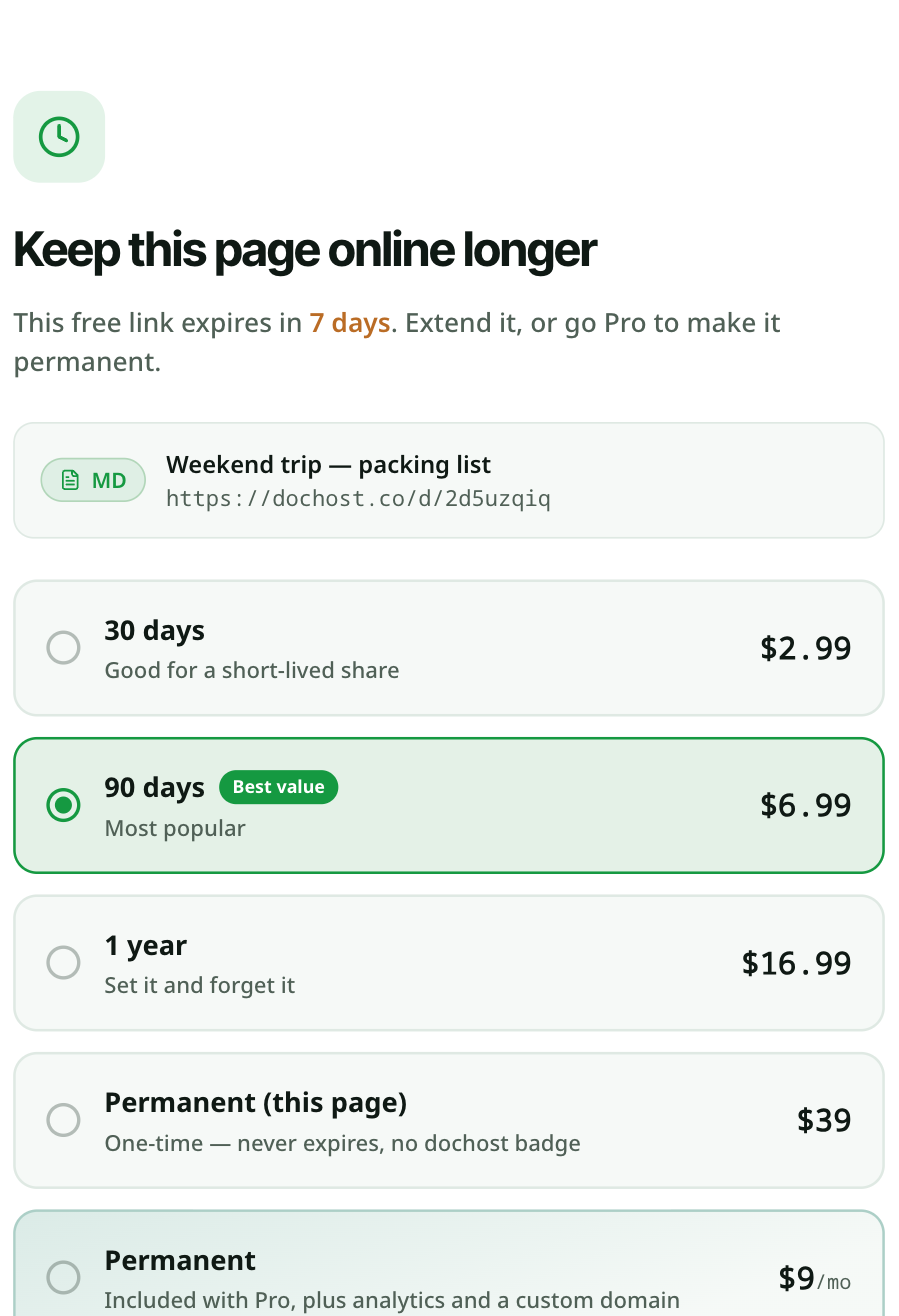
Every entry point above leads to the same choice. Pick a length, click Extend, and pay once by card through Stripe:
| Option | Price | Good for |
|---|---|---|
| 30 days | $2.99 | a short-lived share |
| 90 days | $6.99 | most people — best value per day |
| 1 year | $16.99 | set it and forget it |
| Permanent (this page) | $39 | one page that must never expire, without a subscription; also removes the dochost badge |
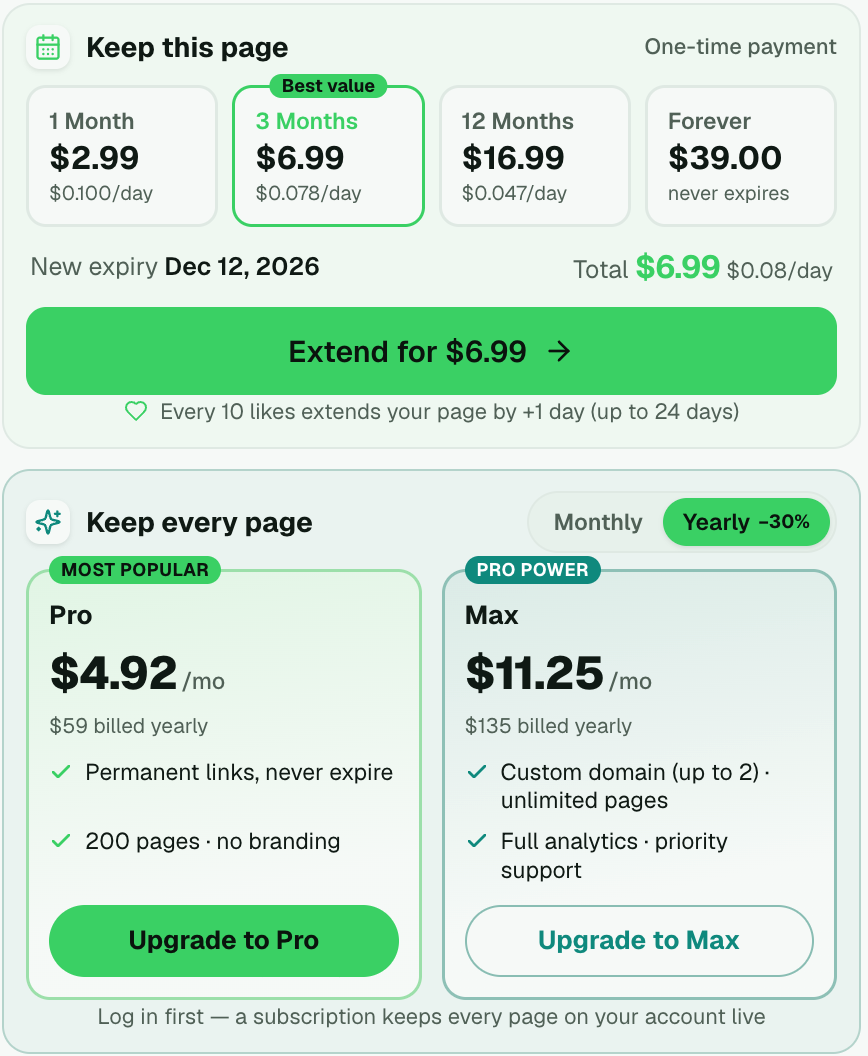
The new expiry date is shown before you pay. The extension is added to whatever time is left, and you can extend again later. If you do not know the slug, /extend has a Know the link? Paste it here box that accepts any dochost URL for the page.
Readers can do this too. The dialog that opens from the corner pill offers the same options, so a page that other people rely on does not depend on its author noticing the countdown.
Option 2 — Let likes do it
A page that is Public on Explore can earn time on its own: when it reaches 30 likes, dochost adds a free 30-day extension, once per page. Likes come from readers clicking the heart in the corner pill, and the page's manage screen shows how many are still needed. This will not keep a page alive forever, but for something shared with a class or a community it often covers the gap.
Option 3 — Make every page permanent
If you publish regularly, a subscription is cheaper than extending pages one by one. Pro ($4.92 a month billed yearly, or $7 month to month) makes every link on the account permanent, raises the cap to 200 live pages, and unlocks custom links, passwords and branding removal. Max adds custom domains, unlimited pages and full analytics. Both are on the success panel under Keep every page, and on pricing.
Pages you published before subscribing become permanent too, as long as they are in your account — anonymous pages join the account when you sign in from the same browser, or through the edit link.
Two details people miss
- A free "extra 30 days" exists. At the bottom of the
/extendpage is Get 30 extra days, free: tell us in one sentence how you found dochost and we add a month to that page. It is real, and it is read by a person. - Editing does not reset the clock. Updating a page through its edit link keeps the same URL and the same expiry. Only an extension or a plan changes the date.
ほかの記事
GitHub Gist vs dochost for Sharing Rendered Markdown
Gist is great for code snippets, but it wraps your Markdown in GitHub chrome and won't render HTML at all — when a clean standalone page is the better send.

How to Collect Form Responses From a Published dochost Page
A third of the HTML pages on dochost have an input box, and most of them send the answer nowhere. Here is the pattern that works — a fetch() to any endpoint that accepts JSON — with a live demo and drop-in code for Formspree, Supabase and Google Sheets.
How to Publish a README as a Webpage
Turn a README or any repo Markdown into a clean, shareable webpage in one paste — no repo access, no GitHub Pages setup, and no build step needed.
Newsletter
Join the community
Subscribe to our newsletter for the latest news and updates