Share an AI-generated quiz with your students
The quiz your AI assistant just wrote is a working HTML page. Students should be able to open it from a link — not download a file, not join a platform, not make an account.
Paste your quiz HTML
Scoring and buttons keep working. Free link, no account, expires in seven days.
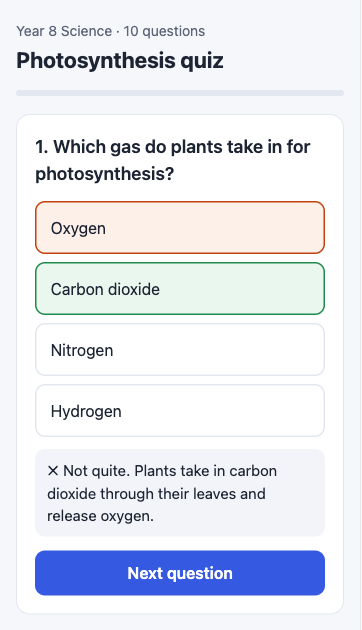
Asking ChatGPT or Claude for "an interactive ten-question quiz on the water cycle with instant feedback" now reliably produces a real one: radio buttons, a score, a reveal-the-answer step, all in a single HTML file. Getting it to a class is where teachers stall. Emailing the .html file means half the students open it in a text editor and see code. Uploading to the LMS means whatever the LMS decides to do with an HTML attachment, which is usually to force a download. Pasting the quiz here turns it into a plain web link — the thing you can put on a slide, write on the board, or drop in a class group chat.
Getting a quiz from the chat window to the class
- 1.
Ask your AI tool for the quiz as a single self-contained HTML file, then copy the whole code block including the doctype line.
- 2.
Paste it above and check the preview — click through a question or two to confirm the scoring behaves before the class does it for you.
- 3.
Publish, and share the link on a slide, in the class chat, or as a QR code. Students open it in a browser with nothing to install.
實際範例
A secondary-school science teacher builds a revision quiz the night before a lesson. The AI output is one file: questions, an answer key hidden behind a button, and a little JavaScript that tallies the score. She pastes it, publishes, and shortens nothing — the link goes straight onto the last slide of her deck. In class, thirty students open it on phones and tablets; the scoring works because scripts run in the published page, and nobody signs in to anything. Two details matter for a classroom specifically. First, the free link lasts seven days, which is roughly the life of a revision task anyway — she is not accumulating a graveyard of old quizzes at live URLs. Second, because published pages are not indexed by search engines, next year’s cohort cannot find this year’s answer key by googling a distinctive question line. If she wants the quiz to survive the term for reuse, a paid plan makes that particular link permanent while the rest still expire.
Make an interactive quiz in ChatGPT
ChatGPT will write a working quiz if you ask for the right thing. Pick where you are.
You have a topic and a class, and no quiz yet.
Paste this into ChatGPT, filling in the brackets: “Make a 10-question multiple-choice quiz on [topic] for [year group] as one self-contained HTML file. Show one question at a time with four answer buttons, mark the answer right or wrong straight away with a one-line explanation, and show the score at the end with a Try again button. Put all CSS and JavaScript inside the file, use no external libraries, and make it readable on a phone.” Copy the code block it returns and paste it in the box at the top of this page.
ChatGPT opened the quiz in Canvas and you can click through it there.
The Canvas preview only works inside your chat. Copy the code from Canvas — the whole file, starting at <!doctype html> — and paste it above. The published link behaves the same as the preview, and students need neither ChatGPT nor an account.
You want to see each student’s result, not only them.
A published quiz shows each student their own score on their own screen; it does not send results to you. For a quick check, ask the class to show or screenshot the final screen. For marks that go into a gradebook, use a form-based quiz in your school’s system, and use this kind of quiz for practice.
A student spotted a wrong answer after you shared the link.
Ask ChatGPT to correct that question, paste the new file and publish it over the old one. The link you already handed out stays the same, so nobody needs a new one.
關於 share an AI-generated quiz with students 的常見問題
Do students need an account or an app to open the quiz?
No. The link opens as an ordinary web page in whatever browser is already on the device. There is no sign-in, no class code, and nothing to install, which is what makes it usable on a mixed set of student phones, school tablets, and home laptops without a support conversation for each one.
Will the interactive scoring actually run?
Yes. Published HTML renders inside a sandboxed frame with scripts enabled, so click-to-check answers, running totals, timers, and reveal buttons all behave as written. The exception is anything that tries to save progress in browser storage — the sandbox withholds same-origin access, so a quiz that expects to remember a student between visits will not.
Can students see the answers by viewing the page source?
If the answer key is embedded in the HTML, then yes — a determined student can read it, exactly as they could in any client-side quiz from any tool. This format suits formative practice, revision, and self-checking rather than assessment that counts. For anything graded, use your institution’s assessment system; for the ten minutes of practice at the end of a lesson, it is the right shape.
Can I stop last term’s quiz from being findable?
It already is not findable through search: every published page goes out with noindex directives, so quizzes and answer keys stay out of Google results. On top of that, free links expire after seven days (3 days if published as private) on their own. If a particular sheet should only open for people you handed a password to, that is available on a paid plan — but for most classroom material noindex plus expiry is already the behaviour you wanted.
Can ChatGPT make an interactive quiz?
Yes — ask for it as a single HTML file and ChatGPT writes the questions, the buttons and the scoring in one code block. In the chat it is only code (or a Canvas preview only you can see); publishing it here is what turns it into a link your students can open. The prompt under “Make an interactive quiz in ChatGPT” above is a good starting point.
讓你的連結永久保留
免費帳號的連結保留 7 天。升級付費方案後,你建立的每個頁面都會永久上線。
查看方案與價格相關使用情境
- Share ChatGPT HTML as a clean linkTurn the HTML ChatGPT writes for you into a real page your team or client can open — no hosting, no deploy, no copy-paste of code.
- Send an AI-generated report to a client as a linkA PDF attachment is a dead end and a chat transcript is not a deliverable. Publish the report as a page the client opens, on a URL that is not in search results.
- Turn any AI output into a shareable linkWhatever your AI tool produced — HTML, markdown, a long answer — paste it and get one link to send to your team, client, or group chat.
- Password-protect a page you sharePut a password on a Markdown or HTML page so only the people you give it to can open the link — useful for client work, drafts, and anything you would rather not leave fully public.