Publish From Telegram: Forward a File, Get a Link Back
The dochost Telegram bot turns a forwarded Markdown or HTML file into a public link without leaving the chat. No account needed, and you can connect one later.
Sharing a document inside a chat has an awkward shape. You have a .md file from an AI assistant or a colleague, and the person you want to show it to cannot read it as a file — they need a page. So the file goes to a laptop, gets uploaded somewhere, and a link comes back the long way round.
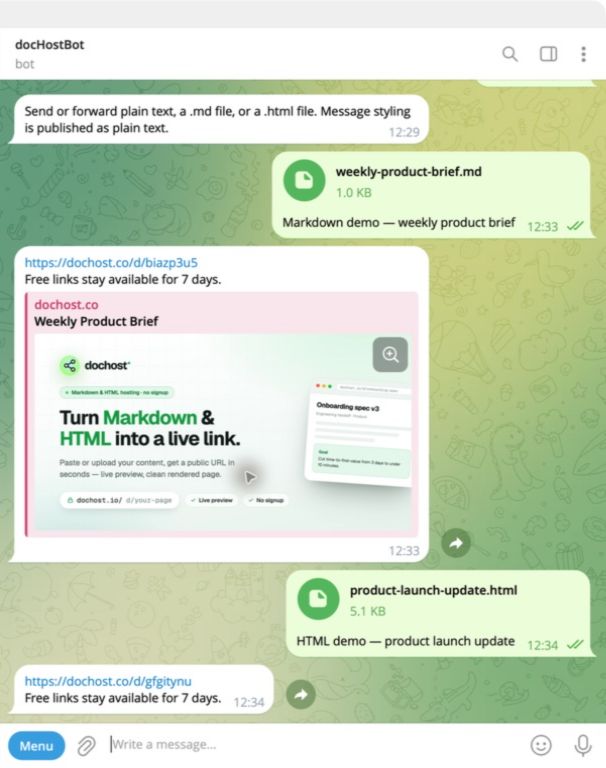
@dochost_bot removes that detour. Forward the file to the bot, or paste the text straight into the chat, and it replies with a public link.
What it does
- Forward a file. Send a
.mdor.htmlfile to the bot and it publishes it, then replies with the URL. - Or just paste. Paste Markdown or HTML as a message and it does the same thing.
- No account required. Anonymous links work exactly like anonymous links on the site: free, and they expire after 7 days.
- Connect an account when you want one.
/linkattaches the chat to a dochost account, so pages published from Telegram land in the same dashboard as everything else and follow your plan's limits.
Commands: /start, /link, /account, /unlink, /about.
Why forwarding rather than copy-paste
On a phone, "copy this Markdown out of one app, open a browser, paste it into a form, publish, copy the link, go back" is five app switches. Forwarding is three taps and never leaves Telegram. That difference is the whole reason the bot exists — the underlying publish is the same one the website uses.
It also handles the case where the document is genuinely a file rather than text you can select. A .md attachment in a group chat cannot be copy-pasted on mobile in any pleasant way; it can be forwarded.
What stays the same
Pages published from Telegram are ordinary dochost pages. They are served from the cookieless content host with scripts disabled, exactly like pages published from the web, the browser extension or the MCP server. Nothing an author sends can execute in a reader's session.
The 7-day expiry on anonymous links also applies. If a page is meant to stick around, sign in and it becomes permanent — see pricing.
Try it
Open @dochost_bot, send /start, then forward it a Markdown file. If you want the pages tied to your account afterwards, send /link and follow the one-time flow.
更多文章
Why Your JavaScript Works Locally but Not on the Published Page (and What Does Work)
Published dochost pages run their own scripts — storage, dialogs, downloads, clipboard, fetch all work. When a page looks fine but a button does nothing, it is almost always one of six things. A checklist, with a live test page you can compare against.

Turn Any AI Output Into a Shareable Link
Every AI tool leaves you with output trapped in a chat window. Here's the neutral step that turns it into one clean link for your team or client.
Where Did My Page Go? Finding Pages You Published Before Signing In
Most dochost pages are published without an account. Sign in from the same browser and they join your dashboard automatically; from anywhere else, the edit link or the expiry reminder email brings them back. Here is how each path works and what to keep so a page is never lost.
電子報
加入我們的社群
訂閱電子報,第一時間掌握最新消息與更新