How to Publish a Page From Telegram With @dochost_bot
Send text, a .md file or an .html file to @dochost_bot and it replies with a public link. This guide covers what to send, what comes back, how to connect your account with /link so pages become permanent, and the few things the bot deliberately does not do.
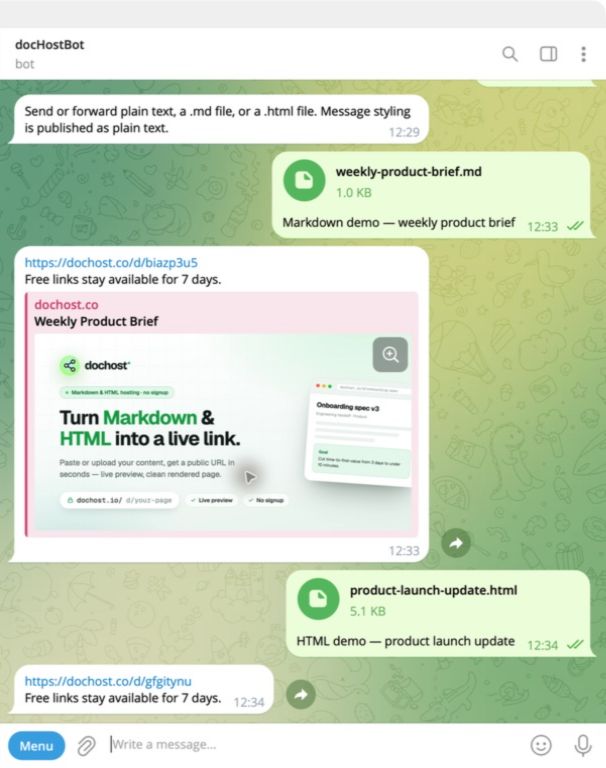
On a phone, turning a document into a link is a lot of app-switching: copy the text out of one app, open a browser, paste, publish, copy the link back. @dochost_bot collapses that into one message. You send the content to the bot in Telegram, it publishes it, and it replies with the link. This guide walks through the whole exchange and the one command that connects the bot to your account.
What to send
Open @dochost_bot and send /start once. From then on, every content message you send is a publish request. Three kinds work:
| You send | You get |
|---|---|
| Plain text (typed or forwarded) | A page with that text, published as plain text — Telegram's bold and italics are not converted |
A .md file | A rendered Markdown page: headings, lists, tables, links, code |
An .html file | Your HTML served as-is, exactly like an HTML upload on the website |
Files must be UTF-8. Size limits follow your plan: 1 MB on Free, 10 MB on Pro, 20 MB on Max. Forwarding counts the same as sending, so a file someone dropped in a group can be forwarded to the bot without saving it first.
What comes back
The reply is the page link, plus a note about its lifetime. Anyone with the link can open it in a browser — they do not need Telegram or a dochost account. HTML files come out as full pages with their own styling; Markdown renders in the standard dochost document layout.
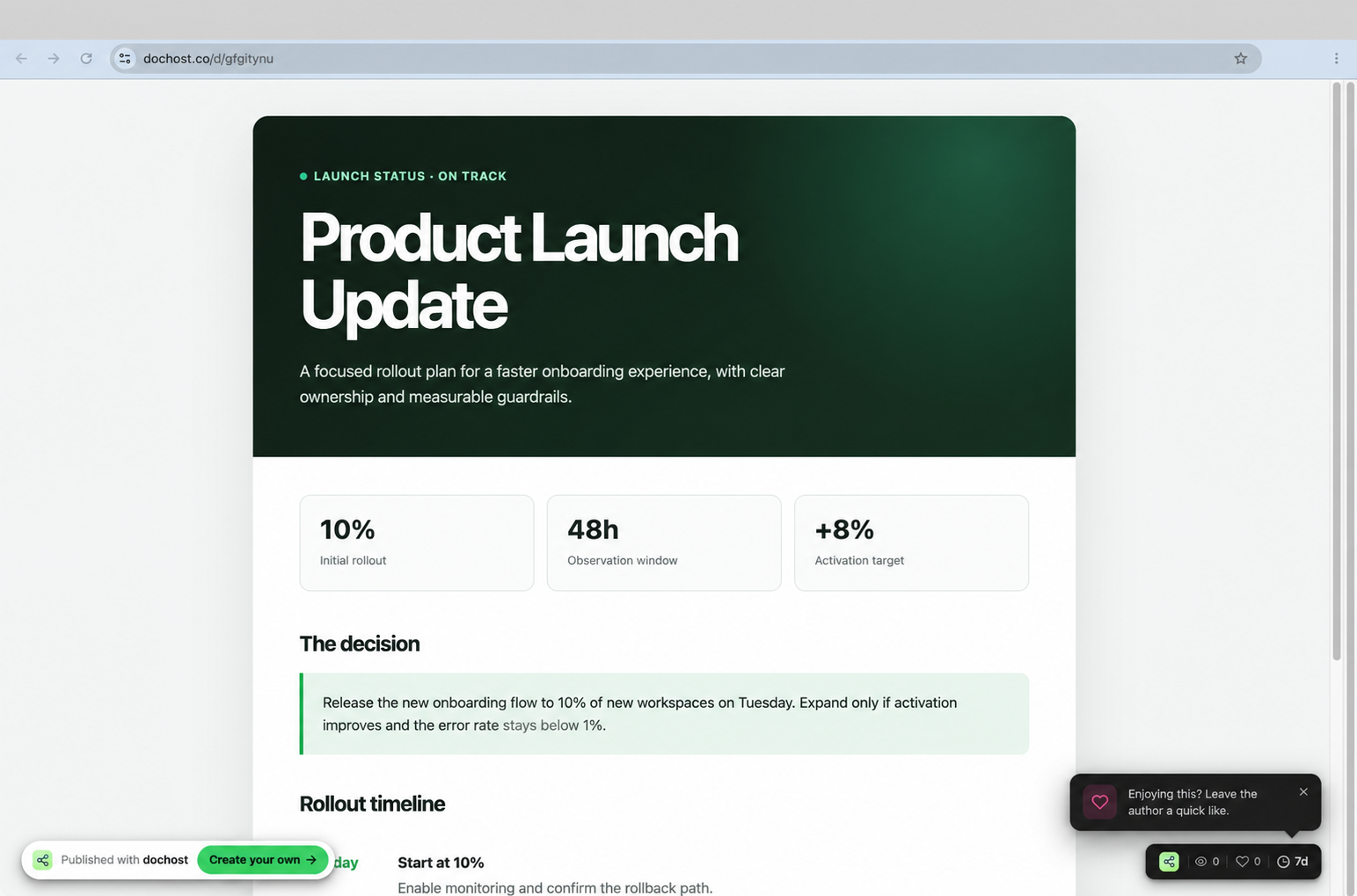
Pages published from Telegram are ordinary dochost pages: served from the separate content host, counted in analytics, editable from the dashboard once they belong to an account.
Make the pages yours with /link
Without an account, every page the bot publishes is a free link that expires after 7 days. To change that, send /link. The bot replies with a one-time URL; open it, sign in on dochost.io, and confirm the Telegram account it shows you. From that point:
- Pages published from that chat are saved to your account and follow your plan — permanent links on Pro and Max, with the larger file limits.
- They appear in your dashboard next to pages made on the website, the browser extension or the MCP server, with the same views, likes and settings.
/accountshows which dochost account is connected, with the email masked./unlinkdisconnects the chat. The bot asks you to confirm with/unlink confirm, and pages already published stay where they are.
If you skipped /link and published a page you now want to keep, the reader-side Extend option works on it like any free page — see How Long a Free dochost Link Lasts.
What the bot deliberately does not do
- Groups and channels. Publishing works in a private chat only, so the input and the result stay predictable. Forward from the group to the bot instead.
- Telegram formatting. A message is published as plain text. If you want headings and lists, send a
.mdfile; the formatting bar in Telegram is not Markdown. - Passwords, custom links, branding. The bot has no options. Visibility and branding can be changed later from the page's manage screen; a password or a custom link has to be set at publish time, so use the website's publish panel for those pages.
- Editing by re-sending. Sending the same file again creates a second page. To update a page in place, open it in the dashboard and edit it there; the link is unchanged.
Commands
/start explains what to send · /help lists supported inputs and limits · /link connects a dochost account · /account shows the connected account · /unlink disconnects it · /about describes dochost.
Try it
Open @dochost_bot, send /start, then forward it a Markdown file you already have. The link comes back in a few seconds.
更多文章
PDF to Markdown, Word to Markdown, and Six More Converters That Run in Your Browser
A set of free document converters that do the work locally in the browser — no upload, no signup — and hand the result straight to a shareable link if you want one.

How to Make a One-Page Website With ChatGPT (No Hosting Setup)
Prompt ChatGPT for a single self-contained HTML page, iterate in chat, then paste it on dochost and get a live link — no hosting account, no deploy.
Free HTML to URL: 7 Tools That Turn an HTML File Into a Shareable Link
Seven free ways to turn an HTML file or Markdown document into a shareable URL, compared on accounts, JavaScript support and how long the link lasts.
邮件列表
加入我们的社区
订阅邮件列表,及时获取最新消息和更新