How to open an HTML file
It opens on the computer you made it on and does nothing on a phone. Here is why, what works on each device, and the one route that works on all of them.
Open it as a web page instead
Upload the .html file and get a URL that opens on any phone, tablet or locked-down laptop.
An .html file is not a document format the way a PDF is. It is the source of a web page, and the only thing that knows how to draw it is a browser. On a laptop that is invisible, because double-clicking the file hands it to Chrome or Safari automatically. Everywhere else the assumption falls apart: iOS and Android have no default app for a local HTML file, a managed Chromebook can be configured to refuse local files outright, and no mail client renders an HTML attachment inline — the recipient gets a download and no obvious way to open it. That is the whole problem, and it is why the same file can look finished to you and broken to everyone you send it to.
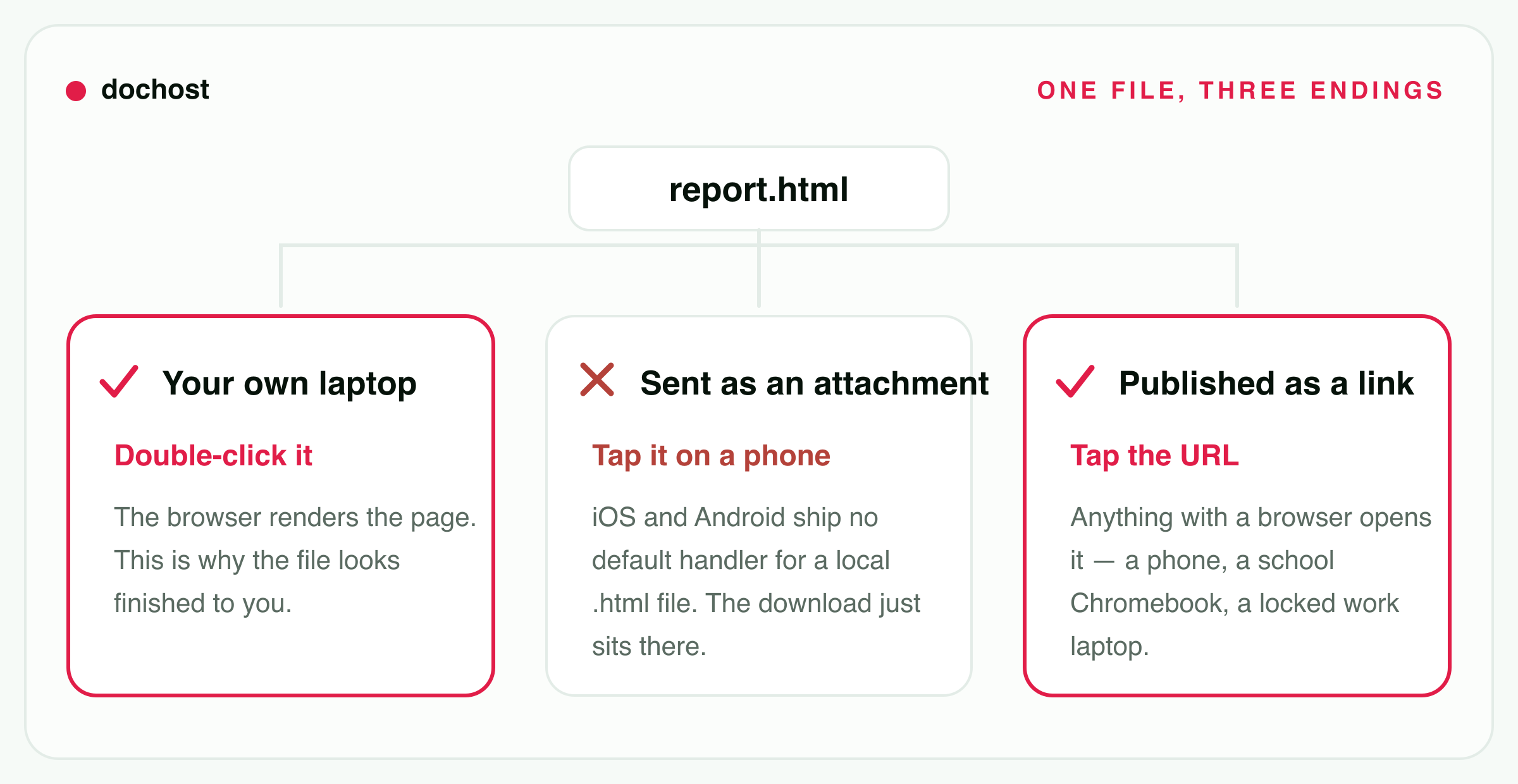
Opening it as a link instead
- 1.
Upload the .html file above, or paste its contents if you only have the code.
- 2.
You get a URL back in a few seconds. Nothing about the markup is rewritten — inline CSS, base64 images and any script in the file all still run.
- 3.
Open that URL, or send it. It behaves the same on an iPhone, a managed Chromebook and a desktop, because on all three it is now just a web page. Free links stay up for 7 days; a paid plan keeps them permanently.
A real example
A teacher exports a revision worksheet from an AI tool as week7-quiz.html — one file, styles inlined, a few interactive multiple-choice questions that score themselves in the browser. On her MacBook she double-clicks it, Safari opens, everything works.
She emails it to her class. Two things go wrong at once. The students reading mail on a phone tap the attachment and get a file their phone has nothing to open — on iOS the Files preview renders the text but the answer buttons do nothing useful without an address bar, and on most Android phones there is no handler at all. The students on school Chromebooks cannot open a downloaded local file because the device policy blocks it. She gets fourteen replies saying it is broken, and on her own machine it is not.
The second time she uploads the same file here and pastes the URL into the class group instead. Nothing about the file changes. The difference is that a URL is the one thing every phone, tablet and managed laptop already knows how to open, so the quiz scores itself on a five-year-old Android exactly the way it did on her laptop.
The same document, by device
Opening the file is a different answer on every device. Opening a link is the same answer on all of them — which is the entire argument of this page.
iPhone / iPad
the Files app previews it, with no address bar
- Open the .html file
- sometimes — and never for a page with separate files
- Open a link
- works
Android
most file managers have no handler at all
- Open the .html file
- no
- Open a link
- works
Chromebook
works personally; blocked when the device is managed
- Open the .html file
- sometimes — and never for a page with separate files
- Open a link
- works
Windows
if .html is still associated with a browser
- Open the .html file
- works
- Open a link
- works
Mac
right-click, Open With, a browser
- Open the .html file
- works
- Open a link
- works
Where are you trying to open it?
Pick the device you are actually holding — the answer is genuinely different on each, and most of the advice online assumes a desktop.
You have the .html file on an iPhone.
Save it into the Files app, then tap it. iOS shows a Quick Look preview that renders simple HTML, which is enough to read a static page. It stops being enough quickly: there is no address bar, links behave oddly, and anything the file references — a stylesheet, an image sitting next to it — will not load, because Quick Look is previewing one file, not serving a folder.
If the page is interactive at all, hosting it and opening the URL in Safari is the only version that behaves like the page you built.
You have the .html file on an iPad.
Same as iPhone: Files app, tap, Quick Look preview. iPadOS gives you a bigger window and Split View, so a long static document is genuinely readable this way. The limits are identical, because it is the same preview — one file, no address bar, no relative references.
You have the .html file on an Android phone or tablet.
Usually nothing happens. Most Android file managers ship no handler for `text/html`, so tapping the file offers you a list of apps that cannot open it, or silently does nothing. Some browsers can be pointed at a local file through a `file://` path, but it is fiddly and varies by manufacturer.
This is the device where the answer is least ambiguous: put the file on a URL and open the URL.
You are on a Chromebook, possibly a school one.
On a personal Chromebook: open the Files app, right-click the file, Open with → Chrome. It renders. On a school or work Chromebook the administrator can block opening local files, and that block is not something you can talk your way around from the device.
A managed Chromebook will still open any normal web page, which is why a hosted link is the route that survives the policy.
You are on Windows and double-clicking does the wrong thing.
If double-clicking opens Notepad or VS Code, the `.html` extension is associated with an editor rather than a browser. Right-click the file → Open with → pick Chrome, Edge or Firefox. To make it permanent, use "Choose another app" and tick "Always use this app".
You are on a Mac.
Right-click → Open With → Safari or Chrome, or drag the file onto the browser icon in the Dock. If you want double-click to work from now on, right-click → Get Info → change "Open with" to a browser and press "Change All".
You cannot install anything or change file associations.
Then stop trying to open the file. On a machine where you cannot change the default app, cannot install a browser and may not be able to run downloaded files at all, the only reliably permitted action is visiting a web page. Upload the file somewhere that gives you a URL and open that.
It arrived as an attachment and will not open.
No mail client renders an HTML attachment inline — you always get a file to download first, and then you are back to the device-specific problem above. Plenty of corporate mail gateways strip HTML attachments before they even arrive, so the copy you received may also be incomplete.
The fix belongs to whoever sent it: ask them for a link instead of a file.
Questions about opening an HTML file
Why does my HTML file open on my computer but not on my phone?
Because your computer has a file association and your phone does not. On a desktop, .html is registered to a browser, so double-clicking quietly hands the file to Chrome or Safari. iOS and Android never established that mapping for local files — their browsers are built to fetch URLs, not to open documents out of the filesystem. The file is fine. The phone simply has nothing to give it to.
Can I open an HTML file without installing anything?
On a desktop, yes — every operating system already ships a browser, so this is a right-click and an "Open with" away. On a phone, a tablet or a managed device, "without installing anything" usually means the answer is a URL: opening a web page is the one capability that is never taken away, which is why turning the file into a link works where every other route is blocked.
My page loads but the styling and images are missing. What happened?
The file is being previewed on its own, separated from the folder it lived in. A page that references style.css or images/logo.png needs those files sitting next to it, and an attachment, a Quick Look preview and a chat upload all move the HTML without the rest. Either inline everything into the one file (inline <style>, images as base64 data URIs) or use a host that serves real files. dochost hosts one self-contained document, so it fixes the first case and not the second.
Is it safe to open an HTML file someone sent me?
Treat it exactly as you would an unfamiliar website, because that is what it is — it can run JavaScript, show a convincing login form and send whatever you type to someone else. The specific danger with a local file is that there is no address bar, so the usual signal of who you are actually talking to is missing. Never type a password into a page that arrived as an attachment.
What about opening an .md or .txt file the same way?
Markdown has the same shape of problem and a different answer: a .md file will open as plain text almost anywhere, but it shows you the syntax rather than the formatted document, which is rarely what you wanted. That one has its own walkthrough on how to open an MD file.
Keep your links forever
Free links last 7 days with a free account. On a paid plan every page you create stays online permanently.
See pricingRelated use cases
- Turn the file into a link insteadThe upload box, with the .html tab already open — the fix this page keeps arriving at.
- HTML file to link converterUpload a .html file from your computer and get a clean, shareable URL in seconds — no server setup, no attachment headaches.
- Share an HTML file onlineTurn an HTML file into a link anyone can open — the reliable way to share HTML online without email attachments or “it won’t open” replies.
- How to open an MD file without installing anythingGot a .md file that opened as a wall of symbols? Here is how to read it properly and share a clean version with anyone.
- Free HTML hosting — get a live link without a hosting accountMost “free HTML hosting” means a signup form, FTP, and an ad banner on your page. For a single self-contained HTML file, you need none of that — paste or upload it and get a clean public URL in seconds.
- File to link converter — turn a file into a shareable URLDrop in an HTML, Markdown, or text file and get a public link anyone can open in a browser — no account, and no cloud-storage download page in front of your content.
- HTML viewer — paste it, see the pagePaste HTML or open a .html file and the rendered page appears next to the source, styles and scripts included. Nothing uploads until you decide to publish it.